How to Update your Salesforce AppExchange Apps

(aka how to upgrade your API version 45 or higher for the ICU locale format enablement)

Quick Start
Instructions
Frequently Asked Questions
Salesforce API Version Issue Details
How to Keep Salesforce Apps Up to Date

Quick Start

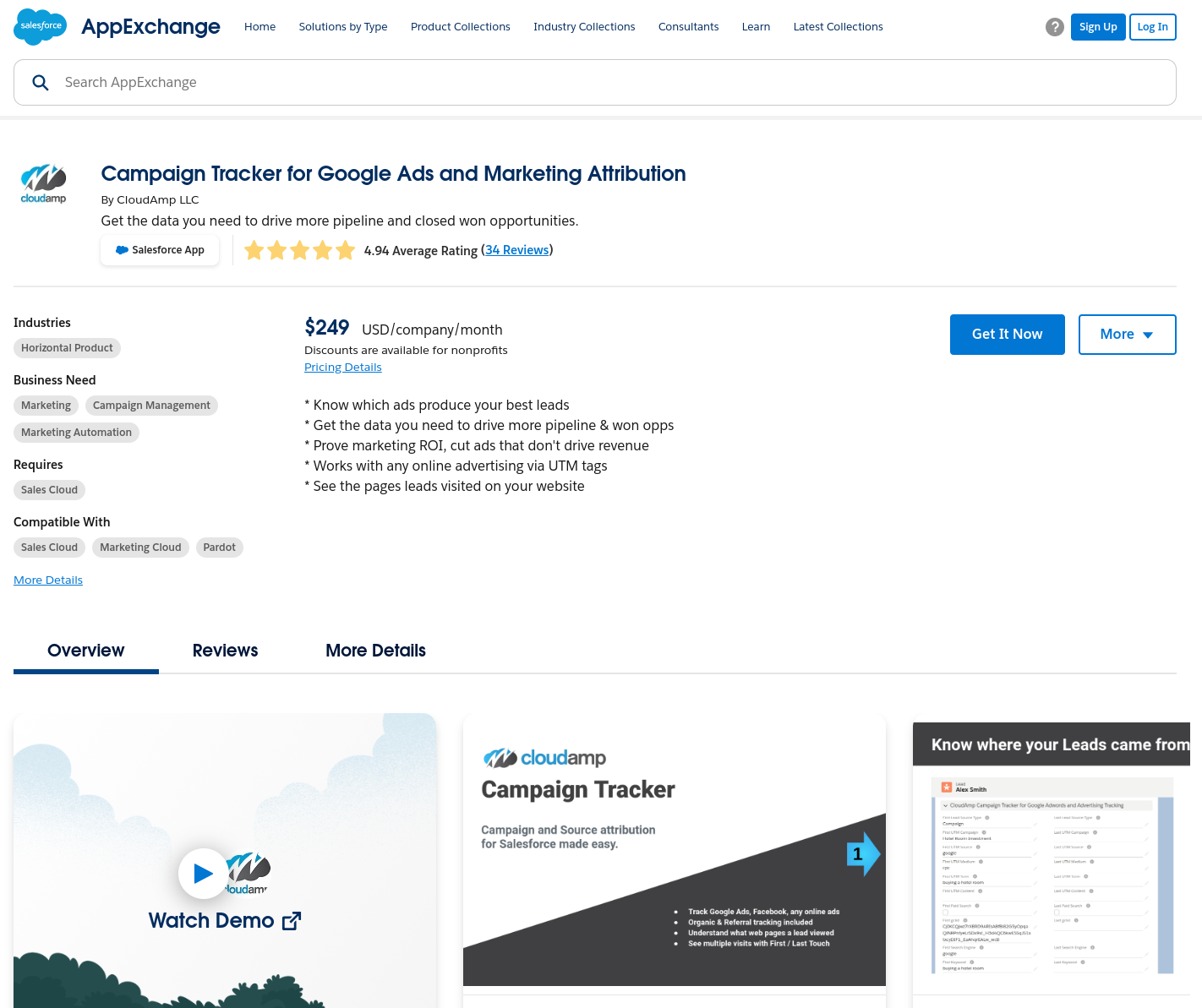
To update a Salesforce AppExchange app to the latest version, navigate to the app listing page on the AppExchange, and click Get It Now.

Instructions

  1. Find the CloudAmp app you wish to update on the Salesforce AppExchange
  2. Install the App
    1. Click “Get it Now” to update your production installation
    2. Click “Try it Free” to install in Sandbox first for testing (recommended!)
  3. Follow the instructions
    1. You may need to log in more than once
    2. Pick the Salesforce org
    3. Pick the permissions to install it with
  4. Confirm the newly installed version has been updated
    1. You can see package versions under Setup > Installed Packages


Click Get it Now, Log in, and confirm installation

(you may need to log in twice)

Choose “Install for All users”

Salesforce almost always shows this message, just click “Done”


Frequently Asked Questions

Will I need to configure the app again after updating?

No, all existing settings and configuration should still be there after the Salesforce application is updated. For the CloudAmp dashboards, note that Salesforce does not update existing dashboards, since that could risk overwriting customizations in your org.


I am a paying customer, why is it saying I am signing up for a trial?

If you are paying for a Salesforce application, such as the CloudAmp Campaign Tracker, clicking “Get it Now” will take you through the trial signup screens. However, once the installation begins Salesforce will recognize your existing paid license, and simply do the update. There will not be another trial.


Can I downgrade to the previous version if I have problems after upgrading a Salesforce app?

Unfortunately, downgrading or moving to a lower version number is not possible after an update. This is why testing in a Salesforce sandbox is recommended, especially for more complex apps. The only way to downgrade would be to uninstall an app and then install an older version, but this process would lose all associated settings and data.


Which installation option should I choose, Install for All Users or Install for Admins Only?

Generally for CloudAmp’s Salesforce apps we recommend installing for All Users. Control to the app objects will generally be managed by other profile and user permissions. Salesforce permissions can be a complex topic, however, so consult with your organization’s security policies if necessary.


Salesforce API Version Issue Details

Beginning in February 2025, Salesforce started sending out notices that an update was not made in Salesforce orgs containing apps that used older API versions in some of their components.


Your production org was not enabled on the ICU locale formats as notified due to the API version below 45 used in the org.

Please upgrade your Apex classes, Apex triggers, and custom Visualforce pages to API version 45.- or higher. For details, refer to the Help article API Versions for Apex Classes, Apex Triggers, and Visualforce Pages.

For questions about the phased deployment, refer to the knowledge article JDK Locale Format Retirement and Enable ICU Locale Formats Release Update.

Thank you,

Salesforce


Basically, if an app has code that uses older versions of the Salesforce API (very common in apps that have not been updated or upgraded recently), a fix was needed. Most apps should provide newer versions with updated API versions in their code.


How to Keep Salesforce Apps Up to Date

There are 2 ways that Salesforce AppExchange apps are regularly updated, push updates and ones you need to manage yourself. 

Many paid applications on the Salesforce AppExchange will push updates, meaning they push the latest versions to your Salesforce Org, without you needing to do anything. For more complex applications, they may send you notifications about the upgrade, and even offer a push first to your sandbox for testing.

Other applications you can update on your own, when you choose too. CloudAmp apps are like this. For those applications, the simplest way to see when updates are available is by logging into the Salesforce AppExchange with your Salesforce credentials.

Checking Your Salesforce Apps

  1. Go to https://appexchange.salesforce.com/
  2. Click “Log in” top right and log in with your Salesforce credentials
  3. Click “My Installs & Subscriptions” top right
  4. Review your apps and see if any say “Update Available”


My Installs & Subscriptions

Click “Update Available”

Click Confirm

Select All Users


How to Automatically Assign Salesforce Leads to Campaigns

First published Sep 7, 2017, overhauled 2025


Assigning Leads to Salesforce campaigns is essential to measuring your marketing effectiveness, and comparing the response rates and ROI of your different channels and marketing efforts.


The Bad News

Like other messy data in Salesforce, duplicate leads and out of date opportunities, most of us use Campaigns inconsistently, or not at all.

(Not you, of course, you are amazing and your Salesforce processes are perfect 🙂)

When we forget to create Campaigns for every marketing effort, for example using Campaigns just for events (which is quite common), there is an incomplete picture of marketing effectiveness in Salesforce.

If you are using Pardot (Marketing Cloud Account Engagement) in addition to Salesforce, you have some automation options, but you also have some new challenges (sync anyone?)


Good News?

There are a number of tools which can automatically assign (and some even automatically create) Campaigns in Salesforce, to keep your Campaign data more organized and complete.

Read on for 5 options on how Salesforce Leads can be automatically assigned to Salesforce Campaigns, and the pros and cons of each.​


1 – Campaign Tracker

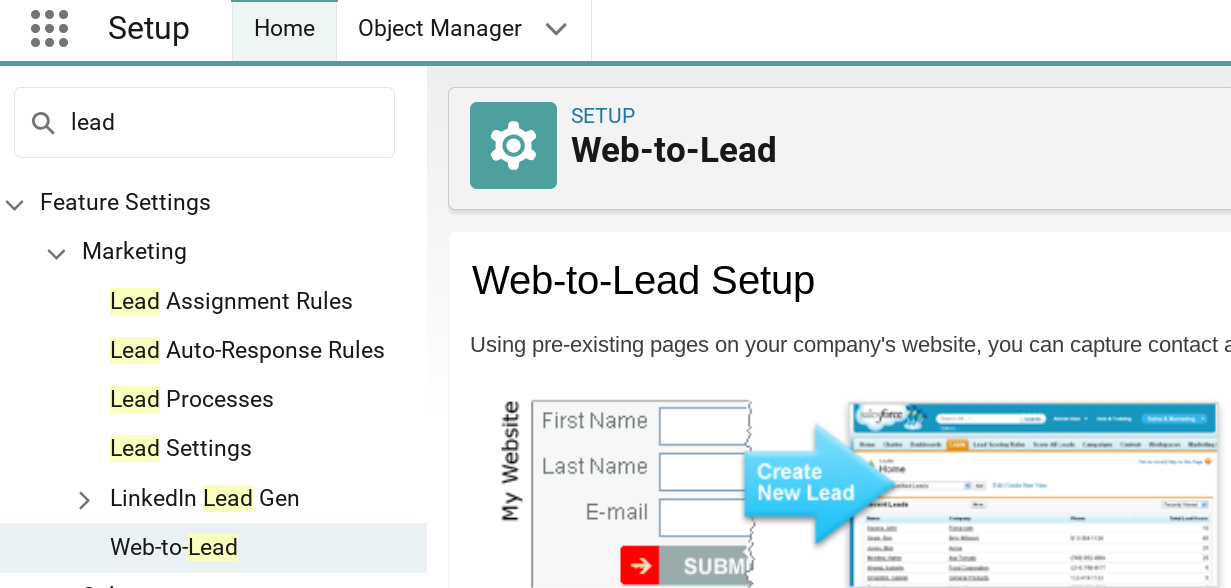
2 – Web-to-Lead Forms

3 – Data Import Wizard

4 – Add to Campaign Button

5 – Salesforce Flow

1 – Campaign Tracker

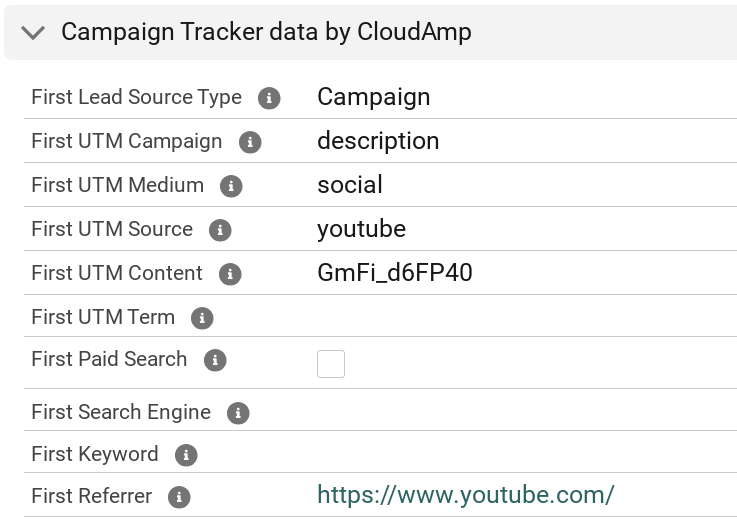
The CloudAmp Campaign Tracker app for Salesforce helps capture source, keyword and campaign information in your leads. New leads in Salesforce can be automatically assigned to up to 2 different Salesforce Campaigns, based on the First and Last touch utm_campaign values in each lead.


Just enter a utm_campaign value in a single field on each Salesforce Campaign you create, and if a new lead has a matching value in one of its CloudAmp utm_campaign fields, it will be auto-assigned to that Campaign. 

Automatic Salesforce Campaign Assignment based on UTM campaign values.


You can also have Campaigns automatically created, if a lead comes in where no Campaign exists that has a matching utm_campaign value (optional feature that can be toggled on or off).

CloudAmp "Allow Campaign Creation" checkbox setting to automatically create Salesforce Campaigns.

By making sure that Campaigns are automatically created based on new leads with utm_campaign values, you can more easily ensure a complete picture of your online marketing efforts is represented in Salesforce.


All you need to do is view the reports / dashboards to see which Salesforce Campaigns were auto-created by CloudAmp, and update their information as needed. Any leads coming in from that Campaign will already be members of that Campaign.

CloudAmp Scorecard

Pros

  • Easy to implement
  • Assigns new leads to up to 2 campaigns automatically
  • Auto-creates Campaigns (optional)
Cons

  • Requires app installed in Salesforce
  • To be fully automated, utm_campaign parameters are needed in your campaign URLs
  • Additional $249/month cost


2 – Web-to-Lead Forms 


Salesforce’s Web-to-Lead functionality is a great way to get leads directly into Salesforce. And Salesforce Campaigns provide useful data on what happened to the leads and contacts produced from various marketing activities.


Besides making sure inquiries don’t fall through the cracks by using web-to-lead functionality with Salesforce, any additional data you can add to your website forms can help your business. Source and keyword data can be added in through an app like our Campaign Tracker, and one easy addition is to hard-code a particular Salesforce Campaign value in your web-to-lead forms.


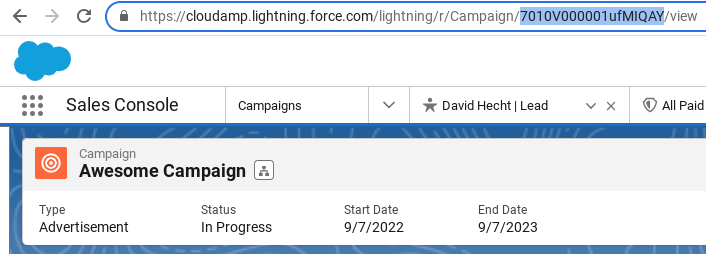
By including the ‘Campaign record ID‘ from Salesforce in a hidden form field, incoming Leads are automatically linked to the desired Campaign upon submission.

Identifying the Salesforce Campaign ID in a URL

This is mainly useful if you have many landing pages that are specific to certain advertising campaigns, but you can do it with your standard “Contact Us” form. Here’s how:


  1. Create a Campaign in Salesforce (or go to an existing Campaign) and copy the ID from the URL
  2. Add the following hidden field to your web-to-lead forms, replacing the value with the ID you just copied.


<input type="hidden" name="Campaign_ID" value="701Hu000002VAdkIAG">


These instructions assume you are using the HTML Salesforce provides in its Web-to-Lead form builder, but it should work (with some modifications) on any form that posts leads into Salesforce.


For more information, see the Campaign ID section in our guide Which Form or Web Page did a Salesforce lead come from?

Web-to-Lead Scorecard

Pros

  • Easy to implement
  • Can be added to most forms
  • No additional cost
Cons

  • Each campaign needs its own form and web page
  • Miscategorization possible (if visitors from other campaigns find the page)
  • Lack of flexibility


3 – Data Import Wizard


When importing Leads or Contacts into Salesforce using the Data Import Wizard, you can specify a Campaign to associate the imported records with. This allows for bulk addition of records to a Campaign during the import process. 

While this is not technically an automated process, it does update records in bulk, and is how most marketing people using Salesforce add leads and contacts to Campaigns today.


To use the Salesforce Data Import Wizard to add Leads or Contacts to a Campaign:


  1. Prepare a CSV file for import, either from a template you create or a Salesforce Report you export (for existing records that you want to update with Campaign membership)
  2. Navigate to a Lead or Contact list view
  3. Click the “Import” button top right
  4. Go through the import wizard
    1. Choose the Lead object
    2. Choose whether to import new records, update existing, or both
    3. Select how to match records (Salesforce ID is best if you are updating existing)
    4. Check the box to “Assign leads to campaigns”
    5. Select your CSV file
    6. Check mapping to see if any fields mapped incorrectly or not mapped
    7. Import!
    8. Review any error messages (if matching via Email or Name, duplicate records will produce frequent error messages)

CSV file for Salesforce Data Import Wizard

If you develop a process and a CSV template, then the Data Import Wizard can be used effectively on a regular basis to keep Salesforce records up to date with their Salesforce Campaign membership.

Data Import Wizard Scorecard

Pros

  • Supports Contacts in addition to Leads
  • Update up to 50,000 records at a time
  • No additional cost
Cons

  • Not automated
  • CSV template with Campaign IDs and other fields required
  • Errors possible with data mapping or record matching during import


4 – Add to Campaign Button

Salesforce provides a way to add all the records in a Salesforce report or list view to a Campaign. 

Salesforce Add To Campaign button

While this is not technically an automated process again, it does give you the ability to add Leads or Contacts to a Salesforce Campaign in bulk. Simply click on the “Add to Campaign” button on a lead or contact report or list view, and complete your member status selections.


To use the Salesforce “Add to Campaign” action button to add Leads or Contacts to a Campaign:


  1. Create a report or list view of the data you wish to see
  2. Select the records you wish to add to the Campaign
  3. Click the “Add to Campaign” button
  4. Confirm your settings
    1. Campaign
    2. Member Status
    3. Update or Overwrite Member Status
  5. Submit

Salesforce Add to Campaign options

List views are how most of us view records in Salesforce, so this can be a useful place to add Campaign members from. With Salesforce reporting however there is even more flexibility. So adding Campaign members from a Salesforce report means you can do more complex filtering, including using related object fields.

Add to Campaign Button Scorecard

Pros

  • Supports Contacts in addition to Leads
  • Allows more advanced filtering
  • No additional cost
Cons

  • Not automated
  • Potential for errors when preparing the report filters
  • Need to manually select records


5 – Salesforce Flow 

Salesforce administrators with expertise using the Flow feature can create flows that will automatically assign Leads to certain Salesforce Campaigns when they meet specific criteria.

Salesforce Flow for assigning leads to campaigns.

While Salesforce Flow is a powerful tool for automation in Salesforce, it does require advanced Salesforce knowledge less experienced administrators may not have. Flows also need to be carefully tested to make sure that they do not interfere with other Salesforce automations or data.


Depending on your use case, Flow may be the best option, as they can handle the automation of many things in Salesforce, not just Campaign assignment. But for your initial implementation, as well as any future changes that need to be made, you will most likely be relying on IT or Salesforce consultants.

Salesforce Flow Scorecard

Pros

  • Allows advanced logic
  • Can automate additional actions after Campaign Assignment
  • No additional cost
Cons

  • Difficult to implement
  • Needs to be set up and tested by experienced Salesforce Administrator
  • Updates need to be made by Salesforce Administrator


Learn More About CloudAmp

If you want to have your leads automatically assigned to Salesforce Campaigns based on their source and campaign information, then check out the CloudAmp Campaign Tracker.

CloudAmp also provides hands-on setup and Salesforce assistance, included with our app subscription. And we are always happy to answer questions free of charge, so don’t hesitate to reach out.


Top 13 Mistakes Companies Make Using Salesforce


Here at CloudAmp we love Salesforce, it’s all we’ve been doing since 2011. But it’s fun to make a snarky list of all the classic blunders organizations and Salesforce admins make!

(And of course, I have never made any of these mistakes personally.)

Let’s dive into the top 13 missteps, shall we?


1. Not Using Leads

Why bother creating leads when you have a magic process that qualifies an astounding 100% of your prospects, so they go into Salesforce as Contacts.

By not using leads you are missing out on one of the most basic parts of Salesforce’s data model – the conversion of leads to Accounts with Contacts and Opportunities. Missing these conversion events from your database means a lot of Salesforce’s built in functionality around sales cycles, seeing what lead sources don’t convert, and the Opportunity pipeline won’t be available for reporting in your org.


2. Over-Customizing the Platform

Why use standard features when you can create a labyrinth of customizations? Maintenance nightmares and upgrade headaches, here we come!  

Be sure when you are trying to customize Salesforce that the field or feature does not already exist — or there isn’t a pretty good substitute where you could update the picklist values or use an existing object. New team members who know Salesforce, and any poor new Salesforce admin are going to have a rough onboarding experience.

Google, AI, and Salesforce Trailhead are your friends so you don’t reinvent the wheel.


3. Ignoring Data Quality

Who cares if the data is outdated, duplicated, or incomplete? It’s not like Salesforce is your company’s system of record, and decisions are based on accurate information or anything.

While every Salesforce Org has dirty data, it’s easy to let it get out of hand. Going back in 5 years and trying to clean it up is going to be harder than putting some duplicate rules in place, or implementing some of the many tools available to help with this universal problem. And training your team on some data input standards can be helpful in some cases too.


4. Validation Rule Abuse

Why not create a validation rule for every conceivable scenario? Users love being bombarded with error messages for the slightest misstep.

Like most powerful features in Salesforce, Validation rules should be used sparingly — really only when necessary. For those things that are important to your business to validate, craft clear error messages so your users know how to fix their input errors. And be sure to TEST, since Validation rules are an excellent way to block automated processes elsewhere in Salesforce.


5. Beware Required Fields

Nothing says efficiency like forcing users to fill out every single field, even when it’s irrelevant to their task.


Is a field required because someone thought it was important five years ago? If it doesn’t matter to a current process or business need, let it go. And before making a field required that was not required before, make sure that requiring a value in a field that may currently be blank in 1000s of records does not break some existing integration or process inside Salesforce.


6. Overcomplicating Page Layouts

Cram every possible field and related list onto a single page. Users enjoy scrolling through endless information to find what they need.

We’ve all seen the endless scrolling Salesforce screens, with hundreds of fields, sometimes without clear section groupings. Create different page layouts for different roles in your organization, so they see just the data that is important to them. Periodically evaluate fields, and remove the unused ones from page layouts.


7. Disabling a User

Oh, you deactivated a user without checking if they own reports, automations, or records? Enjoy the treasure hunt to fix all the broken things!


When people leave your organization, their Salesforce logins should be disabled immediately. But before doing so, make sure to check their user is not running any important scheduled jobs, or assigned a critical system function like being the Default Case Owner or Default Lead Owner. 


8. Overcomplicating Flows

Why keep it simple when you can design flows that no one can decipher? Overloading flows with hard-coded logic and skipping subflows ensures updating can be a nightmare.

Flow are amazing tools in Salesforce, but are already complicated, so try to remove as much complexity from your flow designs as possible. When you need to tweak the logic in future, or diagnose a conflict between two flows, you’ll be glad you strove for simplicity initially.


9. Misusing Record Types

Create a record type for every minor variation, turning simple processes into a maze of confusion.

Record types are a powerful tool, but their ability to create complexity means they should be used sparingly. Use record types to show different picklist values, and page layouts for record creation, to different users. Consider whether a simple page layout would handle what you are trying to achieve.


10. Going Live without Testing

Why waste time testing when you can let your users be the beta testers… in production… during a critical sales period?


Testing can be a pain, but even having a basic plan in a spreadsheet for putting some new implementation or feature live can really save you a lot of headache. Make sure you at least run through some basic user testing, to make sure Salesforce is working as expected, and no data is missing or incorrectly updated.


And if you are moving from a separate system to Salesforce, a great idea is to run Salesforce in “test mode” for a bit, and compare results from the two systems to make sure they match before going live with Salesforce.


11. Not Using Sandboxes

Who needs a safe testing environment when you can unleash chaos directly in production? Nothing says “living on the edge” like breaking your live org in real-time!


Related to testing, Salesforce Sandboxes give you a safe space to install new apps or try new configurations. While approximating your production environment can be challenging, Salesforce Partial and Full Sandboxes do a pretty good job if you have access to them.


Not everything can be approximated in a Sandbox. CloudAmp for example works fine in a sandbox but test data is a poor substitute for understanding how it works compared to real tracking data in your leads. Still, no one is ever sad they started in a sandbox.


12. Neglecting User Training

Assuming everyone will magically know how to use Salesforce without any guidance? Brilliant strategy for ensuring confusion and low adoption rates.

Nowadays it is easier than ever to supplement your internal Salesforce process documentation with self-guided Trailhead Trails, where you have pre-selected relevant Trailhead modules for the team to learn about the parts of Salesforce that are important to them. Investing in some training and orientation can go a long way, especially with users new to Salesforce.


13. Poor Change Management

Introducing a new system without careful planning, testing, and communicating changes and benefits to your team? Fantastic way to breed resistance and confusion. 

Change management sounds like a scary compliance topic, but it could be as simple as having a short written policy on updating Salesforce, and sending emails to your team with an overview each time changes are made. More involved plans and testing in Sandbox can be helpful for larger projects, where you want to be sure you don’t break any Salesforce existing functionality.


Avoid these pitfalls, and your Salesforce experience might just be a tad less chaotic.


What’s not a mistake? Using CloudAmp

If you are using Leads (see #1) and want to know which marketing campaigns or sources your best leads come from, then check out the CloudAmp Campaign Tracker.


It will help you understand which keywords convert to opportunities, add valuable utm parameters to your leads and contacts, and even show you which pages of your website a lead viewed before filling out the form. There’s a 30 day trial and we help you get it set up.


Stop Wasting Money on Google Ads: Use Salesforce + 3 Other Tips


Google Ads is an amazing tool to drive targeted leads and sales. You can get in front of your prospects right when they are searching for something they want to purchase, and target ads precisely to the search terms which are most relevant to your product and ideal customer profile (ICP).

But Google Ads also makes it easy to spend (and potentially waste) large amounts of your marketing budget very quickly, if things are not set up correctly.


For advertisers using Salesforce, you have the opportunity to track offline conversions, even those sales that happen long after the ad click.

Here are 2 ways to use Salesforce to improve your Google Ads ROI, as well as 3 other tips to eliminate wasted spend and get more out of your Google ad budget.


  1. Identify Keywords that Produce Leads but no Sales
  2. Connect Salesforce and Google Ads
  3. Move Some Budget to Bing
  4. Practice good Google Ads Hygiene
  5. Great Landing Pages


1. Identify Keywords that Produce Leads but no Sales

For most Google advertisers using Salesforce, the “low hanging fruit” in eliminating wasted ad spend is understanding the following:


  • Which keywords produce lots of leads, but don’t convert to sales?


Often there are keywords that may seem relevant to your product or service, but actually attract people who are looking for something else. Or they are just not the keywords that serious buyers are going to be using. Some keywords might be more related to research or students studying a topic than prospects looking for a solution to buy.

This is especially true for B2B companies, where certain keywords may be used by consumers in a different context, or have an altogether different meaning.

By capturing campaign and keyword information in your Salesforce leads, using a tool like CloudAmp’s Campaign Tracker or your own developers’ website form code, you can begin to analyze which keywords produce leads that convert to opportunities, and which don’t.

By being able to track offline conversions in Salesforce, you can attribute sales back to specific keywords and ads. This will enable you to understand campaign ROI, as well as be able to see buyer intent more quickly via the data contained in your new Salesforce leads (e.g. what a lead searched for, and what web pages they viewed).


Once you have enough data in Salesforce, and time has elapsed for your typical sales cycle to run through a few times, take the following actions:


  1. Analyze your Salesforce leads from Google Ads by keyword
  2. Which keywords produced leads that converted to opportunities?
  3. Are there keywords that produced leads that did not convert?
  4. Pause or change bids on low conversion keywords
  5. Reallocate budget from low conversion to high conversion keywords

2. Connect Salesforce and Google Ads

You can also pass Salesforce data back to Google Ads as Conversion Goals, to be used in certain types of campaign optimization.

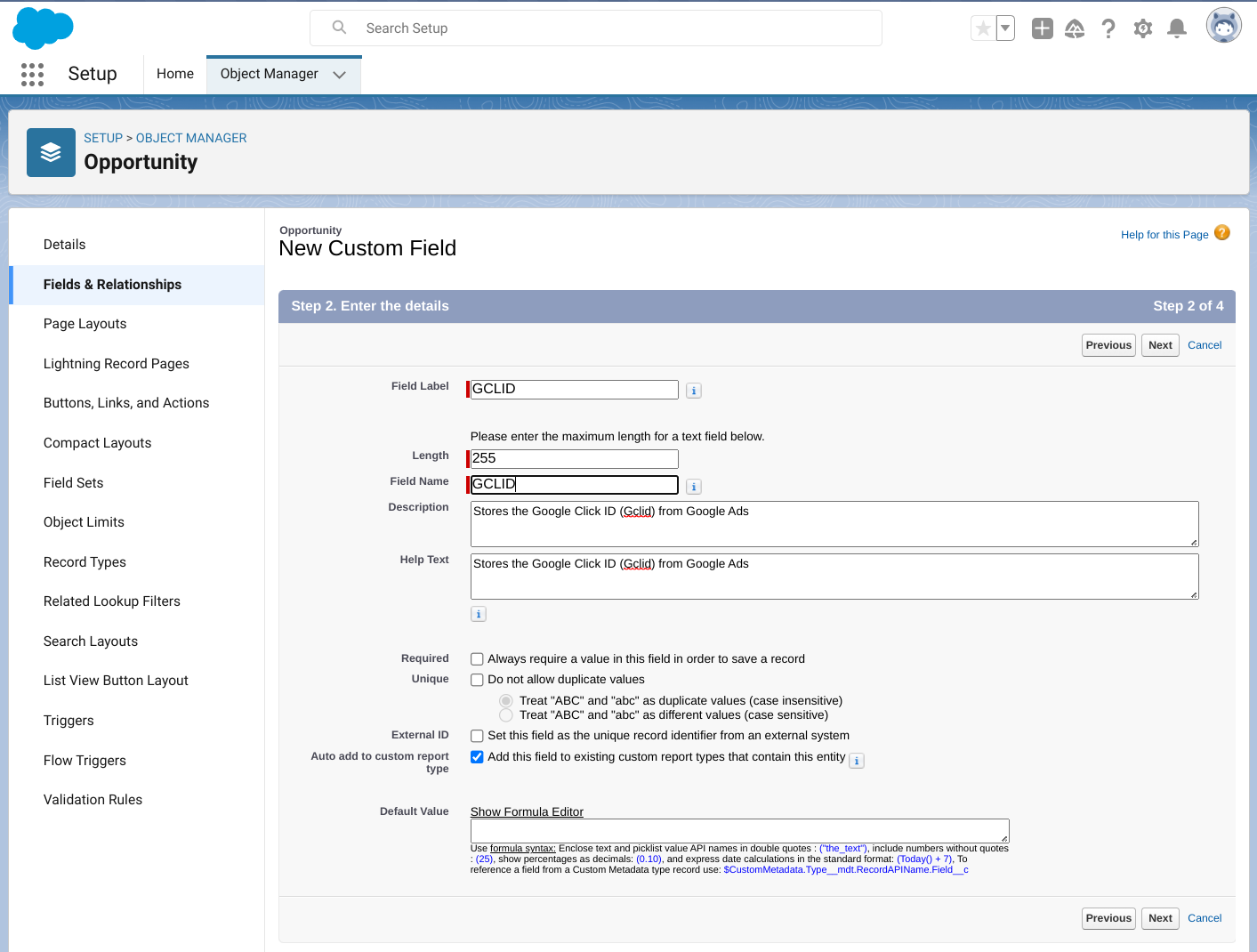
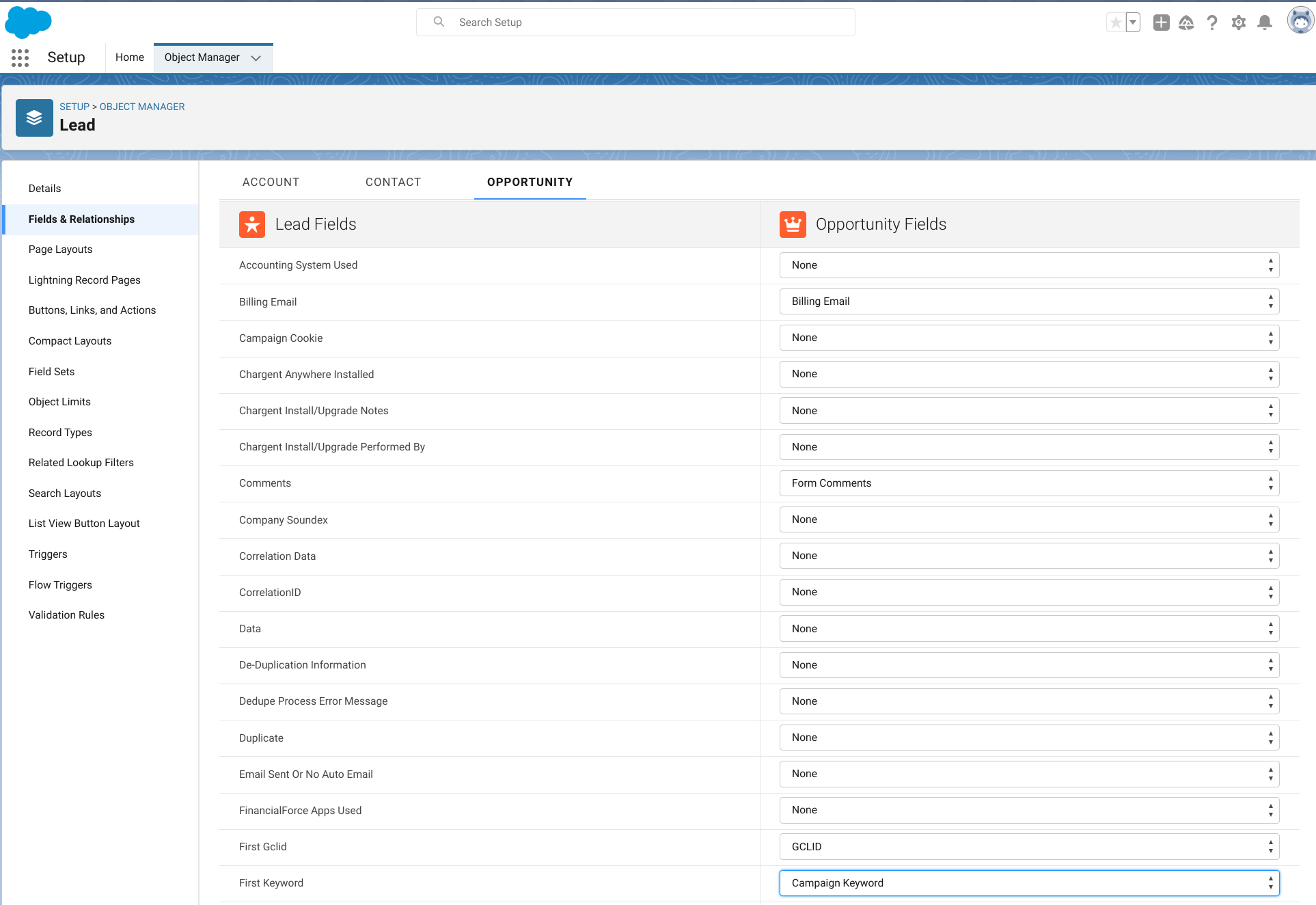
In order to pass data back to Google Ads from Salesforce, you’ll need to be capturing the Google Click ID (Gclid) value into your Salesforce leads. You can do that with the CloudAmp’s Campaign Tracker or your own developers’ website form code. The Gclid value is a parameter that Google automatically adds to every ad click URL.

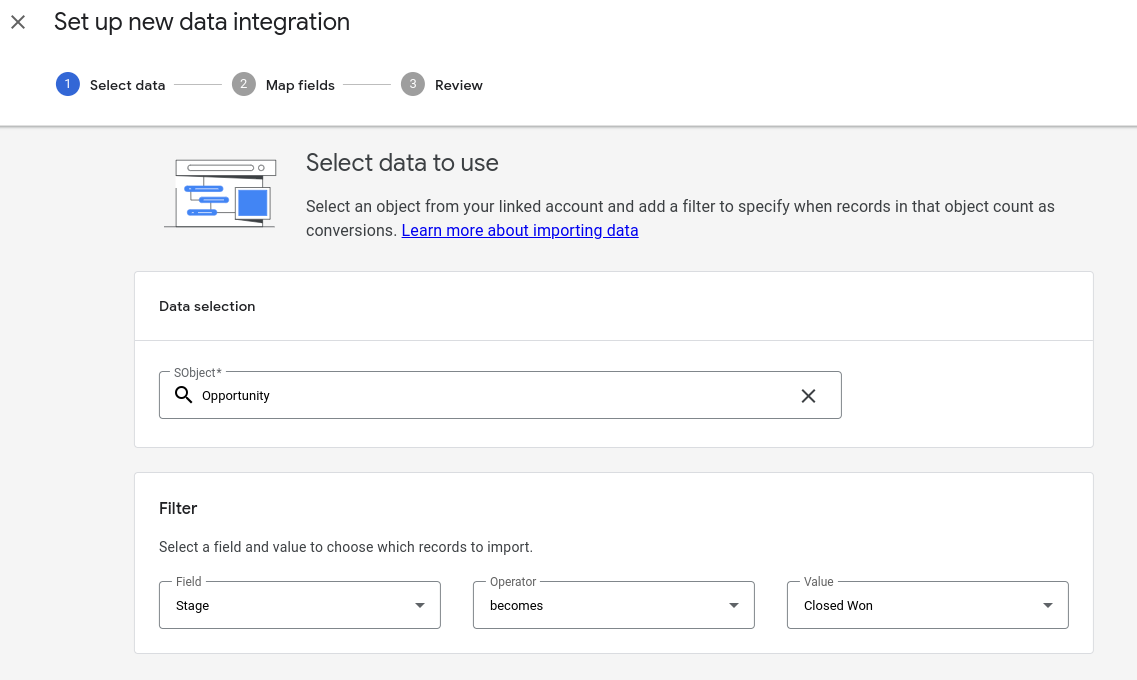
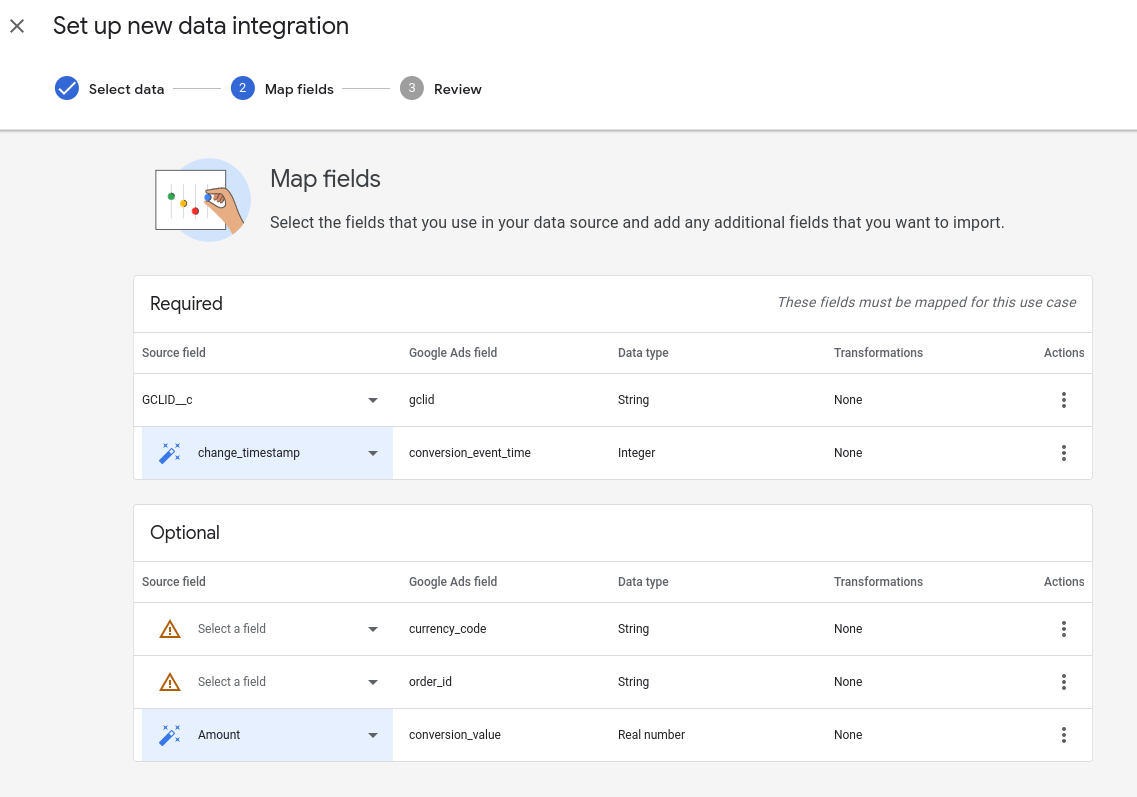
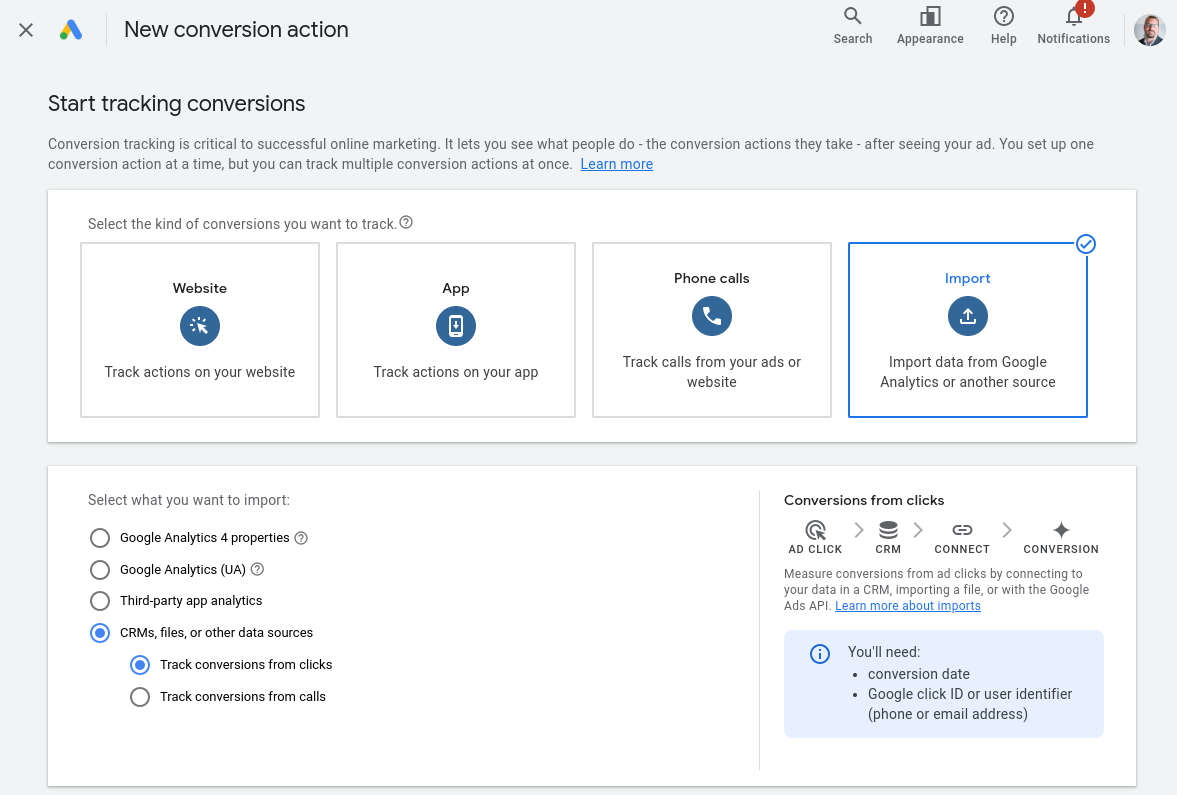
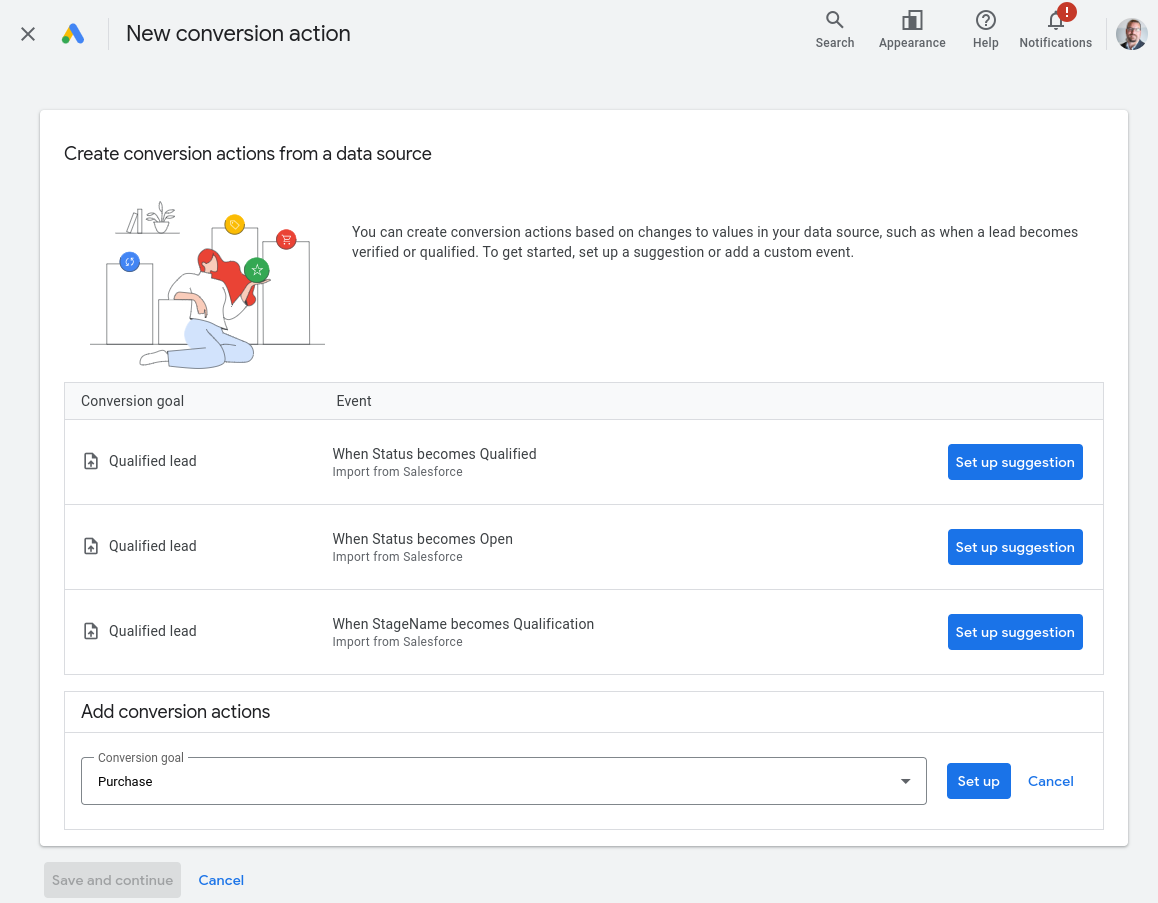
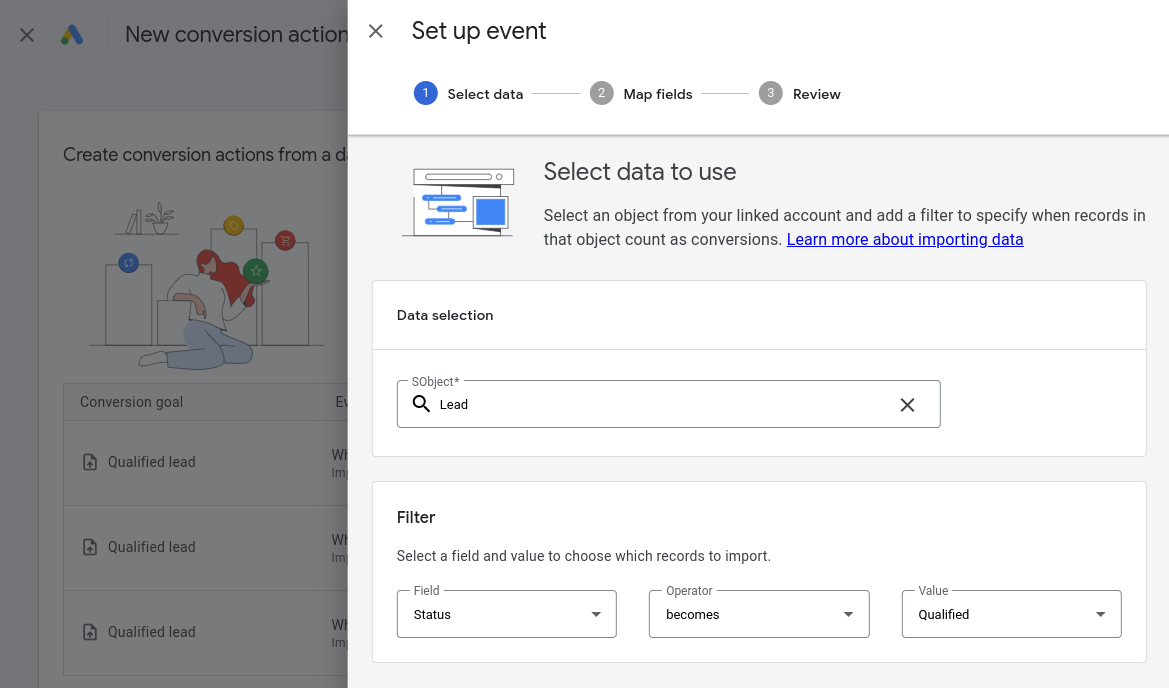
Once you have that Gclid in your Salesforce leads, you can use Google’s data import tool to bring lead conversions, as well as Opportunities at any stage (including Closed Won / Closed Lost) back into Google as Conversion Goals.

Conversion Goals such as converted leads, or even closed won deals, are far stronger indicators of success than the typical metrics Google uses for optimization (click through rates (CTR), Impressions, Form Submits, etc.)

Google imports the data from Salesforce on a daily basis, so it will know the exact campaign, keyword, ad creative and click that resulted in your original Salesforce lead, since that is tied to the unique Gclid value.


For more information about connecting Salesforce and Google Ads, see our complete guide on How to Connect Salesforce and Google Ads 

3. Move Some Budget to Bing

Switching gears to non-Salesforce tips, another way to be more efficient outside of tracking your results in Salesforce is to spread some search budget to another search engine.

While Microsoft’s Bing search engine only has 4% global market share compared to Google’s 90% (November 2024 stats), that percentage increases to 11.5% for desktop computers, and 15% of desktop computers in the United States (Bing’s mobile usage is almost nonexistent).

That means for B2B advertisers targeting certain industries, or B2C advertisers targeting prospects who are more likely to search on Desktop computers, Bing can be very efficient.


  • Lower cost per click than Google
  • Import Google Campaigns and keywords automatically for quick setup
  • 15% of US desktop computer traffic
  • Microsoft Ads run on Bing, AOL, Yahoo, and partner sites like MSN.com


Exactly how much lower cost Bing is than Google will depend on your keywords, though estimates range from 30 – 70%. The point is that fewer advertisers means less competition for clicks, as CPC bids are an auction among advertisers. A lot of advertisers ignore Microsoft Ads / Bing, when they should at least do a test.

Check your web analytics tool, such as Google Analytics, to understand what percentage of your current website traffic is desktop vs. mobile.

If the majority of your traffic is from desktops, then Bing is certainly worth a slice of your budget to test. And if you can drive leads at a lower cost per lead, that increases your overall search advertising efficiency.


4. Practice good Google Ads Hygiene

We’d be remiss if we didn’t remind you of some of the best ways to make sure your ads are not getting wasted clicks on the Google Ads side. While you will find more extensive guides to practicing good Google Ads hygiene elsewhere on the web, our top recommendations include the following:


1. Separate Campaigns for SeparateTactics.
If you are going to run on Google’s Display network, be sure to set up separate campaigns for display ads. That way you can compare performance of Search Campaigns running only on the Google Search Network, and Display Campaigns running only on the Google Display Network, without the targeting being mixed in a single campaign. Enabling both in a single campaign makes analysis more difficult.

The same goes for ad formats — while you can run multiple kinds of ads from the same Campaign for certain ad types, it is generally better to separate things into different Campaigns to more easily evaluate performance.

Finally, advertisers who are new to Google Ads should probably start with Search Campaigns, only on Google’s Search Network, with carefully selected phrase or exact match keywords. Even though Demand Gen, Performance Max or Smart campaigns sound great, they are less targeted and can burn through a lot of your budget, so you can experiment with them after the basics of Google Ads are working well for you.


2. Utilize Negative Keywords.
Negative keywords are a powerful tool to prevent irrelevant queries from triggering your ads. You should regularly review your search terms report by clicking on:

  >> Campaigns , Insights and reports, and then Search terms.

By understanding the specific terms people used in Google Search that caused your ads to show, you can find search terms where you would not want your ads to appear, and add them as negative keywords to that Campaign or at the Account level.

In addition to being a critical strategy for eliminating waste in your Google Ads, reviewing search terms can give you ideas for content marketing on your website, plus it is generally pretty interesting to see what your buyers are actually searching for!


3. Review Keyword Match Types
Some of the complexity of Google Ads are the different match types—broad, phrase, or exact—that control how closely search queries must align with your keywords. Be careful in your use of match types, as errors can lead to your ads appearing for irrelevant searches, wasting your budget.

Broad match types, Google’s default, can be particularly problematic for casting a wider net than some advertisers may want (depending on your product and target market). Broad shows your ads to users searching for “related” topics, while phrase match has to have the keywords somewhere, and exact match specifies the order of the keywords.

Our recommendation is to start with phrase and exact match only, then expand to trying broad match as you want to broaden your audience.


4. Refine Location Targeting
Unless you are selling your products or services globally, you should only be showing your ads in geographic areas that are relevant to your business. Misconfigured location settings can result in clicks from regions you don’t serve, leading to unnecessary costs.


5. Implement Ad Scheduling
Analyze when your target audience is most active and schedule your ads to run during these peak times. This approach can prevent you from spending on clicks during off-hours that have lower conversion rates.

5. Great Landing Pages

Finally, once you have your Google Ads organized and are limiting match types and keywords to the most relevant to your business, don’t throw away all your hard work by sending visitors to a standard contact us page (or worse, your home page).

People tend to have very short attention spans, especially on the Internet when they are confronted with unlimited choice and sometimes confusing or misleading results. Make sure they land on a page on your website that clearly tells them they have arrived at the correct place.

A good advertising landing page specification could fill multiple blog posts, but the best ones have some common characteristics:


  • Headline that echoes what the visitor searched for
  • Let the visitor know they’ve arrived at the right website
  • Strong, benefits-oriented copy
  • Overcome objections or reasons to click away
  • Testimonials, awards and other social proof
  • Clear call to action (next step the visitor should take)


In conclusion, while it is easy to waste money using Google Ads, you should not let that discourage you from taking advantage of its incredible reach and market dominance to drive more leads to your business.

By capturing keyword and campaign data into Salesforce, sending it back to Google for optimization, and carefully applying the account management strategies described above, you can improve the performance of your Google Ads campaigns and ensure your budget is utilized effectively.


Learn more about CloudAmp

Not yet a CloudAmp customer? If you want to have more data about your Leads in Salesforce, including source attribution, keyword, and page view data to prove ROI and improve your marketing, contact us for more information today.

CloudAmp also provides hands-on Google Ads and Salesforce integration assistance, included with some app subscriptions. We are always happy to answer questions free of charge, so don’t hesitate to reach out.


Marketing on Salesforce for Beginners


New to Salesforce? Here’s 8 things for marketers to get started.


Are you new to Salesforce and responsible for Marketing at a small company or nonprofit?

Do you need to figure out Salesforce and how to manage leads from Google Ads and other campaigns at the same time?

Well, you are not alone. For more than a decade, CloudAmp has specialized in helping marketers at small or mid-sized organizations figure out how to use Salesforce to manage their marketing and leads. People like you!


Here are our top 8 recommendations to get you oriented with Salesforce and tracking your leads:


1. Understand Salesforce Basics

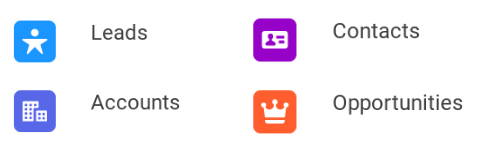
  • Familiarize yourself with Salesforce’s core objects: Leads, Contacts, Accounts, and Opportunities
    • Understand how a single Lead record is converted to become an Account with a related Contact (and optionally an Opportunity)
    • If there are Sales people in your company, try to find out any processes they are using for their work in Salesforce (good luck!)
  • Explore the Salesforce App Launcher, and check out some different apps
  • Check out Salesforce Reports to get a sense of your existing data. Save a few as Favorites (click the star top right) to easily return to.

2. Get Learning with Trailhead


👍 NOTE:

Many trailhead modules for marketers will reference Account Engagement or Marketing Cloud, which are add-on products and unnecessary for most SMB marketers. This is an unfortunate source of confusion in Trailhead, which is otherwise excellent. Focus on Salesforce Sales Cloud basics to get started.


3. Set Up Web-to-Lead Forms

  • Salesforce’s Web-to-Lead functionality is an included feature that captures form submissions from your website directly to Salesforce leads
  • Create custom fields for your business (if needed), and add them to unique forms if needed
  • Learn more with our Ultimate Guide to Salesforce Web-to-Lead Forms

4. Customize Your Lead Management

  • Update Lead Page Layouts to show the standard and custom fields you need, while hiding unused fields. You can also have different page layouts for different user roles.
  • Automate Lead Assignment by setting up assignment rules to route leads to the right sales reps or queues.
    • Set up customized email replies to new leads with Lead Auto-Response Rules and Email templates.
  • Customize your Lead Source field values to make common sources selectable.
    • Note that your web-to-lead forms can create leads with any Lead Source value, whether or not it is listed as a drop down field value.

5. Understand Email Options

  • Salesforce has Email Templates that are sent by system automations like the Lead Auto-Responses referred to in the previous section, and they can also be sent by your sales and service users.
  • You can receive email notifications for important events in Salesforce, such as a new lead coming in from a campaign (and CloudAmp can help with this!)
  • Salesforce has a number of Email Integrations, including connections with email platforms like Outlook and Gmail, which allow users to work with Salesforce records directly from their email.
    • Salesforce Email-to-Salesforce gives you an email address that will automatically log inbound emails directly to Salesforce records, attaching emails to leads or contacts automatically. A similar feature for Service, Email-to-Case, creates support Cases from emails.

6. Leverage Reports and Dashboards

  • Understand Existing Leads:
    • Check out how “Lead Source” is populated for your existing leads, and what views / queues are currently in use to understand leads
    • See what reports exist already or create your own reports to understand lead volume, stages, and conversion rates.
  • Build a Dashboard:
    • Create a new dashboard to include your favorite reports on. Dashboards are a great way to understand trends and update multiple graphs at the click of a button
    • Include key metrics like lead volume, conversion rates, and campaign ROI.

7. Set Up Campaign Tracking

  • Use UTM Parameters:
    • Tag Google Ads URLs with UTM values to capture campaign data in Salesforce.

      Use a tool like the CloudAmp Campaign Tracker to capture UTM information for new leads so they have their UTM Campaign, Medium, Source and keywords automatically associated.
  • Use Salesforce Campaigns:
    • Link Leads and Contacts to Salesforce Campaigns representing your various marketing efforts for response tracking and ROI analysis.

8. Connect Salesforce and Google Ads

  • Integrate Salesforce with Google Ads:
    • Use Google Ads’ built-in Salesforce integration to sync Salesforce leads, converted leads, and opportunities (also known as offline conversions) to Google for ad optimization and bidding automation.
    • Learn more in our guide How to Connect Salesforce and Google Ads

That’s it for our top 8 items Salesforce beginners who are responsible for marketing should consider. Of course, there are tons more capabilities in Salesforce, as well as add-on apps like CloudAmp and others. 

But by following these steps, you should be able to get a good understanding of Salesforce, and set your organization up for marketing success with the basic marketing building blocks in place.

Questions? Don’t hesitate to reach out!


Campaign URL Options for Google Ads: Recommendations & Templates


Campaign URL Options in Google Ads allow you to add tracking information to your ad URLs, enabling you to track and analyze ad performance in external systems like Salesforce. 

In this guide, we’ll review how appending parameters to your ad links with Campaign URL Options gets you the data you need to optimize your campaigns effectively, how to implement Campaign URLs, and some common mistakes to avoid.

In this Guide:

Campaign URL Components
Benefits of Campaign URLs
Our Campaign URL Recommendations
Campaign URL Parameters to Use
Campaign URL Tracking Spreadsheet
Campaign URL Implementation Tips
Common Campaign URL Mistakes
Questions?

Campaign URL Components

For Google Ads, you can set the Campaign URL options at the account, campaign, ad group, keyword, or sitelink level. Campaign URL options consists of three main options:

1. Tracking Templates

This field specifies the URL tracking information. When an ad is clicked, the tracking template combines with the final URL to create the landing page URL. Tracking templates are very similar to the Final URL Suffix, but can be used for Parallel Tracking in Google Ads (Parallel tracking is where the person clicking on an ad is taken to the final URL while the tracking template URL is loaded in the background.)


2. Custom Parameters

These are user-defined parameters that can be added to tracking templates and final URLs. Custom parameters allow for the collection of additional, customized data points relevant to your campaign objectives.

Most users of Google Ads will not need custom parameters, unless you have some very specific tracking requirements (as well as technology implemented on your website to capture unique parameters).


3. Final URL Suffix

In Google Ads, the Final URL Suffix field allows you to enter parameters that will be attached to the end of your landing page URL for tracking purposes. In a similar way to the Tracking Template, these parameters allow you to track information about where visitors go after they click your ad.

For simplicity, CloudAmp recommends using the Final URL Suffix to add the UTM parameters required for its Campaign Tracker app.

Both Tracking Templates and Final URL Suffix settings can be set at various levels—account, campaign, ad group, or individual ad—and use URL parameters to capture specific data about the click.


👍 Pro tip: 

While the instructions in this guide frequently reference Google Ads Campaign URL options, Campaign URLs can be used in a wide variety of online advertising, not just Google.

Campaign URL parameters in your URLs will be recorded by tools like Google Analytics and the CloudAmp Campaign Tracker, from links in places such as:

  • Microsoft Ads / Bing
  • Instagram & Facebook Ads
  • Linkedin Ads
  • Email marketing newsletters or journeys
  • Links from partner sites

Campaign URL parameters can be added to any link to your website that you can control / add parameters to, effectively providing better and more structured data on any marketing activity that is driving visitors to your website.

Benefits of Campaign URLs

Using Campaign URLs in your Google Ads and other online advertising offers many benefits. Here are a few of them:

Campaign Optimization

Adding detailed tracking data to your marketing campaigns allows you to identify which campaigns or ads are performing well and which need adjustment. 

Using a tool like CloudAmp’s Campaign Tracker, these Campaign URL values can be even passed to Salesforce when new leads are submitted. So you know exactly what campaigns and keywords are producing the most leads, conversions, and revenue.

Enhanced Tracking

By appending parameters to your URLs, you can monitor various aspects of user interactions, such as the source of the click, the device used, and the specific ad or keyword that led to the visit.

Improved Analytics

Campaign URL Options like Final URL Suffixes in Google Ads integrate with analytics tools like Google Analytics as well, improving the data you receive to understand campaign effectiveness and user behavior on your website.

CloudAmp Campaign URL Recommendations

For the CloudAmp Campaign Tracker app, as well as most marketing analytics systems, we recommend using the following configuration for your Campaign URL Options in Google Ads:

  • Final URL Suffix
  • Campaign Level


Using the Final URL Suffix, rather than tracking templates or custom parameters, keeps things simple and makes it clear what parameters are added to the end of your landing page URL.


How to enter a Final URL Suffix at the Campaign Level

  1. In your Google Ads account, click the Campaigns icon 
  2. Click the Campaigns drop down in the section menu.
  3. Click Campaigns.
  4. Click on the Settings tab.
  5. Click Additional Settings to expand the options
  6. Expand the Campaign URL Options section
  7. Enter the parameters in the Final URL suffix field.
  8. Click Save.

Google Ads Campaign URL Options Settings

More on Campaign URL Levels

You can apply Final URL Suffix values at the account, campaign, ad, ad group, dynamic ads target, and keyword levels.

Adding Final URL Suffixes at the Campaign level in Google Ads, rather than at the Account or other level provides several benefits. The Campaign level provides enough granularity to specify each utm_campaign as the name of that Google Ads campaign.

And the Campaign level helps you avoid conflicts between different tagging levels. There are so many different places to set URL options, it can be hard to keep them all straight in Google Ads. 

Consistently using the Campaign level rather than a level above (Account) or below (Adgroup, ad level, dynamic ads target, keyword level, or sitelink level) makes Final URL Suffixes far easier to manage.

Google Ads Final URL Suffix Setting


Campaign URL Parameters to Use

For tracking tools like CloudAmp, URL parameters are required to track information about a click. The parameters that should be used in your Final URL Suffix are the following: 

Required UTM Parameters

  • utm_campaign = Your Ad Campaign Name
  • utm_source = GoogleAds, Facebook,BingAds – the source site
  • utm_medium = PPC, Email, Display, Social – the ad category
  • utm_term = {keyword}

Optional UTM Parameters

  • utm_content = use for adgroup or creative info
  • utm_id = use for campaign or other id

Example URL with UTM Parameters

URL parameters are made of a key and a value separated by an equals sign (=) and joined by an ampersand (&). The parameters always come after a question mark in a URL.

https://www.YOURwebSITE.com?utm_source=GoogleAds&utm_medium=PPC&utm_campaign=CampaignName&utm_term={Keyword}


When adding parameters to URLs, there are two separators used:

? separates the primary URL from the parameters (if you delete everything after the ?, you still end up on the same page)

& separates the different parameter key / value pairs


So for each parameter, its name is followed by an equal sign and then the value you wish to set it to:

  • utm_source=GoogleAds

And the parameter value pairs are separated by &

  • utm_source=GoogleAds&utm_medium=PPC

Certain parameter values can be automatically inserted by Google Ads and Bing Ads. For that to work, a value in brackets is used, such as {keyword}

  • utm_term={keyword} will insert the actual keyword value after the = sign.


Parameter Strings for the Final URL Suffix

To create the parameter string to put in the Final URL Suffix in a Google Ads campaign, simply add together utm parameters, equal signs, and a value, separated by &

 utm_campaign=CampaignName1&utm_source=GoogleAds&utm_medium=PPC&utm_content=Search&utm_term={keyword}


If you don’t want to create these values by hand, the free spreadsheet in the next section will help you build them automatically!

Campaign URL Tracking Spreadsheet

Generating Campaign URLs for Google Ads can be tricky, even if you are very familiar with the format discussed in the previous section. Typos are easy to make, and remembering to enter values for all 4-6 different parameters is a chore.

In addition, keeping track of different URLs you have used is critical, so you have consistency in naming your campaigns, sources, and mediums. Otherwise your data can get very messy.


Free Spreadsheet Download

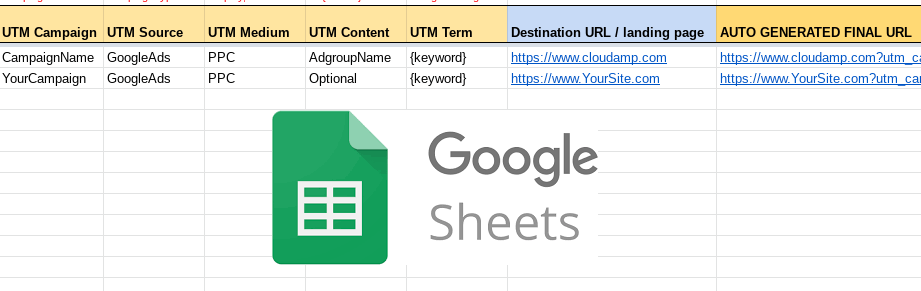
For this reason, CloudAmp has published a FREE, downloadable Google Sheet for creating and tracking Campaign URLs.

Just make a copy of the spreadsheet, enter the values you want, and it will automatically generate a final URL and Final URL suffix for you.


Free Google Sheets Campaign URL creation and tracking download

Campaign URL Implementation Tips

Now that you understand the Campaign URL parameters, and how to create and track them in a spreadsheet, here are some tips for implementing URLs across your advertising.


Consistent Structure

Maintain a consistent format for your tracking templates, in terms of the values and types of words you use. Name Campaigns in a consistent way, and identify the types of Mediums you will use across all marketing campaigns to be able to properly analyze those in the future.


Testing

It is always a good idea to click on 100% of all links you create, to make sure they properly resolve to your web site. You can also use the “Test” function in Google Ads to verify that your URLs lead to the correct landing pages and that tracking parameters are functioning as intended.


Google Ad Review

Setting up URL options at the ad group, campaign, or account level allows you to update your tracking information without resubmitting your ads for approval. CloudAmp recommends using Final URL suffix at the Campaign Level.

Keep in mind that if you set up or edit Campaign URL options at the ad, keyword, or sitelink level, they will need to go through Google’s review, which can delay things.

Compliance

Make sure that all tracking URLs use HTTPS and that any redirects are server-side to comply with Google Ads policies.


🖐️ Looking for Help?

 If you could use assistance with Salesforce and tracking which ads produce your best leads, look no further. Included with an affordable monthly app subscription, CloudAmp provides help with URLs, website implementation, and setting it all up in Salesforce.

No big budget consulting engagements required, just responsive and personalized support for making sense of Salesforce and marketing attribution. Contact us today!

Common Campaign URL Mistakes

Here are some common mistakes you could make when setting up Campaign URL Parameters and Options in Google Ads. Some errors will lead to tracking issues, but others will simply make your data messy or difficult to analyze. Here are some of the typical errors:

Incorrect Parameter Formatting

  • Mistake: Missing ? or & in URLs when appending parameters.
  • Impact: URLs may break or redirect incorrectly, leading to tracking errors or 404 errors.
  • Solution: Always validate the URL structure and use tools like CloudAmp’s free spreadsheet to generate properly formatted URLs.

Inconsistent Case

  • Mistake: Using inconsistent capitalization in parameter values (e.g., utm_medium=Email vs. utm_medium=email).
  • Impact: Results in fragmented data in analytics tools.
  • Solution: Use a standardized naming convention (preferably all lowercase) for parameter values.

Inconsistent Naming

  • Mistake: Using inconsistent naming in parameter values (e.g., utm_source=GoogleAds vs. utm_source=GoogleAdwords).
  • Impact: Results in fragmented data in analytics tools, since these values are seen as 2 different sources.
  • Solution: Use a standardized naming convention for parameter values, and use tools like CloudAmp’s spreadsheet  to reference past naming when creating new URLs.

Not Testing URL Parameters

  • Mistake: Failing to test final URLs after implementing parameters.
  • Impact: Broken or misdirected links that frustrate users and waste ad spend.
  • Solution: Use the “Test” feature in Google Ads and manual testing (click on 100% of your URLs) to ensure parameters work correctly.

Not Using HTTPS

  • Mistake: Using non-secure HTTP URLs in the final URL or tracking template.
  • Impact: Ad policies may disapprove the ad, or users may receive security warnings.
  • Solution: Always use HTTPS for landing pages and tracking URLs.

Redundant or Conflicting Tracking at Multiple Levels

  • Mistake: Setting tracking templates at the account, campaign, ad group, and ad levels simultaneously without coordination.
  • Impact: Conflicting parameters can overwrite or lead to inconsistencies in tracking data.
  • Solution: We recommend using Final URL Suffix values at the Campaign level.

Avoiding these mistakes ensures accurate tracking, better insights, and more effective optimization of your Google Ads campaigns.

Questions?

CloudAmp is here to answer your Campaign URL tracking questions, with no charge or obligation. Contact us any time. 

And if you are using Salesforce, we are experts in helping companies make sense of Campaign data there as well. The CloudAmp Campaign Tracker is an affordable monthly subscription, and has a 30 day no obligation trial so you can test it out in Salesforce.

To get more data about your Leads in Salesforce, including full source attribution and page view data to prove ROI and improve your marketing, contact us for more information today.


List: Top 20 Salesforce Sales Cloud RevOps Features


Salesforce’s original platform, Salesforce Sales Cloud, offers many features for RevOps, sales / marketing, and Demand Generation.

No matter what you call it, when it comes to generating leads and closing revenue there are a number of useful tools in the core Salesforce product, as we covered in detail in our Marketing on Salesforce without Marketing Cloud guide.

Here are our top 18 included RevOps features in Salesforce, with 2 new AI features (extra $) thrown in as a bonus.

1. Leads

Salesforce Leads are records of potential customers in Salesforce. They can be prospects who may or may not have shown interest, but aren’t yet qualified.


2. Contacts

Salesforce Contacts are individuals at an Account, and what a Lead becomes when it is qualified and converted. Hopefully you have multiple contacts at each Account.


3. Accounts

Salesforce Accounts are the profiles of companies or organizations that your business interacts with. You can have multiple types of Accounts: customers, prospects, partners, competitors and more.


4. Opportunities

Salesforce Opportunities are Sales deals tracked through different stages of the sales pipeline. They can be won or lost, open or closed, an initial sale or an expansion opportunity.


5. Campaigns

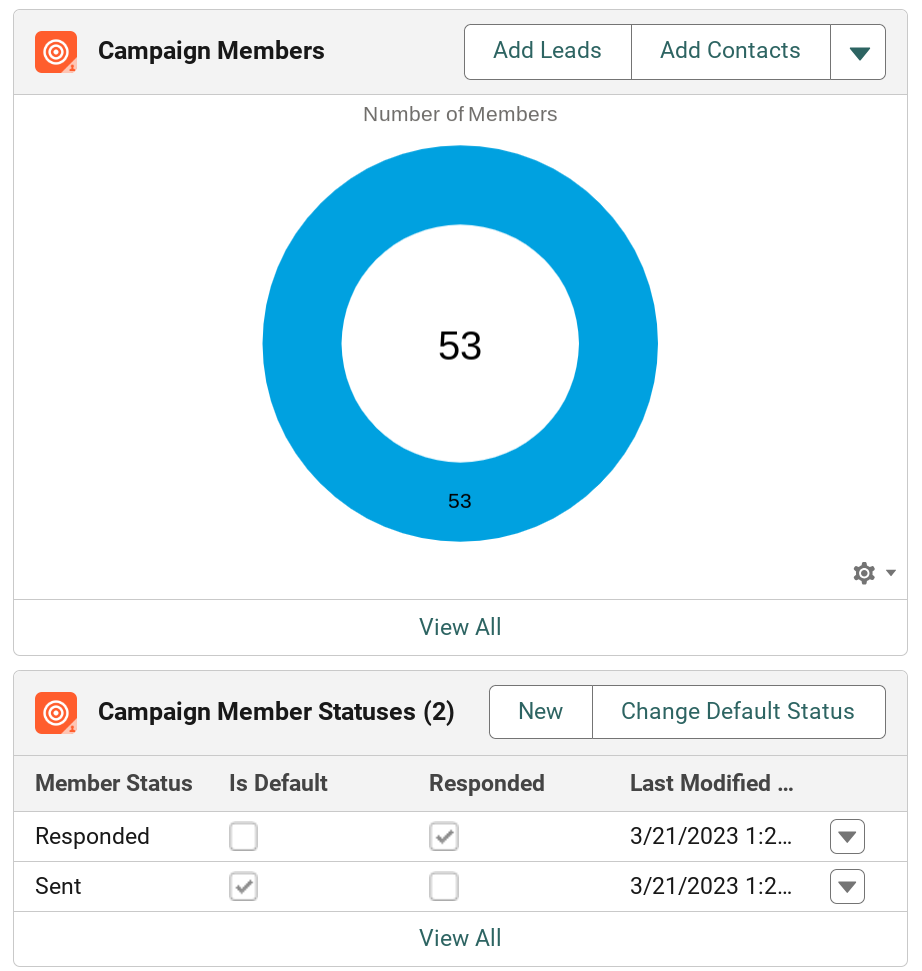
Salesforce Campaigns track how marketing campaigns impact revenue, as well as analyze marketing ROI. Leads and Contacts can be assigned to multiple campaigns, including whether they responded or not.


6. Contact Roles

Salesforce Contact Roles identify the roles of Contacts involved in specific Opportunities. Define influencers, decision makers and more for each particular opportunity.


7. Campaign Influence

Salesforce Campaign Influence tracks how marketing campaigns impact opportunities and revenue. Different attribution models can be defined, including First Touch, equal weight, or Last Touch.


8. Web-to-Lead Forms

Salesforce Web-to-Lead captures lead information directly from your website forms into Salesforce. Choose from standard and custom fields and generate form code in minutes. See our Ultimate Guide to Salesforce Web-to-Lead Forms for more.


9. Email Templates

Salesforce Email Templates allow you to create formatted emails for easy communication with prospects and customers. Email templates can be sent by your sales and service users, as well as by automations in Salesforce.


10. Quick Text

Salesforce Quick Text are short canned responses that can save time in emails and chats. Quick Text is easy to add in Salesforce’s communications workflow.


11. Email Integration

Salesforce Email Integration offers connections with email platforms like Outlook and Gmail. Users can view, edit, and add Salesforce records directly from their email, and relate their emails and events to Salesforce records.


12. Email to Salesforce

Salesforce Email-to-Salesforce gives you an email address that will automatically log inbound emails directly to Salesforce records, attaching emails to leads or contacts automatically. A similar feature for Service, Email to Case, creates support Cases from emails.


13. Mass Emails

Salesforce Mass Email allows you to send bulk emails to lists of leads or contacts. While limits on volume and deliverability make most companies choose 3rd party email tools, for certain applications Salesforce mass email can be useful.


14. Lead Assignment Rules

Salesforce Lead Assignment Rules allow you to automate the distribution of leads to the right sales reps based on criteria that you set.


15. Lead Auto-Response Rules

Salesforce Lead Auto-Response Rules allow you to send automated email responses based on your email templates when a new lead is created.


16. Linkedin Lead Gen

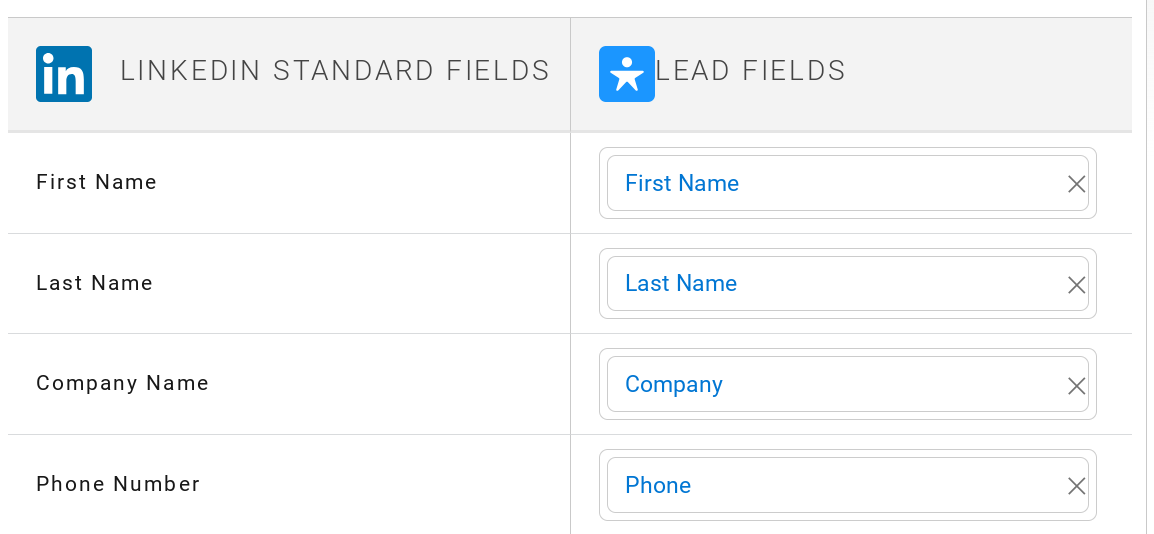
Salesforce Linkedin Lead Gen connects Salesforce to Linkedin advertising forms, allowing you to map fields and automatically create new leads in Salesforce based on Linkedin forms.


17. Reports and Dashboards

Salesforce Reports and Dashboards are powerful tools for analyzing and reporting on your organization’s performance. Reports and Dashboards automatically show the latest data from Salesforce, eliminating the need to manually update spreadsheets.


18. Sales Forecasting

Salesforce Sales forecasting provides insight into projected sales, based on your team’s open Opportunities. Opportunity amounts, target close dates and estimated likelihood of winning inform the pipeline forecast.


19. Einstein Lead Scoring

(New, additional cost)

Salesforce Einstein Lead Scoring uses AI to prioritize leads based on conversion likelihood, using your businesses lead conversion patterns that it detects using machine learning.


20. Agentforce Sales Development Representative (SDR)

(New, additional cost)

Salesforce’s Agentforce SDR Agent can engage with prospects 24/7, answering basic questions and scheduling meetings based on CRM and external calendars.


Google Updates URL Best Practices Documentation


Google has updated its URL structure best practices docs.

There is not much here that will be a surprise to people with an understanding of technical SEO, but it is still useful to see it all laid out.

And I know plenty of people will say that SEO is dead, AI has killed Google, zero click Internet, yadda yadda.

But clickbait posts aside, it is pretty safe to say that Google has a few more years of driving valuable traffic to your site at least.

And for businesses, you may want to put out content to both Google and the AI bots so they know how to best represent your company. 🤖

Some of the highlights for me are that Google doesn’t like words joined together, and prefers hyphens, not underscores, to separate words.

Of course we know the importance of & to separate parameters, and = signs to indicate a parameter value. Don’t use other characters like [ or ;

And if you are using a website framework with non-standard parameter structures or meaningless ID strings (you know who you are id=3a5ebc944f41daa6f849f730f1 🙂 ), it may be time to consider updating your site to better match to these standards. You may be able to appease Google and avoid search engine crawling and indexing issues.

👍 Link: 

URL structure best practices for Google:

https://developers.google.com/search/docs/crawling-indexing/url-structure


Install Free Lead and Opportunity Dashboards for Salesforce: Demo & Docs


See how you can accelerate your GTM efforts by installing these free Lead, Opportunity and Sales Team Dashboards, and get a head start on understanding your sales and marketing data in Salesforce.

You can install these free dashboards from CloudAmp in just a few minutes.

Watch the demo video for proof (it takes just 3 minutes 33 seconds), or follow the steps below if you prefer documentation. There is never any cost to use the dashboards, they are yours completely free.


Dashboard Installation Demo Video

CloudAmp Lead and Opportunity Dashboards Installation Video


How to Install the Salesforce Dashboards

To install CloudAmp’s FREE Lead and Opportunity Dashboards for Salesforce app, just follow these easy steps:


👍 Protip: Production or Sandbox?

Our recommendation is to install the lead and opportunity management dashboards in your Production Salesforce Org, so you can immediately see your data loaded in the dashboards.

To install in production, click the “Get it Now” button:

The app consists only of Salesforce reports and dashboards, all 100% Salesforce native, with no code or integrations to other systems. So generally you can just install in Production, and proceed with customizing the reports to fit your organization’s needs.

Larger companies may have a change management process around making configuration changes to Salesforce, regardless of how small the changes are.

For those companies, installing in Sandbox is likely to be a better first step. You will of course need a sandbox, preferably a Partial or Full Sandbox so that you can see the dashboards with some of your own data.

To install in sandbox, click the “Try it Free” button on the AppExchange listing (this is slightly misleading, since the “Get it Now” button also allows you to try it free — our dashboards app never requires payment).

Installing in a sandbox that doesn’t have some of your data, or in a developer account is generally not recommended, since the dashboards are only interesting or useful when there is data to populate their reports and charts.


  1. Go to the listing for the lead and opportunity dashboards on the Salesforce AppExchange
  2. Click the Get it Now button


  3. Login to Salesforce
    Your Trailblazer login connects to all of your Salesforce accounts
  4. Authenticate (if required)
  5. Choose your Salesforce Org (if required)
    1. This step is only required if you have login access to more than one Salesforce production environment.
  6. Select the checkbox that you agree to the terms and conditions
    1. Click the Confirm and Install button
  7. Login to Salesforce again
  8. Authenticate again (if required)
  9. Choose your installation type
    1. We recommend Install for All Users
  10. Click Done
    1. If you get the message that it is taking too long to install
  11. Go to the Dashboards tab
    1. Go to the Dashboards tab using the App Launcher
    2. Or
      Select Dashboards from the down arrow beside your first tab if you are using Sales Console or Support Console

      OR


  12. Click All Folders on the left navigation
  13. Select the CloudAmp Lead Opp Dashboards folder
  14. Click on one of the 3 dashboards
    1. Choose Lead, Opportunity, or Sales Team
    2. The Classic folder is the original 2014 version for Salesforce Classic users
  15. Click Refresh top right
    1. Dashboards in Salesforce do not automatically refresh data unless you click the button
  16. Customize your dashboards
    1. Click on any chart to view the underlying report
    2. We recommend “Save as” to preserve copies of the original reports
    3. Add filters to the reports as needed to fit your Salesforce data better
    4. Top customization examples:
      1. Add a filter to Lead reports to exclude certain types of leads, such as those from a trade show
      2. Add a filter to the Opportunity reports to only show certain custom opportunity stages or owners
      3. Add a filter to the sales team reports with the names of your sales reps only (by default it shows anyone with a sales role assigned to their user)
  17. Questions? Contact Us for assistance!


Additional Resources

CloudAmp


Salesforce


Manage Your Lead and Customer Data Right from the Start


With all of the tasks that go into starting a business, it is easy to forget about properly collecting customer data correctly from the beginning.


Life in a startup business is hectic, after all, with thousands of tasks vying for your attention — everything from critical things like delivering your product or service to operational responsibilities like hiring, bookkeeping and vendor management.


And since you don’t have a lot of customers and prospects in the beginning, keeping them organized often falls by the wayside -– similarly to the way some startups fail to establish a solid financial model because they don’t expect to have much revenue in the beginning.


Lead Management Basics

Resist the Spreadsheet Temptation

Connect Forms to a Database

Publish Email Addresses with Caution

Use a CRM System

Integrate with Other Tools

Capture Lead Marketing Data

Data Security is Important

Data Hygiene Bonus Points

Copy and Paste, Don’t Type

Standardize Data Formats

Avoid Placeholder Data

Train and monitor your SDRs

Clean your Data


What I have seen many times, and suffered through personally at least once, is that if you don’t take time to establish some sound data collection and lead management practices up front, you may not get around to it until it really becomes a problem for your business. By that time, you could have lots of neglected leads and ignored, angry customers (or maybe no customers).


If you think these suggestions may not apply to your cool “viral” consumer startup that is the next Facebook or Uber for Dog Walkers, well, you could be right if you are really lucky.


However, you can still use these guidelines to organize data on partners, advisors, investors, etc. For the 99.9% of businesses that will need to actively sell to prospects and customers, however, these guidelines are important!


Lead Management Basics

Don't use spreadsheets for lead management

Resist the Spreadsheet Temptation

If you must use Excel or Google Sheets for customer or lead data, be sure to do it with a vision for the future. We all do this sometimes, but a little structure and preparation can save time and headaches.


Think about what data you might want later, and keep it clean with clearly labeled, consistent columns that each contain one type of data only. That way you can easily import it into a CRM system later, without further data entry or cleanup. The relatively new pre-built Tables options in Google Sheets can help you get started on the right path, since they have validation and smart chips built in. 


Keep in mind that your use of spreadsheets should only be used very temporarily though, as they are “flat files” — you cannot easily have different records related to a line in a spreadsheet, so keeping track of emails, phone call logs, or other activity is difficult. For managing communications, you really need a CRM system.

Connect Forms to a Database

Make sure contact forms on your web site are going into a database of some sort (like a CRM system below). It is amazing how many companies do not respond to inquiries through their web site forms, despite this being effectively the same as throwing away money you spent on your website and marketing.


If you have a contact form that just sends an email to someone, it is easy to see how it might get lost (or worse yet ignored, hoarded by a sales rep who is too busy to respond but doesn’t want to share, etc.). And any lead database should easily be accessed by the people who need to follow up with leads (not hidden in your website’s back end system).

Should you publish email addresses on your website?

Publish Email Addresses with Caution

Email addresses on websites can be ok, but know what you are getting into. Putting an email address on your contact us page goes against much of the advice here around databases / CRM systems, but it can make for a more personalized touch. Just expect to get a lot of spam at that address, and be prepared to triage more uncategorized inquiries.


Public email addresses can be helpful for certain audiences who don’t like filling out forms, or for marketing purposes (e.g. “contact [email protected]”.) Just be sure that you are prepared to deal with these emails, and have clear expectations around who will answer these emails and how they will be handled.


A best practice is to enable a tool like email-to-case, a Salesforce feature that can receive emails and create cases from them automatically. With that type of technology, each email logs a case or ticket in Salesforce, so nothing falls through the cracks. Customers can conveniently just pop you an email, but on the CRM backend a record gets created in a similar way to a form (with less structured data so some cleanup may be required).

Use a CRM system like Salesforce

Use a CRM System

Use a Customer Relationship Management (CRM) system as early as possible. Waiting too long leads to disorganization and missed opportunities.


Of course we recommend Salesforce.com, though there are plenty of other options. CRM systems can be expensive for an early stage business, but they do wonders for your business in terms of centralizing and organizing data.


You can make your forms enter data directly into Salesforce via it’s web-to-lead feature, eliminating data getting lost in someone’s email. See our Ultimate Guide to Salesforce Web-to-Lead Forms post for an in-depth discussion. 


Once the data is in a CRM system, it is also much easier to begin to define processes for following up with and managing the relationship with those customers or leads (hence the name CRM, customer relationship management), and some of this can even be automated through autoresponders, automation rules, etc. Plus systems like Salesforce scale with your business regardless of how quickly you grow, offering features for almost every future need.


Finally, if you can convince everyone to use a central CRM system, you get a more complete picture of trends with leads and customers instead of having to ask around to different sales representatives, consultants, etc. This is valuable even if everyone is in the same room, but is more important with many businesses today that have remote, distributed teams.

Integrate with Other Tools

Another reason to begin using a CRM system like Salesforce is that you can integrate your CRM with marketing, sales, and customer service tools to have a seamless flow of data.


Using disconnected tools without integrating them can lead to siloed data, more manual work, and inefficiency. To track your customer journey correctly, you need to be able to see what your customer is doing through multiple channels, from marketing to customer service.


Plus from a practical perspective, not having your tools connected together can make it difficult to do things like keep your email marketing lists up to date with the latest leads, or provide timely assistance to new customers during their onboarding process.

Capture Lead Marketing Data


One type of CRM integration are attribution tools, which can capture marketing data into Salesforce. You can see precise lead paths — how a visitor arrived at your website, the keywords they searched for, and what ad campaign they responded to.


Using an app like our CloudAmp Campaign Tracker, you can see all of the information about how your leads found you. Know which sources, campaigns, and content drove each particular lead, so you can understand marketing ROI as your leads convert to sales.


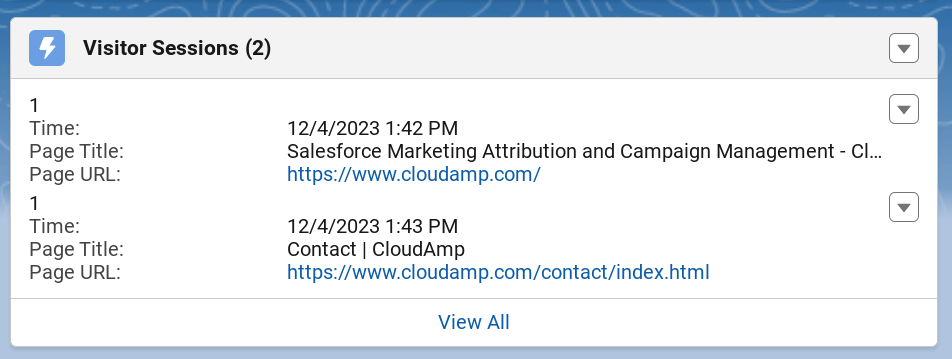
In addition, you can see which pages on your website a lead visited before they submitted a web form. This information can often be useful to understand buyer intent or product interest.

Data Security is important for Lead Management

Data Security is Important

Ensuring the protection of you and your customers’ sensitive information is critical, though it may seem like a luxury to focus on when you are trying to launch a business. As you grow, data breaches can become a big risk. And you will need to make sure you comply with data privacy laws (GDPR, CCPA), especially if you are dealing with consumers.


One important benefit of using a CRM system recommended above is data security — encryption, password protection, and not emailing around spreadsheets. Plus using a CRM system forces you to begin to define who can access or modify data, to ensure accountability but also prevent unauthorized access or changes.


Data Hygiene Bonus Points

Copy and paste email addresses, never type them in.

Copy and Paste, Don’t Type

Train your team to copy / paste instead of doing data entry. I don’t want to sound like a high school grammar teacher, but making sure people get into the habit of copying and pasting data from emails or websites, instead of retyping, is critical, especially when it comes to email addresses. 


Typos with gmail rarely bounce to let you know you typed it wrong, one of the other 1.8 billion users with a similar address gets your email and just deletes your proposal since they have never heard of you. 


There are a variety of extraction tools which can automate data entry from email signatures and websites these days, which is even better than copy and paste. And if you follow the earlier recommendation to connect your forms to a database, you shouldn’t need to do much data entry, because most of your contacts will already be in your CRM system.

Standardize Data Formats

Establish standards for your team about how names, phone numbers, and other common information should be formatted to improve the quality of your data. Automated tools can make sure CA, Calif, and California all get rewritten to CA, but other bad data can live forever. 


Bad data can hinder retrieval and analysis, and require a lot of wasted time on manual cleanup to make reports and dashboards look correct. And data cleansing tools can only do so much.

Avoid Placeholder Data

Related to standardizing formats, your team should not put anything in your database that does not belong.  If your team isn’t capturing data for required fields, so they are entering BS to be able to save records, review the process to either help them get the required information, or consider making a field not required.


As you grow, the notes that you put in a field where they didn’t belong (“customer is a real cheapskate”) or substitutes for information you did not know (last name = “don’t know”) will come back to bite you.


When you are larger and have so much data that you can’t easily manually review it for accuracy, your IT department will magically enable customers to update their data in an account portal (like Salesforce’s great Experience Cloud). The “cheapskate” may see those notes that were not in a private notes field and be unhappy. Or your marketing department may send out beautiful, personalized email newsletters addressed to “Dear Bob Don’t Know.”  Keep your database clean.

Train your sales reps in lead management best practices.

Train and monitor your SDRs

If your company has Sales Development Representatives (SDRs) or Business Development Representatives (BDRs), or any type of inside sales representatives who are responsible for qualifying leads, be sure to train them on these data hygiene standards. In many organizations, they are the front lines of handling incoming leads in Salesforce.


So in addition to your typical measurement of how many emails, calls and scheduled meetings these sales reps are handling, you should not just establish data policies but also monitor how they are processing lead data. 

  • Are they converting leads from existing customers correctly?
  • Are they deduping records (if you are not using automated tools for this)?
  • How are they handling leads or contacts who are no longer at a company?
  • Are they following standards for updating or correcting data?
  • If they have delete permissions, are the deleting things that should be deleted?


Ensuring that your team who interacts the most with leads and customers is helping to clean the data, rather than ignoring your policies or worse polluting your database can be vital to building good data quality over time.

Keep your data clean

Clean your Data

Last but not least, you should conduct regular data cleanups of your database or CRM. Duplicates, inaccuracies, or irrelevant data are inevitable in any database, and generally become worse over time.


Failure to periodically update and dedupe your data can lead to inefficiencies, and make it harder to extract insights through your reports. And from a marketing perspective, outdated and duplicate data leads to poor targeting, and wasting resources on dead or unqualified leads.


A few common techniques for cleaning data include:

  • Lead and Contact Deduplication tools for Salesforce
  • Having a clear policy about how to update records who have changed jobs
  • Syncing hard bounce / unsubscribe data from your email marketing system back to Salesforce


Free Lead, Opportunity, and Sales Team Dashboards for Salesforce


One of the quickest ways to get value from Salesforce (and increase your sales) is to build dashboards, so you can see all of your company metrics in one place, and refresh data with the click of a button.

Downloaded thousands of times since their launch in 2014, the CloudAmp FREE Lead and Opportunity Dashboards have just been updated and refreshed for the 10th anniversary.

This free app on the Salesforce AppExchange contains multiple marketing and sales reports and dashboards — all free to install and use in your Salesforce account. They are a great starting point and the quickest way to create your own dashboards. Just install and then customize to fit the needs of your organization. 


So what is new in the 2024 update of the dashboards? Let’s jump in and see.


👍 Protip:

If you already have an older version of the CloudAmp dashboards installed, you can get the new dashboards simply by updating your AppExchange app.

Just visit our AppExchange listing, click the “Get It Now” button, and follow the prompts. Updates work just like a fresh installation, but Salesforce detects a currently installed version and will add or update only the new components.

For reports and dashboards that are part of an app like CloudAmp, Salesforce does not change your existing dashboards, to avoid overwriting any customizations you have made. But we’ve packaged 3 additional, new dashboards in the ‘24 version, so these will install fresh when you update your app.


Lead Management Dashboard

For a Salesforce Sales Cloud quick start, understanding your leads is critical. 

Hopefully you have implemented Salesforce web-to-lead forms on your website (see our Ultimate Guide to Salesforce Web-to-Lead Forms if not), and created some basic processes for importing and assigning other types of leads (such as those from tradeshows or partners).

CloudAmp Free Lead Dashboard for Salesforce

The free CloudAmp Lead Dashboard will give you a quick overview of lead volume, status, and who is creating leads in Salesforce. Plus important lead quality metrics such as who and how many leads are being converted to create Accounts with Contacts and Opportunities. 


These dashboard graphs are essential not just to sales management, but for marketing to understand lead volume trends. And marketers can clone reports to add filters and see metrics by marketing channel or advertising network.


👉 Featured Graph: Leads by Week

This line graph tells you your lead volume trends at a glance. Add filters to create a version focused on certain lead sources, change the date range to shorter or longer than the Last 120 days default, or change the time grouping to months or years.

Salesforce Leads by Week Dasbhoard Chart


The following Salesforce reports are included as the data sources of the Lead Dashboard. Just Save as and add filters to drill down on data you want to see (and/or exclude data you don’t want).

  1. Leads by Day
  2. Leads by Week
  3. Leads by Month
  4. Leads by Status
  5. Last 10 Leads
  6. Leads by Week by Creator
  7. Leads Converted by Week
  8. Lead Conversion Rate


Opportunity Management Dashboard

The Opportunity dashboard is the second included free dashboard, and gives you visibility into your sales pipeline within Salesforce.


With this Salesforce dashboard you can see your current open opportunities by stage, both by revenue value and number of deals (opps). Your total pipeline (open Opportunities in Salesforce) is shown as well. And of course you can see closed revenue this quarter, which can be easily updated with different sales targets or time periods like monthly or yearly.

CloudAmp Opportunity Dasbhoard for Salesforce

The free Opportunity Dashboard also shows you how many Salesforce Opportunities have been closed won or closed lost each month, as well as your win rate percentage. 


Refresh the dashboard with a single click, no need to update complex spreadsheets that take a long time time and introduces the possibility of data errors. You can also schedule Salesforce dashboards to refresh and be emailed to you, and click on any chart to see the underlying data in a Salesforce report. For more tips on Salesforce dashboards, see our post 5 Big Ways to Maximize Your Salesforce Dashboards.


👉 Featured Graph: Opportunities by Stage

This funnel graph is a quick way to understand the health of your sales funnel. Opportunities are broken out by stage, and shown with their total dollar amounts. A secondary funnel chart in the CloudAmp Opportunity Dashboard shows the same data by number of Opportunities at each stage (rather than Amount).

Add filters to create your own version focused on types of Opportunities, or focused on certain Opportunity owners like a sales team or the pipeline for a particular product group.

Salesforce funnel chart of Opportunities by Stage


CloudAmp’s free Opportunity Dashboard for Salesforce includes the following reports:

  1. Opportunities by Stage
  2. Revenue Closed this Quarter
  3. Opportunities Closed per Month (Won/Lost)
  4. Top 10 Open Opportunities
  5. Last 10 Won Opportunities
  6. Average Age of Opportunities
  7. Open Opps by Close Date and Stage
  8. Opportunity Win Rate


Sales Team & Pipeline Dashboard

The 3rd and entirely new dashboard in the free app CloudAmp FREE Lead and Opportunity Dashboards is the Sales Team & Pipeline dashboard.


Similar to the Lead and Opportunity Dashboard, the Sales Team dashboard shows leads and opportunities but broken down by Sales representative. 


👍 Protip:

The Sales Team & Pipeline dashboard includes Salesforce users who have roles with the word Sales in them. If you have not assigned roles to users, or wish to filter further to certain individuals, you will need to update the report filters to include or exclude certain users. 

CloudAmp is happy to advise you on the easiest way to do this, as it is likely that most organizations will need to update the filters to show data for only the correct users.

If you have multiple sales teams, you can clone the dashboard to have multiple versions. Just be sure to Save as to the underlying reports, so you can easily create different reports for each team.


You can see closed won opportunities by rep by quarter, as well as open opportunities created by rep by month. Quarterly and monthly reports can easily have their date ranges updated to better match your business, of course.


There are also a number of charts to track sales user activity in Salesforce, such as the Activities on Leads and Completed Activities. If you have a common way of logging calls or emails, you can update reports or create duplicate reports to track calls or emails per rep as well.

CloudAmp Sales Team and Pipeline Salesforce Dashboard

And you can always add selected reports from this free dashboard to other dashboards you may have created, or add your own reports to this dashboard. For more tips on Salesforce dashboards, see our article How to Customize Salesforce Dashboards


One graph that many organizations find useful is Opportunity Win Rate (the percentage of closed won versus closed lost opportunities each month). This report can be easily updated to different time ranges, or individualized to specific users to compare close rates across sales reps. 


👉 Featured Graph: Opportunity Win Rate (by Month)

This stacked bar graph shows how many Opps were won and lost each month. A secondary X axis on the right shows the won percentage ratio. Add filters to create your own version focused on individual Opportunity owners in Salesforce, or types of Opportunities.

CloudAmp Chart of Salesforce Opportunity Win Rate by Month


CloudAmp’s free Sales Team & Pipeline Dashboard for Salesforce includes the following reports:

  1. Lead Conversion Rate
  2. Opportunity Win Rate
  3. Opportunity Win Rate (by Month)
  4. Open Opps by Close Date and Rep
  5. Won Opps by Qtr. by Rep
  6. Lost Opps by Qtr by Rep
  7. Leads Created by Rep, Last 90 Days by Wk
  8. Leads Created by Rep
  9. Leads Converted by Rep, Last 90 Days by Wk
  10. Leads Converted by Rep
  11. Activities on Leads
  12. Completed Activities
  13. Won Opp Size by Sales Rep


Get Started Now

To get started, just install the CloudAmp FREE Lead and Opportunity Dashboards from the Salesforce AppExchange. Join the hundreds of organizations that have improved their sales management, lead management, and pipeline visibility by using the dashboards as an easy starting point.


Get insight on your Salesforce data, so you can get more value out of your Salesforce investment, and drive your business forward.


There are never any fees for using these dashboards — you can fully use this solution without payment. Please email us with any questions or feedback about the dashboards, we’re happy to help. Paid assistance configuring the dashboards is available if you need it, though if you are generally familiar with Salesforce reporting (or have done the Trailheads) you are unlikely to need it.


And if you want to have more data about your Leads in Salesforce, including full source and campaign attribution to prove ROI and improve your marketing, contact us for more information on our other app, the CloudAmp Campaign Tracker.


The Right Answer to “How are you different from Competitor X?”


Whether you are working at an established company or an early stage startup, people need to understand your product and your business. And as a sales leader or founder you may frequently be asked “How are you different from Competitor X?” or “Why is your Product better than Product Y?”


There is basically one correct answer to this question, and the competitive positioning that you use can make the difference between moving the sales process along versus derailing the conversation.


“Competitor X is a good company, but…”


You should commit this phrase to memory and use it often. Everyone needs a frame of reference, to compare to something they are familiar with or other options they are considering, whether they be potential customers, employees, or investors. How you respond can be more critical than you think.


Highlighting Your Unique Selling Proposition (USP)

After speaking positively of the competitor your prospect asked about, explain how your company is better, ideally using a differentiator or area of specialization that Competitor X doesn’t have (or doesn’t focus on).


You should shift the focus to what makes your product or service unique and beneficial for the prospect. Then explain how your solution can specifically meet their needs better than the competition. 


By speaking to your company’s unique selling proposition (also referred to as unique selling points), while not dismissing the competition, you will build trust and credibility. 


🖙 Pitching Investors

If you find yourself pitching investors, this is a related but somewhat different version of the question — sometimes they want to hear how your company is similar to a business they are familiar with, not necessarily differentiated. 

Investors analyzing many potential investments are often guilty of “pattern matching” to quickly fit you into an area they understand (and hopefully want to put money into), or to make sure you are “the same” as a company that already was funded / successful.

If you criticize the competition, however, it may give investors the impression that a) your company is not doing well, and you are jealous of the competitor or b) that you haven’t properly evaluated the competitive threats to your business, and are not taking the competition seriously.


Stay Positive and Professional

Customers are important to get this right with, as a savvy buyer will ask about the competition for the same reason they ask about discounts — mainly to see how you respond, as well as gather information. If you speak badly of the competition, it reflects negatively on you as a salesperson. Negative comments can even create the impression that you are threatened by the competitor, so they may in fact be a better option than your company.


Even if the competition has a terrible product or no support, you should be very careful about saying anything negative about the competitor. Find a way to allude to the competitor’s problems in a roundabout way, if you must, but tread lightly.


Above all, be honest about the differences between your product and the competition. Transparency builds trust and can differentiate you from others who might criticize or overpromise.


Benefits of Speaking Highly of Competitors

While you don’t want to overdo it or give the impression that a competitor might be a better choice than your company, there are a number of surprising advantages to speaking favorably of your competitors in a sales conversation.


  • Staying professional and positive
  • Acknowledging competitors’ while providing comparison data
  • Highlighting your unique selling propositions (USPs)
  • Understanding the prospects’ needs and competitive understanding
  • Focusing on value and differentiating over features
  • Building trust through transparency


🖙 Practice Sales Lesson

Prospect: “How does your product compare to [Competitor]?”

Salesperson: “That’s a great question. [Competitor] is a reputable company with some good features. However, our product stands out in a few key areas that might be particularly beneficial for you. For instance, our advanced analytics feature can provide you with deeper insights into your data, which can help optimize your strategy. Additionally, our customer support team is available 24/7, ensuring that you get the help you need whenever you need it. Customers rave about them in our online reviews.

Can you tell me more about what specific needs or challenges you’re looking to address? That way, I can provide a more detailed comparison tailored to your requirements.”


When a Competitor’s Criticism Generated Leads

Many years ago, when I was running sales & marketing at GoGrid, we had a much larger competitor that shall remain nameless to protect the guilty. Suffice it to say that they were a publicly traded web hosting company, while we were more of a bootstrapped operation.


One of their sales leaders apparently used to tell prospects how bad our company was, how our technical support was unresponsive, our data centers unreliable, our product horrible, etc. 


Maybe it is the power of reverse psychology, or simply the skeptical nature of smart web hosting buyers, but we received a number of calls that went something like this:


“I was not familiar with GoGrid, but this guy at [Competitor X] kept talking about how terrible and evil you are. He seemed really threatened by you, so I wanted to see what all the fuss was about, and figured I’d get a quote from you.”

The irony was, that normally when we went head to head with this larger, better known competitor, we typically lost the deal almost 2/3 of the time. And this manager’s poor sales technique was sending prospects over to us, in many cases when we had not even been in the running originally.


Unfortunately that sales manager either wised up or was fired, and the sweet slander that generated free leads for us eventually came to an end.


Salesforce Marketing Attribution and Lead Generation PDF Library


Here on the CloudAmp blog we’ve written pretty extensively on how to manage lead attribution in Salesforce, from how to implement various Salesforce marketing features to advanced analytics like advertising click IDs.

If you are the kind of person who prefers to read offline, or likes to save reference materials, you have come to the right place! Here is our library of PDF files you can download and use as a resource when optimizing your Salesforce lead process and advertising campaigns.


Questions? As always, we welcome your feedback and inquiries, we are here to help.


Salesforce Marketing Capabilities

The Ultimate Guide to Salesforce Web-to-Lead Forms [PDF]

The Ultimate Guide to Salesforce Web-to-Lead Forms [Blog Post]

Marketing on Salesforce without Marketing Cloud [PDF]

Marketing on Salesforce without Marketing Cloud [Blog Post]

6 Ways to build your Lead Machine with Salesforce [PDF]

6 Ways to build your Lead Machine with Salesforce [Blog Post]

List: Top 20 Salesforce Sales Cloud RevOps Features [PDF]

List: Top 20 Salesforce Sales Cloud RevOps Features [Blog Post]

Manage Your Lead and Customer Data Right from the Start [PDF]

Manage Your Lead and Customer Data Right from the Start [Blog Post]

Marketing on Salesforce for Beginners [PDF]

Marketing on Salesforce for Beginners [Blog Post]

How to Automatically Assign Salesforce Leads to Campaigns [PDF]

How to Automatically Assign Salesforce Leads to Campaigns [Blog Post]

Advanced Advertising Attribution

Improve Lead Quality with Google, Microsoft, or Facebook Ad click IDs [PDF]

Improve Lead Quality with Google, Microsoft, or Facebook Ad click IDs [Blog Post]

How to Connect Salesforce and Google Ads [PDF]

How to Connect Salesforce and Google Ads [Blog Post]


Which Form or Web Page did a Salesforce lead come from? [PDF]

Which Form or Web Page did a Salesforce lead come from? [Blog Post]

Campaign URL Options for Google Ads: Recommendations & Templates [PDF]

Campaign URL Options for Google Ads: Recommendations & Templates [Blog Post]

Stop Wasting Money on Google Ads: Use Salesforce + 3 Other Tips [PDF]

Stop Wasting Money on Google Ads: Use Salesforce + 3 Other Tips [Blog Post]

CloudAmp Setup Guides

Campaign Tracker Complete Documentation [PDF]

CloudAmp Quick Start Guide [PDF]

Other PDF Publications

The Modern Go-to-Market Leader [PDF]


Improve Lead Quality with Google, Microsoft, or Facebook Ad click IDs


How to optimize your lead gen advertising with gclid, msclkid, and fbclid data in Salesforce Leads.

You may be familiar with advertising click IDs (such as Gclid, Msclkid, and Fbclid) that are generated when users click on your ads on platforms like Google, Microsoft, and Facebook, respectively.

But are you using these ad click ID values to track and optimize your online advertising?

You can even connect a click ID to a specific Lead it generated in Salesforce, to finally understand which specific ads and targeting resulted in later offline conversions and sales.


In this article, we are going to do a deep dive on ad click IDs: what they are, how to enable them in your advertising settings, how to capture them in Salesforce, and ways you can use them to improve your marketing results.


  1. What are Ad Click IDs?
  2. How to Enable Google Click IDs (gclid)
  3. How to Enable Microsoft Click IDs (msclkid)
  4. How to Enable Facebook Click IDs (fbclid)
  5. Capturing Ad Click IDs in Your Salesforce Leads
  6. Using Click IDs in Salesforce Leads to Optimize Ads

What are Ad Click IDs?

Advertising click IDs are parameters that are automatically added to your ad URLs by online advertising platforms such as Google Ads, Microsoft Adcenter, and Facebook / Instagram. You may also hear them referred to as tags.

For example, you will see Google add a value to the end of your landing page URLs (the links to your website from Google ads), such as:

https://yoursite.com/?gclid=EAIaIQobChNIrqW8rcCYgAMVioKGCh10JA9GEYAYASAAEgI1CfD_BwE


In the link above, the tag or parameter added (gclid=) is the Google click ID or Gclid for short. And the value that Google automatically assigned to it, EAIaIQobChNIrqW8rcCYgAMVioKGCh10JA9GEYAYASAAEgI1CfD_BwE, is the unique code that identifies a user clicking on your ad.

Note that you cannot control or reuse these id values in your links, they are automatically added by the advertising platforms to identify a user’s click on your ad.


Why Do Ad Clicks Matter?

What is the value of understanding ad clicks, aside from improving your general knowledge of how one part of online ad tracking works?


Because Ad clicks help identify a particular interaction with your advertising. In the case of Google’s Gclid, it helps attribute a conversion to a specific campaign, ad group, keyword, and individual ad. It is a record of what happened that can be used to improve your advertising campaigns, and prove the return on investment (ROI) of particular marketing efforts.


With advertising IDs you can see which campaigns are driving the most conversions, as well as have a way of tagging the individual conversions themselves, so you can see when they produce sales in Salesforce.


How to Enable Google Click IDs (gclid)

To add Google Click IDs (gclids) to your Google Ad links, simply ensure a feature called auto-tagging is enabled. Log into your Google Ads account, and check the following:


  1. Click the Admin gear from the left side menu
  2. Click the Account Settings tab
  3. Click the Auto-tagging section
  4. Select “Tag the URL that people click through from my ad.”
  5. Click Save


Google Auto-Tagging Considerations

Auto-tagging is simple to enable, but keep in mind that gclids can be up to 100 characters long. So ensure that your website and any redirects can handle a tag value of that length. When in doubt, check with your web developer and run some tests.


A number of years back there were also issues with enabling auto-tagging when you also had manual tags in your URLs (like utm_campaign, or content parameters unique to your website). There were issues with duplicate tracking data from combining both methods, but these have been fixed by Google.


Today many marketers combine both Google auto-tagging and manual UTM tags, since manual UTM parameters are required for systems like CloudAmp to capture data into Salesforce, and provide a way of better structuring your tracking data. 


If you have Google Ads connected to Google Analytics, analytics will use the gclids to pull information about the visitor who clicked on your ad. There is even a setting on the Google Analytics side to “Allow manual tagging (UTM values) to override auto-tagging (GCLID values)


How to Enable Microsoft Click IDs (msclkid)

Microsoft Advertising (formerly Bing Ads) uses the Microsoft Click ID (MSCLKID) to track user activity via the UET tag on your website. (Note there is a K in msclkid, unlike the Google gclid and Facebook fbclid tags).


Microsoft Ads are considered a more affordable option compared to Google Ads, so many marketers run similar campaigns on both platforms to maximize traffic and leads.


  1. From the left side menu, select All campaigns > Settings > Account level options.
    1. Or in the new navigation, hover over Campaigns and select Settings > Account level options.
  2. Check the Add Microsoft Click ID (MSCLKID) to URLs to allow conversion tracking checkbox.
  3. Click Save.


Universal Event Tracking (UET) is the tag on your website that records what customers do, and relays the data back to Microsoft Advertising for conversion tracking, automated bidding features, and audience targeting.


The msclkid click ID will be included in all subsequent UET events fired whenever the same customer visits your page, thereby allowing you to track the conversion from this customer on your site.


How to Enable Facebook Click IDs (fbclid)

Facebook Click IDs (fbclid) are automatically added to your Facebook and Instagram advertising links, as well as external links in regular, non-sponsored posts.


There is no setting to enable them, and you will not be able to create ads with fbclids in the URLs — the fbclid parameter and string of characters must be added by Facebook and is unique to that click.


The one setup step required is making sure you have the Facebook Pixel installed on your website. This code allows you to track conversions and user behavior on your site, and sends this data back to Facebook.

Capturing Ad Click IDs in Your Salesforce Leads

There are several options for recording the various advertising click IDs in your Salesforce leads, so you can see which advertising created an individual lead.


Most importantly, capturing this data gives you visibility into offline conversions that might happen weeks or months later in Salesforce. By offline conversions, we mean sales that happen at some point in the future, long after the visit to your website from a user clicking on an advertisement.


While Google, Microsoft and Facebook can provide tracking from sales that happen during the initial visit from an ad, such as in some eCommerce, for more considered purchases such as B2B software or higher ticket consumer items, Salesforce can help you attribute sales that happen “offline” to the original advertising campaign and targeting that brought that lead to you originally. 


You can also upload that conversion data with ad IDs back into Google and Microsoft advertising, though normally just for conversions within 90 days. So if you have a longer sales cycle, you may need to upload conversions to leads, or from leads to open opportunities, rather than click IDs with closed won opportunities. We’ll get into that in more detail later in this article.


There are three basic ways to capture ad clicks in Salesforce:

  1. Custom web development
  2. Google Tag Manager
  3. Marketing attribution apps


Custom Web Development

Your organization may have already developed custom code to add UTM tags and other source data in your Salesforce web-to-lead forms. If so, you should ask your web developer to begin capturing the 3 ad click parameters (gclid, msclkid, fbclid) as well.


The ad click parameters should be able to be captured similarly to any other URL parameter, though they are a bit longer than your typical parameter value (60 – 100+ characters typically).


Google Tag Manager

If you are an advanced Google Tag Manager (GTM) user, you can use it to create a script that will capture Ad click ID parameters, though you will still need to do some custom work to use the values.


  1. Go to Google Tag Manager and create a new User-Defined Variable.
  2. Choose URL as the variable type.
  3. Set the component type to Query and the Query Key to “msclkid” (or “gclid” or “fbclid”)
  4. Name the variable (e.g., “MSCLKID Variable”).
  5. Create a trigger to fire on all page views.
  6. Create a tag that sends the captured variable to your analytics tool or stores it in a cookie / local web browser storage.
  7. Set up the tag to fire on the trigger you created.


Marketing Attribution Apps

Many marketers should be able to use their marketing attribution software to capture ad click parameters, though not all will have that capability, or expose the values inside Salesforce leads.


Since we provide the CloudAmp Campaign Tracker software for Salesforce, this article will provide instructions on how to implement that software to capture click IDs. CloudAmp captures all three ad click IDs (gclid, msclkid, and fbclid) from both the first and last touch (first and last visits to your website), so you get a complete picture of how a lead interacted with your advertising.

Capturing Ad Click IDs with the Campaign Tracker

  1. Install the CloudAmp Campaign Tracker in Salesforce with a 30 day trial
  2. Add the tracking script to your website footer. 
  3. For a quick overview of the process, see our Quick Start Guide.

Once the Campaign Tracker is installed and working, you can test to make sure the ad click parameters are successfully showing up in Salesforce. For testing, you do not need to click on one of your ads, but can use our spreadsheet template download to generate test URLs, and add a test gclid, msclkid, or fbclid parameter at the end of any URL in this format:


&gclid=9949435394i5322urwiehr


So a test URL format would be similar to:


https://www.yoursite.com?utm_campaign=CampaignOct23&utm_medium=PPC&utm_source=Google&utm_id=Goog_04&utm_content=Adgroup3&utm_term=Keyword3&gclid=9949435394i5322urwiehr


Once you have submitted a test lead or two, check Salesforce. You will see the gclid value from your URL in either the “First gclid” or “Last gclid” field on the new lead. Similarly, the msclkid and fbclid values will be in the “First msclkid” or “Last msclkid” fields, and the fbclid in the “First fbclid” or “Last fbclid” fields.

Using Click IDs in Salesforce Leads to Optimize Ads

When you associate click IDs with individual leads in Salesforce, you can analyze the performance of your campaigns in a much more accurate way. Not only can you understand which campaigns drive the most leads and conversions, but you can attribute offline conversions and revenue to each campaign, and calculate the return on investment (ROI).


Automated tools such as Google’s Smart Bidding and Microsoft Advertising Bid Strategies will use Gclid and Msclkid data respectively to adjust your CPC bids dynamically based on their estimates of a click resulting in a conversion.


But only by connecting ad click ID data with CRM systems like Salesforce will enable you to get a holistic view of your campaigns, tracking the entire funnel from ad click to conversion to sale. 


Frustratingly, none of the advertising platforms allow you to look up the ad clicks directly in their reporting interfaces, so you cannot review the ads and keywords from individual conversions. All 3 only make the Ad IDs (gclid, msclkid, and fbclid) available via their API reporting interfaces, which requires custom coding. Google and Microsoft do allow you to import offline conversion data with ad IDs from Salesforce however.


So here are some specific techniques you can use with Ad click IDs in Salesforce. We’ll start with general optimization strategies, and then go into specifics about how you can review Ad IDs stored in Salesforce on each advertising platform.


Advertising Optimization Strategies using Click IDs in Salesforce

Inside of Salesforce, you can use conversions associated with Click IDs, as well as other campaign values such as utm_campaign or utm_term (keyword) to optimize advertising campaign performance in the following ways:


Keyword Optimization

  • Understand which keywords are driving the most conversions, and expand high-converting keywords in your campaigns.
  • See which keywords drive clicks that never become leads, or leads that never convert to opportunities, and either remove budget or add them as negative keywords to reduce wasted ad spend.


Budget Optimization

  • Shift budget to campaigns, ad groups and keywords that have higher conversion rates.
  • Reduce or pause low-performing campaigns or keywords.


Cross-Channel Insights

  • Using click ID data, see which advertising platforms (e.g., Google Ads, Microsoft Advertising, Facebook Ads) your leads are interacting with during their customer journey
  • With more advanced attribution data like that provided by the CloudAmp Campaign Tracker, see which touch points contribute to conversions, and adjust your strategy based on those interactions and channels


Next we’ll explore how you can feed conversion and ad click ID data from Salesforce back into Google and Microsoft ad platforms, to optimize targeting and bidding automation there.


Gclid Lookup and Import in Google Ads

We’ve previously provided a detailed guide on how to connect Salesforce and Google Ads using gclid data in Salesforce, and the existing data import tool in Google Ads. For complete details, please see our post How to Connect Salesforce and Google Ads.


That guide will help you automatically import conversion data from Salesforce to Google, to optimize your advertising through Conversion Goals. Here is an example of a Conversion Goal importing Closed Won opportunity data from Salesforce with associated Gclids back into Google Ads:

Importing your offline conversions with Gclids from Salesforce or other sources back into Google Ads seems to be the primary way Google allows you to use Gclids.


Unfortunately Google seems to have removed the ability for advertisers to look up individual advertising clicks via gclid in Google Ads. I am not sure when it was last available, but their often confused AI seems to still think it is possible as of June 2024:

It would seem that Google wants advertisers to use their automated bidding and conversion optimization tools, and does not want users able to easily correlate individual clicks with search terms and campaigns to do manual optimization.

This is disappointing, as reviewing this data can help advertisers understand their targeting and keywords much better. In addition, I have found manual optimization of Google Ads to be more effective for advertisers who do not have a high volume of leads coming through paid search, especially if you want to optimize for offline conversions common in B2B sales.


Programmatic Gclid Access

Apparently if you want to analyze GCLID data directly, the gclids are accessible using Google Ads API or Adwords BigQuery Transfer.

So if you have an experienced developer on your team (unlikely) and they have spare cycles (impossible), perhaps you can get them to write a custom reporting interface to pull the Gclid data from the Google Ads API. This is not something we have done, so I cannot give you an overview of how it might work.


Gclid Reporting in Google Analytics

In Google Analytics GA4, there is a dimension in the reporting called Landing Page + Query String which contains all of the query parameters on the URL. So you can use that dimension to filter on gclid in both standard and exploration reports.

In addition, if you create a custom dimension for gclid data, you can view Google Ads as a source in your reports. This isn’t a great substitute for being able to see the data in Google Ads directly, but advanced Google Analytics users will likely find it useful.


To create a custom dimension, follow these steps:


  1. Go to Admin settings in Google Analytics.
  2. Go to Custom definitions
  3. Click Create custom dimension
  4. Name the new custom dimension “gclid
  5. For scope, select User
  6. Click Save

Msclkid Lookup and Import in Microsoft Ads

Similarly to Gclids and Google Ads, Msclkid is not available as a dimension in the Microsoft Ads reporting interface. You can import data from Salesforce with your msclkids to register offline conversions in the conversion tracking, however. This will enable you to track conversion and revenue performance from your Microsoft ads.


You can create offline conversion goals in Microsoft Ads, and then import leads or sales (opportunities) from Salesforce that have msclkid values, as long as the conversion is uploaded within 90 days of the last ad click.


To set up Microsoft Ads Offline Conversion Tracking Imports:

  1. Select Tools > Conversion goals from the top menu.
    1. In the new navigation, hover over Conversions and select Conversion goals.
  2. Select Create conversion goal
  3. select the Offline conversions type.
  4. Enter a name for your goal 
  5. To add a monetary value for each conversion, select a checkbox under Revenue
    1. Each time it happens, the conversion action has the same value. 
    2. The value of this conversion action may vary
  6. Assign a Count to the conversion
  7. Enter a Conversion window to track up to 90 days in the past.
  8. Select Save.

Once you have created a conversion goal, you can begin uploading the conversions after a 2 hour waiting period. Offline conversion files can be uploaded once, on a schedule, or using APIs.


To Prepare your offline conversion data for import

  1. Download the template as an Excel or .csv file.
  2. Create a report in Salesforce
    1. Leads or Opportunities with their corresponding MSCLKIDs
    2. Optional conversion value (if opportunities).
    3. Export the report to copy / paste into the template
  3. Enter the following information:
    1. Microsoft Click ID. (MSCLKID that led to the conversion and is stored in the Salesforce lead)
    2. Conversion Name. The goal name you entered in step 4 above.
    3. Conversion Time. The date and time that the conversion occurred. There are some specific requirements around the accepted formats here.
    4. Conversion Value (optional). 
    5. Conversion Currency (optional). If not specified, the value defined in the goal will be used.
  4. Save the file locally to import it once. To schedule recurring imports, you would need to save the file to an online location and regularly update its data. See the Microsoft Ads documentation for more details.


Import offline conversions from Salesforce to Microsoft Ads once

Once you have prepared your Excel or CSV file:

  1. Select Tools > Conversion goals from the top menu.
    1. In the new navigation, hover over Conversions and select Conversion goals.
  2. Under the Uploads tab, select + Upload.
  3. Click Browse and select your file to upload.
  4. Click Upload and preview.
  5. Once your upload is complete, you can view the results of the changes from your new data. If there are any errors, you can download them to troubleshoot.
  6. Select Apply changes when you’re ready.


Fbclid Lookup and Import in Facebook Ads

Because fbclid is not directly available as a dimension in Facebook Ads Manager, you’ll need to correlate it with the captured data in your Salesforce leads.


You should be able to achieve this by creating a custom report in the “Ads Reporting” section of Facebook Ads that shows conversions and related performance metrics. If you have a high volume of conversions in Facebook and leads in Salesforce, it may be difficult to correlate them precisely however. 


Facebook does have a Conversions API which software developers can use to import offline conversions via CSV file, but it requires some technical expertise as there does not seem to be a UI to do it. 


Get Help from CloudAmp

As you can see from the length of this article, capturing and using ad click IDs can be a complex undertaking. If you need assistance setting up the GCLID or MSCLKID integrations / uploads with Salesforce, and optimizing your Ads with Salesforce lead and opportunity conversion data, CloudAmp can help.


Not yet a CloudAmp customer? The CloudAmp Campaign Tracker is an affordable monthly subscription, and has a 30 day no obligation trial so you can test it out in Salesforce.


To get more data about your Leads in Salesforce, including full source attribution and page view data to prove ROI and improve your marketing, contact us for more information today.


6 Ways to build your Lead Machine with Salesforce


Managing inbound leads is one of the areas where Salesforce shines brightest. But for small and medium businesses (SMBs), sometimes all the options and marketing software add-ons can seem overwhelming — too much money or too much work for your small team.

The good news is that you can build your very own “lead machine,” to improve conversion rates and grow your revenue, using tools that are already part of the Salesforce subscription you have (Sales Cloud). You don’t need to implement Marketing Cloud (see our Marketing on Salesforce without Marketing Cloud guide for more on that) or invest in outside marketing systems.


Getting these six lead management basics in place is not difficult, and can have an immediate impact on your bottom line. Here’s how to do it.


1. Establish a Lead Process

The first step to creating your lead machine is to establish a process for handling leads. We recommend writing this down in a short document, and making sure everyone in your organization agrees to the definitions and a common process. Even in a small team, it is common for different people to have varying opinions based on their personalities and prior experience, so it is best to get on the same page and have a written plan to refer to.


  • Who is your target customer?
  • What are the characteristics of a qualified lead?
  • When and how do you follow up with leads?
  • Who is responsible for following up with different types of leads?
  • When do you convert a Lead to an Account, Contact and Opportunity?


Salesforce Web-To-Lead Enable

2. Use Web-to-Lead Forms

We are always amazed at how many Salesforce customers have a number of email addresses instead of a form on their “contact us” page or landing pages. If you have made an investment in Salesforce, make the change to your processes to funnel more inquiries through forms — otherwise you have a major “slip through the cracks” moment right at the start of your lead management process.

Email addresses are acceptable in some cases, such as for existing customers to contact customer service (especially if you have implemented Salesforce email-to-case). But otherwise you are likely losing data, and missing out on possible automation we’ll talk about next.


Salesforce’s Web-to-Lead form technology is easy to implement, and leads go directly into your Salesforce organization, with no data entry required or danger of being lost in someone’s email box. Just go to the Web-to-Lead area of Salesforce setup, and do the following: 


  1. Choose the fields you want to include in your form (keep it short!)
  2. Click a button to generate the HTML code
  3. Have your web designer style it to make it presentable
  4. Submit a test lead or three to make sure it works


For more information, see our The Ultimate Guide to Salesforce Web-to-Lead Forms.


3. Use Salesforce Lead Automation

Salesforce has some advanced tools for processing and organizing incoming leads — start using them if you are not already. Even if you just have 1 or 2 sales people, you can easily set up a Queue to own incoming leads. Then create some assignment rules that give ownership of some or all of the new leads to the Queue. You can either manually assign/claim leads from the queue, or even automate assignment of some leads to users instead of the queue, depending on the variety of leads you receive.

Since you will now be using the Web-to-Lead forms, you can also have hidden fields with pre-populated values in them which define a lead source or campaign, or indicate which form on your web site(s) a lead submitted. Those values can be very useful in driving automated actions once the leads arrive in Salesforce. Create some email templates for auto-responder emails, and have tailored auto-responses sent to the leads depending on the values they have or how they are assigned when they come in.


  • Set up a lead Queue, assignment rules, and auto-response emails
  • Add more information about leads and forms with hidden form  fields


For more on automatic campaign assignment and lead sources, see our article Which Form or Web Page did a Salesforce lead come from? 


4. Track the Sources of Your Leads

Branching out from the core Salesforce functionality, set up a tracking application that can provide additional information about where a lead came from. This is especially critical if you are spending money on Google Ads or other online marketing, since you will want to know which advertising produced the best quality leads.


  • Where are your best leads coming from?
  • Which advertising is a waste of money?
  • What keywords are your leads searching for to find you?
  • What unexpected sources are delivering leads — social, blogs, partners?


Tracking the source of your leads requires a separate app, as well as a small tracking code that needs to be placed on your web site. There are a variety of tracking apps available on the AppExchange, from the CloudAmp Campaign Tracker that we make to tracking capabilities in larger marketing software like Salesforce’s Pardot (now known as Marketing Cloud Account Engagement).


5. Set up Dashboards

Once you have your leads coming in via web-to-lead, being tracked, assigned and having auto-responses sent out, it is time to get visibility into your lead totals and trends with one of our favorite Salesforce features, Dashboards. Having one or more lead dashboards in Salesforce can make it easier to visualize data, spot problems or successes, and quickly understand how your demand generation efforts are working at a high level.

Best of all, you don’t have to start from scratch – there are a variety of free dashboards available for download on the Salesforce AppExchange that you can use as a starting point. Just install, “Save as” the dashboards and underlying reports when you are customizing them, so you retain the originals for reference.


For Enterprise Edition of Salesforce and above, you can Subscribe to dashboards, which means scheduling them to be refreshed and emailed to you on a daily, weekly or monthly basis, for added visibility into your newly created Salesforce lead machine.

Dashboards can also be valuable for raising visibility with executives or other team members who may not log into Salesforce daily, as well as a good way to personally check your lead machine status on a regular basis from in your inbox with a cup of coffee.


6. Develop an Email Program

After your initial auto-response Email from Salesforce when a lead comes in, consider putting an Email marketing program in place to cultivate your newly received leads. What type of email marketing program should be part of your Salesforce lead machine will vary widely depending on your target market and sales cycle.

If you are selling to technical buyers who are marketing averse, or your average sale takes just a week or two from lead to closed deal, you may not need much of an email marketing program at all. On the other hand, if your average sales cycle is 6 months, or your target audience is expecting to be educated about the need for your product, then a structured email marketing campaign over time is likely to be essential.


There are a variety of tools available for email newsletters, drip email campaigns, and more. From affordable and simple to more expensive and full featured, some popular options are:


  • Mass Email Leads / Contacts feature in Salesforce
  • Email marketing applications like Campaign Monitor
  • Marketing automation applications like Salesforce’s Pardot or Marketo


So there you have it, a complete demand generation and lead management machine in 6 easy steps, using out of the box Salesforce. There are plenty of other options to explore, such as lead scoring, web analytics integration, and more, but these 6 basic areas should get you on the road to a better process, more converted leads, and ultimately more closed sales.


The Ultimate Guide to Salesforce Web-to-Lead Forms


Want more leads? Of course you do! Everybody needs to receive inquiries from prospects and customers, whether you are a large business or a small nonprofit.

When you are first implementing Salesforce, one of the decisions you’ll need to make is how to efficiently get inquiries from your website into Salesforce, so communications can quickly be managed in your CRM. Same for when you are redesigning your website, or trying to figure out how to make your Contact Us page or advertising landing page more compelling to prospective customers.

Salesforce uses Leads as the record to separate prospects interested in your product or service from your customers. In the Salesforce data model, once Leads are qualified, you convert them to an Account with a Contact, and optionally an Opportunity.

One of the easiest ways to get these inquiries into your Salesforce account is a feature called Web-to-Lead (sometimes abbreviated W2L). And the good news is that this technology is already included in your Salesforce Sales Cloud or Service Cloud subscription.


In this ultimate guide to Salesforce web-to-lead forms, we will cover the following:


  1. What is Salesforce Web-to-Lead?
  2. Advantages of Salesforce Web-to-Lead Forms
  3. Disadvantages of Salesforce Web-to-Lead Forms
  4. Preparing Your Web to Lead Configuration
  5. How to Set Up Salesforce Web-to-Lead
  6. Understanding Web-to-Lead Form Code
  7. Implementing Web-to-Lead Forms on Your Website
  8. Working with Salesforce Leads
  9. Adding Data to Your Salesforce Leads
  10. Next Steps for Managing Salesforce Leads

What is Salesforce Web-to-Lead?

Salesforce web-to-lead is an included feature in Salesforce Sales Cloud. By turning it on and going through the steps below, you can quickly generate a form to place on your website, where customers or prospects who fill out the form instantly appear in Salesforce as leads.

By having leads automatically created in Salesforce, instead of sent via email or stored elsewhere, you can get better data on your prospects — who they are, where they came from, and more. 

Web-to-Lead ensures no data is lost, you get better reporting on lead flow, and no manual data entry is required of your sales people. It also enables you to easily kick off automations in Salesforce, such as email autoresponders, automated lead assignment to Salesforce users or queues, and more.

Web-to-Lead is one of the first steps to generating leads, and managing them in Salesforce!

Advantages of Salesforce Web-to-Lead Forms

There are many advantages to using Salesforce Web-to-Lead Forms, as it is the included technology that has been provided as part of Salesforce for more than 20 years.


  1. Native Integration: Salesforce web-to-lead forms are directly integrated into Salesforce, so you don’t need third-party form apps or connectors. This often simplifies your go live process, and reduces potential points of failure.
  2. Data Consistency: Since Salesforce web-to-lead forms are part of the Salesforce product, data captured through these forms is immediately available within Salesforce. This can eliminate the need for manual data entry or syncing, and any new fields or other changes to your Salesforce config are immediately available.
  3. Security: With Salesforce web-to-lead forms, data is transmitted securely from your website to your Salesforce environment, reducing the risk of data breaches or security vulnerabilities that could be associated with third-party integrations.
  4. Built for Salesforce: Since Salesforce web-to-lead forms are a longstanding feature of the Salesforce environment, you know they will work with other Salesforce tools and customization options, such as Auto-Responders and Lead Assignment. You can also count on many third-party apps on the Salesforce AppExchange being designed to support Web-to-Lead forms.
  5. Cost: Salesforce web-to-lead forms are included as a feature with all Salesforce subscription levels, so there is no additional cost. This can be helpful for small businesses or organizations with limited budgets.

Disadvantages of Salesforce Web-to-Lead Forms

We’ve seen some of the advantages of Salesforce web-to-lead above. So why are there so many dozens of form applications out there, offering alternatives to a feature that is included with Salesforce? Here are some of the disadvantages of Web-to-Lead, and why customers might turn to third-party forms like Formstack or FormAssembly.


  1. Fewer Advanced Features: Third-party form solutions often offer a wider range of features and customization options compared to Salesforce web-to-lead forms. This can include advanced form validation, conditional logic, multi-page forms, file or attachment uploads, and integration with other third-party services.
  2. Ease of Use: Some third-party form solutions are more user-friendly and easier to set up compared to Salesforce web-to-lead forms, especially for organizations who may not have a web developer to add formatting and validation code to the raw HTML forms that Salesforce provides.
  3. Customization and Branding: Third-party forms usually provide more options for customizing the look and feel of your forms to match your brand identity. This can include custom CSS styling, branded URLs, and customizable form templates, as well as the ability to publish an updated version to your website without involving your web developer.
  4. Deduplication. Salesforce web-to-lead forms cannot match submissions to existing Salesforce records to prevent duplicates, unlike some forms (Marketing Cloud Account Engagement forms, for example, use cookies to match submissions to existing prospects). Leads can be deduped using Salesforce’s duplicate rules or a wide variety of other apps however.
  5. Limits. With Salesforce web-to-lead forms, you can capture up to 500 leads in a 24-hour period, before additional requests get queued. While this is not an issue for most organizations, it could make web-to-lead ill suited for large companies. And though Salesforce provides support for web-to-lead functionality, they do not support customizations to the code unique to your implementation.

Preparing Your Web to Lead Configuration

There are a few things to consider, when preparing to set up Salesforce web-to-lead. These items can always be updated after implementation, but thinking them through ahead of time will make your go live process smoother.


Lead Ownership and Assignment

Who will own new leads, and how will they be assigned?

This may be simple if you only have a single person responding to inquiries, but for larger sales organizations there are a number of Salesforce features that can make lead follow up more efficient and organized.

Leads can be automatically assigned to Salesforce users based on various rules and the data submitted via the form, or assigned to a Queue for distribution.

In addition, there is a “Default Lead Creator” setting in Salesforce, where all leads that come in via Web-to-Lead forms will show up as having been created by that person. There is also a default Lead Owner setting, so if you do not set up lead assignment rules, all web-created leads will be assigned to the default owner.


Salesforce Lead Settings


Lead Form Custom Fields

Most lead forms are kept simple and short, using existing fields already provided by Salesforce. First Name, Last Name, Company, Email, etc.

But if you would like to track information specific to your business, it is easy to create custom fields in Salesforce. Perhaps you would like to add a picklist field for your leads to select which of your products or services a lead is inquiring about, or add fields for a lead to request a quote.

Creating custom fields ahead of time will make them available when you create your web-to-lead form, as well as improve the data you receive in Salesforce. You can also use information specific to your business to help drive lead assignment or auto-responses, based on product interest or different sales teams.

How to Set Up Salesforce Web-to-Lead

You can create Salesforce web-to-lead forms in just a few simple steps. First you will enable the basic feature and choose its default settings, and second you will create a form.


Enabling Salesforce Web-to-Lead

  1. Click the Setup gear menu, and search for web-to-lead, then select it.
  2. To enable the feature or update settings, click Edit
  3. Optional settings:
    1. Select Require reCAPTCHA Verification to reduce spam leads
    2. Specify a Default Lead Creator. This user is shown as the Creator for all leads submitted through your website,, and should ideally have Administrative permissions to Salesforce.
    3. Select a Default Response Template if you want to automate email responses to your leads. You will need an active Email Template. Additional replies based on the information a lead enters in the form can drive different responses using auto-response rules, but this sets the default. 
  4. Click Save


Salesforce Web-To-Lead Enable


Creating a Salesforce Web-to-Lead Form

  1. To create a new form, click Create Web-to-Lead Form
  2. Choose the fields you wish to include in your form.
    1. Use the arrows to move fields from Available Fields to Selected Fields lists
    2. Use the up down arrows to select the order of the fields on your form
  3. Enter the URL to direct prospects to after they submit your form (commonly a thank you page).
  4. Click Generate
  5. Copy the code created and save to a document and/or email to your web developer
  6. Click Finished


Salesforce Web-to-Lead Field Selection


Salesforce Documentation Links

Guidelines for Setting Up Web-to-Lead

Generate Leads from Your Website for Your Sales Teams

Understanding Web-to-Lead Form Code

There are a few parts of the web-to-lead code you might wish to understand as a marketer, but certainly should as a web developer. 

Feel free to skip this section if the underlying code is not of interest!


To create additional web-to-lead forms, you can generate them using the same process above, or simply copy and edit the code as needed to remove or add fields. If you are going to do the latter, you should understand the following pieces of code:

  1. Form Action
  2. Salesforce Org ID (Oid)
  3. Thank you page
  4. Submit


Salesforce Web-to-Lead Form Code


Form Action

The first line in your Salesforce web-to-lead form tells Salesforce to post the data to a Salesforce endpoint.


<form action="https://webto.salesforce.com/servlet/servlet.WebToLead?encoding=UTF-8" method="POST">


This should always be the same (unless you are using Marketing Cloud Account Engagement (fka Pardot), in which case you might update it with a Pardot Form handler URL in cases where you wanted Leads to first go into Pardot).


Salesforce Org ID (oid)

The second line in your form is the oid, or Salesforce Organization ID. This defines the target Salesforce account where leads should be posted to, so it is very important.


<input type="hidden" name="oid" value="00Dd0000000fbft">


This value should not be changed, unless you wanted to create a test form that posted to a different Salesforce org, such as a Developer org or Sandbox org for testing. In that case, you could change the value to the 15 character org ID of the new target Salesforce account.


Thank you page (retURL)

The retURL is where you want website visitors to end up after submitting the form. Simply update the value to direct people to a different page.


<input type="hidden" name="retURL" value="http://www.cloudamp.com/contact/thanks.html">


While some companies redirect to their home page after form submission, using a dedicated thank you page is a best practice. That allows you to have a thank you message indicating next steps, as well as hidden conversion tracking codes for Google Ads or other online advertising, since visitors should only be arriving at this thank you page after a conversion (submitting the form).


Salesforce Web-to-Lead Thank you Page Setting


Submit

The final input is a submit button, which is what website visitors click on to submit the form. You can change the value here as well to a more compelling message, such as “Get Started” or “Download Now” etc.


<input type="submit" name="submit" value="Get Started">


This input will almost certainly be styled by your web developer to match your site, which is what we cover in the next section!


👍 Protip:

Want to automatically assign new leads to a Campaign? Our guide to identifying “Which Form or Web Page did a Salesforce lead come from?” provides a how to on hard-coding Campaign values in a hidden field in your web-to-lead forms, so new leads automatically get assigned to those Salesforce Campaigns

Implementing Web-to-Lead Forms on Your Website

Once you have generated the Salesforce web-to-lead code, there are two basic steps to implementing them on your website:

  • Formatting
  • Testing


Formatting Your Salesforce Web-to-Lead Forms

There are two missing pieces in the web-to-lead code provided by Salesforce:

  • Formatting / styling the form (required)
  • Adding data validation (optional)


Formatting the layout of the form on your web page is needed because the HTML code generated by Salesforce does not include any styling, so the fields don’t align properly, looking a bit jumbled.  So some CSS code is definitely required to make it look decent.


Web Developer / Webmaster

If you have a web developer that you work with, it should be a relatively small project for them to format the form for your website. Send them the HTML code that Salesforce generated, and they can add some brand colors and fonts to the form title and submit button, and arrange the form fields so it looks more professional.

On the data validation side, it is not required, but some organizations will want to add validation to the form. Common use cases are requiring a properly formatted email address or requiring that certain fields be filled out to submit the form. Your web developer should be able to add some basic javascript validation to the form, though this is not necessary for most lead generation activities in our opinion.


ChatGPT

While AI has its limitations, you can cut and paste the form code into ChatGPT and ask it to format things in different ways. It is very capable of adding some basic CSS width and alignment parameters and javascript validation quite quickly.

One current limitation of ChatGPT is that as a text-based AI model, it will not render (display the output) of the HTML code it generates. So you will need to take its output and load it separately in a browser to see how much it has improved things.


Formatting Salesforce Web-to-Lead with ChatGPT


Testing Your Salesforce Web-to-Lead Forms

Testing your Salesforce Web-to-Lead forms is one of the most important steps, and is recommended for every single form you implement (as well as any time you make a change to a form!)

After all, if your forms are not working properly, you can lose a large volume of potential business. And worst of all, you may not know anything is wrong right away, as form submits on a broken form may just not work, with nothing coming into Salesforce and no errors apparent to you or the prospect.

So testing is absolutely critical, to avoid lost business and unhappy prospects wondering why they never heard from you.

The good news is that testing your web forms is easy, and tools are already built in. There are two basic ways to test your form:

  • Debug Mode
  • Live Testing


👍 Protip:

If this is your first time implementing web-to-lead, we recommend creating a test page for your form, which is not linked to the rest of your web site. That way customers won’t stumble across it during your testing, and you won’t cause any disruption to your contact us or other important forms until you are tested and ready to go live.


Web-to-Lead Debug Mode

When you generate the HTML code from Salesforce, you may notice a section at the top for debugging:


<!--  ----------------------------------------------------------------------  -->
<!--  NOTE: These fields are optional debugging elements. Please uncomment    -->
<!--  these lines if you wish to test in debug mode.                          -->
<!--  <input type="hidden" name="debug" value=1>                              -->
<!--  <input type="hidden" name="debugEmail"                                  -->
<!--  value="<<add emailId here>>">                                           -->
<!--  ----------------------------------------------------------------------  -->


This code will allow you to have the form submissions emailed to you as a test, instead of going into your Salesforce org. So it is very useful when you are first testing Salesforce web-to-lead.

To test using debug mode:

  1. Remove the <!– and –> from the beginning and end of the 3 lines of your code (starting with the <input… line). This “uncomments” the code, allowing it to run on your website.
  2. Replace <<add emailId here>> with your email address.


Now when you submit the form, it will send you an email with the output, instead of creating a lead in Salesforce. 

Once you have tested your form, you should remove these lines, or re-comment them and delete your email address, prior to going live.


Live Form Testing

Testing your forms outside of debug mode is the most important test. That way you can ensure leads are correctly making it into your Salesforce org, as well as confirm that any lead assignment rules or auto-responses are working as expected.

When submitting test leads, here are a few recommendations:

  • Clearly label the leads by putting things like TEST-IGNORE as a name or company, so internal users know they are tests
  • Use unique email addresses, to avoid any issues with duplicate blocking (see protip ⇩)
  • Fill out all fields, to be able to check that all fields are passing to Salesforce
  • Make sure any picklist fields values are mapping correctly


👍 Protip:

If you are using Gmail or Google Suite for your email, you can create unique email addresses that still go to your inbox by adding a + and additional text between your name and the @ sign. Google ignores anything between the + and @, so you can create unlimited unique emails for testing in the format bob+test123@test.com


Once you have submitted a few test leads on any new or updated form, simply navigate to the Leads tab in Salesforce and review the records. Ensure that all the data being collected on the form made it successfully into Salesforce, and that any ownership changes and automations happened as expected.

You are now ready to go live with your Salesforce web-to-lead forms!

Working with Salesforce Leads

Now that your forms are live, there are a few things to keep in mind around using Leads in Salesforce. Here are some frequently asked questions around Salesforce Leads to get us started:


Can I have multiple lead forms on different web pages?

Yes, you can put the Salesforce web-to-lead code on as many pages of your site as you would like. You can also create shorter forms for advertising landing pages by removing certain fields from the HTML code, or longer forms by adding custom fields such as for a request a quote form.


How can I see which leads are coming from the web?

All web generated leads will show up as created by the default web-to-lead user that you set. You can also set certain lead sources in the form code, or automatically add leads to a certain campaign (see our protip above). But by default there is no unique source or indication of web generated leads.


How do I know which leads are new?

When a lead is assigned, it is marked as “Unread” until its owner views it. So there will be a check mark on the Unread column on lead list views.


Who owns new leads from my website?

Your Salesforce administrator can set up lead assignment rules, to automatically route new web form leads to different users, or queues where they can be manually assigned from. If you do not set up lead assignment rules, or none of the criteria match to assign a lead, the lead will be owned by the Default Lead Owner in the lead settings.


What is the status of new leads from my website?

All new leads from your web-to-lead forms will have the status equal to the “default status” that is defined by your Salesforce administrator in the Lead Status picklist values. The standard default status that Salesforce comes with is usually “Open.” Most organizations will want to customize the lead status picklist values to match their lead qualification follow up process.

Adding Data to Your Salesforce Leads

In the last section of our ultimate guide to Salesforce web-to-lead forms, we’ll explore some of the ways you can add marketing, sales and demographic data to your Salesforce leads.

Data enhancements include the following options:

  • Lead Source
  • Self-Reported Data
  • Third Party Tracking Apps
  • Data Enrichment Services

Lead Source

The Lead Source field in Salesforce is populated by some integrations with Salesforce. You can also hard code this value in a hidden field in your forms, if you want:

<input type="hidden" id="lead_source" name="lead_source" value="Whitepaper Download Page">

By adding this hidden field above, the Lead Source will effectively show you the form source, eg. what page the lead was on when they submitted the form. So it is slightly different from a Lead Source that might show the original source of how a lead found your website, but still useful in many contexts.


Self-Reported

Most organizations find it useful to ask prospects “Where did you hear about us?”, either in a form or on the phone. Phone conversations typically produce better data, as rapport can be established and follow up questions asked if necessary.

Our recommendation is to track “Where did you hear about us?” in a separate custom field in Salesforce, to differentiate it from Lead Source or other fields that might be populated via website tracking technologies. Self-reported data from prospects can be useful, especially in gauging mindshare from consumers or the various ways they become aware of your business.

However, this data often will not agree with what web analytics show, and may have a tendency to give more credit to popular services that people commonly use and think about (eg. Google). 


Third Party Tracking Apps

Because self-reported data can be unreliable, with a tendency to overweight media that consumers have a lot of exposure to (Google searches, retargeting ads, billboards), it is important to consider self-reported data alongside website tracking data. 

There are a number of technologies for Salesforce that can capture precise website lead paths — how a visitor arrived at your website, which keywords they searched for, and what advertising campaign they responded to.

Salesforce’s Marketing Cloud Account Engagement (formerly known as Pardot) is a large platform that can provide you with a lot of enhanced data about your prospects. But there are also a number of lower cost, quicker to implement third party apps available, such as our CloudAmp Campaign Tracker.

Using an app like the Campaign Tracker, you can capture all of the information about how your leads found you, straight into Salesforce. Know which sources, campaigns, and marketing content drove each particular lead, as well as keywords from paid search advertising.

In addition, you can see which pages on your website a lead visited prior to submitting your web form. For many businesses, this information can be useful to understand buyer intent or product interest.


Salesforce Lead with CloudAmp Data


Data Enrichment Services

There are a number of services for Salesforce that can help fill in missing information on your leads, for better lead scoring and routing. This gives you more complete data, allows your web-to-lead forms to be shorter in many cases, and saves your team the time and effort of manually doing the research and updating Salesforce.


Services like Zoominfo and Clearbit can automatically append data to your leads, filling in blank fields such as industry, location, revenue, job title, social media handles and more.

Next Steps for Managing Salesforce Leads

Now you know how to create Salesforce web-to-lead forms and customize the data collected to suit the needs of your business. 

Up next, you might be interested in one of our related articles, How to get a detailed Email about every new lead in Salesforce or Which Form or Web Page did a Salesforce lead come from?

There is a lot to cover in terms of how to manage leads in Salesforce, from lead assignment to scoring and different processes for qualifying and converting Salesforce leads. Stay tuned for our next installment of this series coming soon, The Ultimate Guide to Salesforce Lead Management. We hope to see you then!



How to Connect Salesforce and Google Ads

If you track Leads and Opportunities in Salesforce’s Sales Cloud, you can link your Google Ads account to import your conversions from Salesforce into Google Ads. This will help you better measure how your online Google Ad spend is generating offline conversions and revenue, as well as allow Google to optimize your advertising using Salesforce Opportunity data if you choose.


If you are using the CloudAmp Campaign Tracker to attribute advertising campaigns to your leads, you are already capturing the key that connects the two systems – the Google Click ID, or Gclid. In that case the setup is much quicker and easier than it would be otherwise, and you can skip to section 3, Salesforce Configuration Steps. Otherwise, read on.


🖙 Note:

Even if you are not using CloudAmp, these steps will help you connect Salesforce and Google Ads. Whether you use different Salesforce lead attribution software, or plan to have your web developer capture the Gclid with custom website form code, the basic steps are the same.


In this guide, we’ll show you how to set Salesforce to import conversions into Google Ads. Topics include everything from tagging on the Google side, to your Salesforce setup, all the way to using the conversion data in Google.


  1. Enable Auto-tagging in Google Ads
  2. Capturing the Gclid In Salesforce
  3. Salesforce Configuration Steps
  4. Link Salesforce and Google Ads accounts
  5. Understanding Conversion Data
  6. Using Salesforce Conversion Data in Google
  7. External Resources

Enable Auto-tagging in Google Ads

Your first step in connecting Salesforce and Google ads is to make sure Google is adding the Gclid parameter to your ad URLs, a process known as “auto-tagging”. This setting may already be enabled, since it is required for connecting Google Ads to Google Analytics, as well as for Google Ads website conversion tracking. But it’s best to make sure, as without the Gclid parameters, the rest of this configuration won’t work.

What is a Gclid?

When someone clicks on a link in one of your Google Ads, your website will see the Gclid, or “Google Click ID” value in the incoming URL. The Gclid is a unique, long string of letters and numbers that identifies the particular ad a visitor clicked on in Google’s system.


When that visitor submits a form on your web site, and creates a Lead in Salesforce, the CloudAmp Campaign Tracker automatically adds that Gclid to the lead record. If you use a different technology to capture UTM and other url parameters, you may be able to get the Gclid a similar way.


When a Lead is converted, and creates an Account, Contact and Opportunity, the Gclid follows along to the Contact, as well as to the Opportunity (once you have completed the setup below).


Google Ads will then periodically check Salesforce, to see if any of the Opportunities with Stages (as you configure during the setup) are associated with the unique Gclid IDs. If so, it will count those stages as conversions attributed to that particular Google Ad click.


How to Turn On Auto-tagging in Google Ads


Enabling auto-tagging in Google Ads is easy. Once you are logged in to your Google Ads account, simply do the following:

  1. Click Admin from the left side menu
  2. Click the Account Settings tab
  3. Click the Auto-tagging section
  4. Select “Tag the URL that people click through from my ad.”
  5. Click Save


Auto-Tagging Considerations

Auto-tagging is simple to enable, but there are a few situations where it may cause issues. If you have special redirects on your web site, be sure they can handle long parameters, as the gclid value can be up to 100 characters long.

In addition, some websites are not compatible with auto-tagging because they do not allow arbitrary parameters in URLs. Occasionally web servers rewrite the case of incoming URLs to all lower case letters as well, which won’t cause errors but can throw off the tracking data, since gclid values can contain both uppercase and lowercase letters. Both of these situations are pretty rare, but if you have any issues during testing, you might check with your web developer.


Manual Tags and Auto-Tagging


In the past it was not recommended to enable auto-tagging if you also had manual tags (like utm parameters) in your Google Ad urls. This was because in certain cases it could result in duplicate or conflicting tracking data, but that issue has been largely resolved. 


Many customers today use both auto-tagging and manual UTM tags, since manual UTM parameters are required for systems like CloudAmp to capture data into Salesforce, as well as providing a tracking data source independent of the Google ecosystem.


Note: If you are using both manual tags and gclids via auto-tagging, on the Google Analytics side there is a setting to “Allow manual tagging (UTM values) to override auto-tagging (GCLID values).” That way your manual UTM tags can override but be supplemented the values from the gclid at the same time. 


If you are using Google Analytics for conversion tracking, you may wish to have that setting disabled. That way, Google Analytics will pull its internal values from the Gclid, rather than using the manual UTM tags. The manual tags will still be available for reporting in Salesforce via CloudAmp or other systems, but there won’t be any potential for conflict (such as the default medium of cpc being overridden to a value from your manual utm_medium tag). For more details, check out Google’s documentation, since Google Analytics is a whole different topic, outside the scope of this guide to connecting Google Ads and Salesforce!


Capturing the Gclid In Salesforce

If you have developed custom code to populate UTM parameters and other source data in your Salesforce web-to-lead forms, then you should ask your web developer to begin capturing the GCLID value as well. Google provides some sample javascript code in its documentation for how to “Edit your website to collect and save the click ID.


For most marketers, your marketing attribution software should be able to automatically capture the GCLID. Since CloudAmp publishes the Campaign Tracker software for Salesforce, which automatically captures the GCLID (as well as other advertising IDs, like Microsoft’s MSCLKID), we are going to provide instructions based on our own app.


First install the CloudAmp Campaign Tracker in Salesforce, and add the tracking script to your website footer. Setup can normally be done in minutes, depending on your ability to update your website. For a quick overview of the process, see our Quick Start Guide.

Once the Campaign Tracker is up and running, you can test to make sure the GCLID parameter is successfully showing up in Salesforce. No need to click on one of your ads, you can use our spreadsheet template download to generate test URLs, and then add a test GCLID parameter at the end of any URL in this format:


&gclid=9949435394i5322urwiehr


So a test URL format would be similar to:


https://www.yoursite.com?utm_campaign=CampaignOct23&utm_medium=PPC&utm_source=Google&utm_id=Goog_04&utm_content=Adgroup3&utm_term=Keyword3&gclid=9949435394i5322urwiehr


Once you have submitted a test lead or two, check Salesforce. You should see the value from your URL in either the “First gclid” or “Last gclid” field on the new lead:


Salesforce Configuration Steps

Now that you are successfully capturing the GCLID in new Salesforce leads, it is time to add the field required by Google for linking to Salesforce. Using CloudAmp, we’ll just map the CloudAmp GCLID field to the field that Google is looking for in its integration.


1. Add GCLID field to Salesforce Opportunity

  1. Click on the Gear Icon and select Setup
  2. Go to Object Manager and select Opportunity
  3. Click Fields & Relationships on the left side
  4. Click New and then select Text to create a custom field with the Field Name “GCLID” (in all capital letters, without the quotes). 
    1. The “Field Label” can be anything you want.
    2. Set the field length to 255 characters.
    3. Make this field read-only so your users don’t accidentally alter it.

2. Check the Opportunity History Tracking


  1. Click Set History Tracking button top right
  2. Enable field history tracking for the “Stage” field.

3. Map Campaign Tracker Lead Fields to the New Opp Fields


  1. Go to Object Manager and select Lead
  2. Click Fields & Relationships on the left side
  3. Click Map Lead Fields button top right
  4. Click Opportunity in the center to the right of Account and Contact columns
  5. Scroll down to First Gclid. Select the GCLID field you just created in the right hand column
  6. Click Save at the bottom of the page


Link Salesforce and Google Ads accounts


Note: In early 2024, the “Linked Accounts” page under Admin was moved to “Data manager” under Tools. Google consolidated capabilities in their Ads Data Manager, which is a data import and management tool that lets you bring your customer data and activate it in Google Ads.

Connect Salesforce Opportunities to Google Ads


  1. Sign in to your Google Ads account.
  2. Click Tools from the left side menu
  3. Click Data Manager on the left side.
  4. Click the + Connect Product blue button
  5. Choose Salesforce as your data source
  6. Select the SObject (Saleforce object) that you wish to import data for, such as Opportunity
  7. When the source fields from Salesforce appear, Edit the Field Mapping
    • Ensure GCLID_c field that you created earlier in Salesforce is mapped to the gclid field in Google Ads
    • Ensure the change_timestamp is mapped to the conversion_event_time in Google ads (this is why the history tracking was enabled in earlier setup steps)
    • You can also map optional fields, such as Amount


Once your Data Manager Connection is set up above, you can create multiple Conversion Actions related to your Salesforce milestones


Connect Salesforce Leads to Google Ads


With the setup above, you will be able to associate Opportunity stages with conversion actions, but not Lead Status. (This setup uses a GCLID field on the Opportunity, pulling from a CloudAmp Gclid field on the Lead to make setup easier).

You can also create a connection using the Google Ads Data Manager to pull in Salesforce Leads, so you can have conversion actions based on Lead status changes.


  1. Set up the connection to Salesforce leads in the Data Manager, in the same way that Opportunities were set up
  2. Under Goals, click the +New Conversion Action button
  3. After selecting your data source, choose a conversion action
  4. Select one of the SObjects you have already created a connection to (Lead or Opportunity)
  5. To set up a Lead, select the cloudamp__gclid__c field to match to the gclid in Google Ads
  6. Select the change_timestamp field from Salesforce, where values might change, and history tracking is enabled on that field
    1. In this example below, make sure that Field History Tracking in Salesforce is enabled on the First Gclid field on the Lead object.
  7. Name the connection, and set the import schedule.


Understanding Conversion Data


Once you have connected Salesforce and Google Ads, you can review the history of successful imports from Salesforce to Google, and view the conversion data.

  1. Log into your Google Ads account, and click the Goals icon .
  2. Click Conversions.
  3. Click Summary.
  4. You can hover over the titles at the top of each column to see a definition of that conversion action.


You may see other Conversion Goals you have previously set up, such as Google Analytics goals if it is connected to Google Ads, or other systems. The Salesforce conversions will be shown under the Conversion Source = Website (Salesforce.com) or Website (Import from clicks)

There are a number of columns in the Conversions view that will show Cost Per Conversion, Conversion Rate, and more data.


Under the Attribution menu item, you can drill down to individual Salesforce conversions, to see the source Campaign and even keywords.


Using Salesforce Conversion Data in Google


On the Salesforce side, you can use Google Ad data, such as utm campaign and keyword values, to make decisions about where to allocate budget. For example, if you see that keyword 1 is driving the bulk of your Closed Won deals, while keyword 2 produces lots of leads that do not convert, it might be time to increase the budget for keyword 1 clicks (and potentially cut keyword 2, if it is producing unqualified leads).


When we now move to the Google side, you can see this in your imported data, and allow Google Ads to use it for optimization.


One thing to note is that Goals set as secondary actions are not visible in your campaigns, but simply live on your goals page for monitoring and observation.

Primary or secondary actions included in a custom goal and selected at the campaign level will be reported in the “Conversions” column.


We recommend making your Salesforce data Primary so you can see the conversions, and you may also wish to create multiple goals — one for Closed Won deals, and other Goals for earlier stages during the sales process or even Closed Lost deals.


Get Help from CloudAmp


As you can see, there are many options to connect Salesforce and Google Ads, and a number of different ways it can be configured. If you need assistance setting up the GCLID integration with Salesforce, and optimizing your Google Ads with Salesforce lead and opportunity conversion data, CloudAmp can help.


Not yet a CloudAmp customer? The CloudAmp Campaign Tracker is an affordable monthly subscription, and has a 30 day no obligation trial so you can test it out in Salesforce. To get more data about your Leads in Salesforce, including full source attribution and page view data to prove ROI and improve your marketing, contact us for more information today.


External Resources


About Google Ads Conversion Import for Salesforce

Link Salesforce and Google Ads accounts

Import conversions from Salesforce

Understand your conversion tracking data

About the “Data manager” page and Product Linking


CloudAmp Customer Success Story: cityHUNT

About cityHUNT

cityHUNT is the world’s awesomest team building scavenger hunt company. For more than 23 years they have been providing fun, connection and change for corporate teams through immersive and exhilarating experiences. Over 100,000 people have enjoyed cityHUNT scavenger hunts, including many school groups and nonprofit organizations through scholarships enabled by company scavenger hunts. For remote teams especially, cityHUNT helps teams break the chains of isolation and loneliness, and get out there and do something active together.

Challenge

Before CloudAmp, cityHUNT was frustrated by a lack of data about their marketing efforts. They could see what they were spending on clicks, and what their sales were. But for their type of business, since purchases did not happen immediately like they would on an ecommerce site, there was a barrier between the spending and the closing.

cityHUNT could not link advertising clicks and sales together, so deals that were closed in Salesforce were siloed from the money that was being spent to acquire the leads. This data disconnect made testing and improving their marketing efforts very difficult.


Solution

Cloudamp bridged the gap, helping cityHUNT see what ad spend resulted in sales. By adding the CloudAmp Campaign Tracker to their Salesforce account, they removed a layer of offline conversion complexity, and could easily blend sales data and attribution data in Salesforce.

This led to cityHUNT being able to make better decisions on their marketing channels, making informed changes to reach more people with the cityHUNT message of awesomeness. They can now look at their biggest deals in Salesforce and identify the trends, knowing which keywords and adgroups are driving real sales.

After their initial success with CloudAmp, cityHUNT has gone on to improve their marketing analytics, building out dashboards to be able to optimize performance. Since Google data alone does not show what the actual ROI is, they used CloudAmp’s capability to capture the Google click ID (Gclid), along with Salesforce’s existing Google integration, to pass deal size on Won opportunities back to Google Ads. 

cityHUNT can now automate attribution in Salesforce, blending website conversion data, clicks, leads, converted leads and opportunity stages. The entire funnel can now be seamlessly followed from Google, to cityhunt.com, and then on to Salesforce and new customers.


Download the cityHUNT Story 1 pager PDF

About CloudAmp

CloudAmp can give you more data about your Leads in Salesforce, including full source attribution and page view data to prove ROI and improve your marketing. CloudAmp has been a Salesforce partner since 2012, and is headquartered in San Francisco, California.

Learn more about CloudAmp on the Salesforce AppExchange, or at CloudAmp.com


Marketing on Salesforce without Marketing Cloud

Most Salesforce customers use the original Sales Cloud (Leads, Accounts, Contacts, & Opportunities). And while the add-on Marketing Cloud is a powerful product with a lot of benefits in terms of automation and scale, it is not a fit for all organizations using Salesforce.


Some of the reasons that organizations using Salesforce Sales Cloud may choose not to purchase Marketing Cloud include the following:


  • Budgetary limitations
  • New to Salesforce and want to implement basics first
  • Marketing team not in place or just one person
  • Email marketing software already in place or part of another system
  • Target audience not receptive to frequent marketing messages (eg. technical buyers)


The good news is, Salesforce Sales Cloud already has a number of capabilities to drive your Sales and Marketing. And for the gaps that you may find, a wide variety of affordable apps exist on the Salesforce AppExchange.


To give you an overview of how you can manage your marketing on Salesforce, with or without Marketing Cloud, we’ll be covering the following topics:


  1. Sales Cloud vs. Marketing Cloud
  2. Salesforce Campaigns
  3. Salesforce Lead Management & Forms
  4. Track Your Advertising in Salesforce
  5. Website Activity Tracking in Salesforce
  6. Salesforce Email Marketing


Sales Cloud vs. Marketing Cloud

First off, let’s define the differences between Salesforce’s Sales Cloud and Marketing Cloud products, to explain how they work together, and be sure you understand the differences!
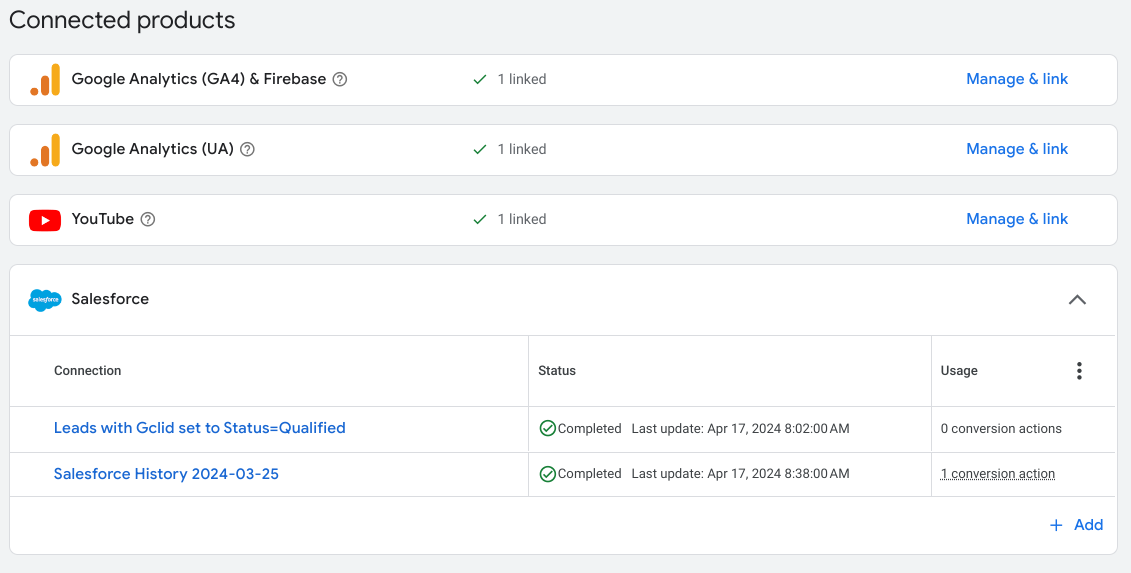
 

The Salesforce Clouds (Sales, Service, Marketing, and Commerce) are standalone, meaning they can be used separately and independently. But they can also be connected to share data across the different capabilities of each cloud.


Sales Cloud is the most common, and what many people think of when they think of Salesforce. “Salesforce Classic” you might think of it as, the one that started all the way back in 1999.

Both Sales Cloud and Marketing Cloud track leads along their journey to become your customers. Sales Cloud has a lot more features to create and manage customers and revenue, including forecasting and pipeline management. In addition to the Leads, Accounts, Contacts and Opportunities that everyone knows, it can manage Contracts, Products and Quotes as well, for managing the full sales cycle. 


Sales Cloud does have lead generation capabilities as well, including web-to-lead forms that post leads from your website into Salesforce, lead assignment rules, autoresponder emails and more.


Salesforce Sales Cloud vs. Salesforce Marketing Cloud:
Functional Areas Comparison

Salesforce Sales Cloud Salesforce Marketing Cloud Account Engagement
Lead Management Lead Scoring and Analytics
Account Management Lead Nurturing (Journey Builder)
Contact Management Email Marketing Tools
Opportunity Management Social Media Integrations


Marketing Cloud is made up of several different products. The main Marketing Cloud product can send a LOT of email to consumers. Marketing Cloud Account Engagement, formerly known as Pardot, has more nurture and automation features, for longer B2B sales cycles. It is good for large scale email drip campaigns, where you send a series of automated emails to leads or customers based on various criteria such as demographics, behavior and communications preferences.


Marketing Cloud also has a number of features to help with Account Based Management (ABM), including tracking website activity and scoring a prospect’s engagement level with content. While it is possible to use some Marketing Cloud features without Salesforce Sales Cloud, the full capabilities of the product are only available when it is integrated with Salesforce. It would be safe to say that most Salesforce Marketing Cloud customers are also purchasing Sales Cloud.


Salesforce Campaigns

While many people might use Campaigns with Marketing Cloud, Campaign records are actually part of Sales Cloud. Campaigns can be a powerful tool to use with Leads and Contacts, as well as Prospects in Marketing Cloud Account Engagement (fka Pardot).


You can use Salesforce Campaigns to create target audiences, and track responses and engagement. Both Leads and Contacts can be members of the same campaign, making it a good way to unify a marketing effort across groups of records which are normally separate in Salesforce.


Here is an overview of how you use Salesforce campaigns:


Create Campaigns

Creating Campaigns in Salesforce is easy, and you can define a lot or a little bit of information about each campaign, depending on your requirements.


  1. In the Salesforce App Launcher, select Campaigns.
  2. Enter a campaign name.
  3. Select the Active checkbox if you’re ready to roll out the campaign.
  4. Select the type of campaign (advertising, event, etc.).
  5. Select the status of the campaign.
  6. Enter a Start Date and an End Date.


There are other fields you can fill out, such as budget, should you choose. After saving, you can start to add people (leads and contacts) to the campaign.

Add Members to Campaigns

You can make Leads and/or Contacts members of a campaign, to send them emails, track whether they have responded, and more. Campaign members can be made up of both Salesforce leads and contacts, which is one of the useful features of Campaigns.


  1. Click Add Leads or Add Contacts
  2. You can also select Manage Campaign Members to import CSVs of Leads or Contacts
  3. For each Member, you can choose their Status when you add them
  4. Click Save

Members can also be added to Campaigns directly from a Lead, Contact, or Account record, or from list views on those objects.


Auto Assign Leads to Campaigns

You can have your website forms automatically assign leads as members of a particular Campaign when they are created in Salesforce. Just add a hidden field that passes the Campaign ID to Salesforce.

For more information, see the “Automatic Campaign Assignment for Leads” section of our blog post, “Which Form or Web Page did a Salesforce lead come from?


Salesforce Lead Management & Forms

Salesforce Sales Cloud includes Web-to-Lead functionality, which gives you form code to place on your web site and collect leads. Some customization and styling with CSS is required, but Salesforce web-to-lead forms work well for getting prospect information into Salesforce.

How to Create a Web-to-Lead Form

You can generate HTML code for a form that will create Leads in Salesforce when your website visitors or prospects fill it out. Just follow these general steps, and then send the resulting code to your web developer.


  1. Go to Setup, type Web-to-Lead in the Quick Find box, then select Web-to-Lead.
  2. To enable or change Web-to-Lead settings, click Edit.
    1. There are various settings such as the Salesforce user that is shown as creating the leads from the form, as well as other settings. Consult the full Salesforce documentation for details on all the web-to-lead setting options.
  3. Click Save.
  4. To create a form for your website, click Create Web-to-Lead Form
  5. Select fields you want to include.
    1. You can include custom fields that you have previously created in Salesforce, such as information relevant to your product or service.
    2. Don’t include too many fields though — requesting more than a few key bits of information will reduce your number of leads.
  6. Copy the final code to send to your web designer or developer.
  7. Click Finished.


Salesforce Web-to-Lead Form Alternatives

Some Salesforce customers prefer to use third party form programs, such as FormAssembly or Gravity Forms. These options offer some additional functionality, and provide an online interface to make updates to the forms without needing to get your web developer involved each time. 


However, Salesforce web-to-lead is included as part of your standard Salesforce subscription, and does the job for most purposes. You can even capture information specific to your organization, by creating custom fields in Salesforce and adding them to your web-to-lead form. And you can keep using web-to-lead with Marketing Cloud Account Engagement via the Pardot form handler functionality, or use the Pardot forms instead.


Linkedin Advertising Leads

If your business uses Linkedin Lead Gen ads, you can set up a connection to Linkedin, where the leads submitted in your advertising come straight into Salesforce. This functionality is included standard in Salesforce Sales Cloud, but it does require Salesforce Web-to-Lead to be enabled.


  1. Go to Setup, type Linkedin in the Quick Find box, then select Linkedin Accounts.
  2. Connect your Linkedin account that has access to your LinkedIn ad accounts and company pages.
  3. Go to Lead Gen Fields in the Setup area.
  4. Under Map Form Data, choose the Salesforce lead fields to receive data from LinkedIn
  5. You can configure other settings as well.
  6. Test! (Fill out a form on one of your Linkedin ads)

Lead Assignment Rules

Sales Cloud also includes a feature to automatically assign new leads to users or queues, where users can grab them. For complex Sales territories, there are a variety of Salesforce AppExchange apps that can help assign leads, but out of the box you can have them assigned to a user or queue based on data that exists in any of the lead fields.


  1. Go to Setup, enter Assignment Rules in the Quick Find box, then select Lead Assignment Rules 
  2. Click New to create a new rule entry. For each rule, there are 3 areas you can set:
    1. Order – Number the rules in the order you would like them to run, when they evaluate a new lead
    2. Criteria – specifies the field and values that should match  in order for that assignment rule to be triggered.
    3. User – specifies the user or queue that the lead is assigned to

There are a variety of other settings and use cases that can be set up for this powerful Salesforce Sales Cloud lead management feature.

You can also configure related Lead Auto-Response Rules in a similar fashion, to send an automated email to new leads.


Pro tip: you can create a Delete queue in Salesforce, then use Lead Assignment Rules to filter out junk leads that escape your spam filters into that queue. If you don’t have any email notifications configured for the Delete queue, and filter leads owned by that queue out of your lead views, these junk leads will be far less bothersome, and will be easy for your Salesforce Administrator to clear out the delete queue periodically using Mass Delete Leads functionality.


Track Your Advertising in Salesforce

There is some marketing functionality within Salesforce Sales Cloud, but it doesn’t go terribly deep into lead enrichment or source information. The good news is, some of this functionality can be added through Salesforce partner applications on the Salesforce AppExchange very affordably.


Our CloudAmp Campaign Tracker, for example, can show you how your best leads found you, including campaigns, keywords, and which pages on your website a lead viewed.


If you are spending money on Google Ads or other online advertising, knowing which ads are producing your best leads can help you drive more sales and cut any ineffective campaigns. 

Ad Tracking for Salesforce

Marketers often find that some keywords or types of ads can produce a lot of leads, but some types of those leads will not convert to sales. This issue can be both more pronounced and harder to discover with B2B products or services, where the conversion to a paid customer may take 3 to 6 months or more. In this scenario, tracking the detailed sources of your leads in the Salesforce Sales Cloud is essential, so you can connect the offline sales, and know which online advertising produces the most conversions to revenue.


With an add-on Salesforce app like the CloudAmp Campaign Tracker, you can add many data points to your Leads and Contacts, such as the following:


  • Lead type (Campaign, Organic, Referral or Direct)
  • Campaign UTM parameters
  • Referring Site / Source
  • Keyword / Search Phrase
  • Ad click ID (Gclid / Msclkid)
  • First and Last visit information
  • What pages were viewed on your web site


Because this advertising data comes right into your Leads in Sales Cloud, it can be quickly used by both marketing and sales team members. Sales users can understand the products or services a lead may be interested in by viewing their path through your web site, as well as their search phrases that triggered an ad.


Marketers or Sales Operations users can view aggregate campaign data in Salesforce, to identify keywords that may be driving high volumes of leads that don’t convert. Sometimes the target audience for those ads is off, or there could be confusion with a keyword having multiple meanings to different audiences. 


Eliminating waste in online advertising is not to be underestimated — it can be a quick path to improving results, when budget is reallocated from underperforming to better performing campaigns.

Call Tracking for Salesforce

There are also Salesforce apps such as RingDNA and Call Tracking Metrics, which can both provide your business with a Salesforce integrated internet based phone system, while at the same time helping to track advertising results from phone calls.


These systems can dynamically display unique phone numbers on your website landing pages that are tied to particular campaigns or keywords, and sync that data to Salesforce when leads are created. 


Salesforce connected phone apps have a number of other features that can improve your sales team’s productivity as well, such as predictive dialing, automated emails and voicemails, and more.


Website Activity Tracking in Salesforce

Knowing which pages a Lead or Contact in Salesforce viewed on your website can be critical in understanding buyer intent. And the good news is that this is not just a feature of Salesforce Marketing Cloud, it is also available through lower cost add-on apps for Sales Cloud.


By combining the power of CloudAmp and Salesforce Sales Cloud, you can see the pages that a Lead or Contact viewed on your site — how they entered your site, which products or services they looked at, and which form they filled out to contact you.  All the website activity data is shown in a related list right on the Salesforce record.

There are also a variety of indicators that can help your team understand where a prospect is in the funnel, such as viewing a pricing page, or multiple return visits to your website. Each session can be viewed, with time stamps and page URLs to make understanding the signals easier.


You can even set follow up tasks for your sales reps based on website activity, or add leads to a campaign based on them downloading a certain piece of content. While it does not solve every challenge of understanding prospect behavior, it can give you an easy starting point for how to engage with a prospect.


Salesforce Email Marketing

While Salesforce Sales Cloud is not technically email marketing software, it does have a number of capabilities for sending emails that are built in. It may not give you all the features of a system like Marketing Cloud, or of standalone email marketing software like MailChimp or Campaign Monitor, but it is worth understanding its capabilities and whether they would work for your purposes.


Salesforce Sales Cloud includes the ability to send mass emails, email templates, and ways to create automations, but they are subject to some limitations. Its functionality for individual Sales or Service users to send single emails to customers is considerably more advanced, as this is core functionality of Sales Cloud.


Mass Emails

You can send mass emails from Salesforce, though the amount is limited to 5000 per day. Additional quotas may be available if you are relaying email through your own mail servers or Google Gmail / Microsoft Office 365 mail servers.


There are also some limitations to the data you get back. Email Opens can be tracked in most cases, but you will not be able to see click throughs on an individual basis.


If you are regularly sending mass emails, such as a monthly email newsletter to thousands of customers, you should consider using a third party email marketing application. You will have fewer restrictions around email quantities, and are likely to find the analytics that most email services provide to be valuable.


But Salesforce Mass Emails can be quite convenient, since you can select “Send List Email” from Lead or Contact list views at the click of a button.

Automated Emails

In addition to the Lead Auto-Response Rules covered above, to schedule automated emails in Salesforce Sales Cloud, using Flow automation is generally recommended. While flows are very powerful, they would typically require your Salesforce Administrator to configure, especially if you wish to do a drip email campaign (also known as a marketing automation journey). 


That can be implemented in Salesforce, but it would be a fairly advanced setup. Marketing Cloud Account Engagement (formerly Pardot) would likely be a better solution if you want to send lots of automated email journeys, and give your marketing team the ability to easily configure and update them.

Salesforce Sales Cloud does have other features that were used for sending automated or scheduled emails, such as Workflows and Process Builder, but those features are being phased out. At CloudAmp we do use Workflow email notifications to send internal emails, such as information on new leads or closed deal celebrations to the team.


Email Templates & Quick Text

Salesforce does have email templates that are useful for sending pre-written and formatted emails from Salesforce, either to individual customers or mass emails. There is not a drag-and-drop editor, like most Email Service Providers offer, so often you might need to build an email template externally, convert it to HTML, and then upload it to Salesforce.


Another nice feature of the Salesforce Sales Cloud email toolset is Quick Text. These short blurbs can be inserted into any email using a button, and help make your team more efficient, as well as keeping replies or wording more standardized across your company.


Quick Text can be organized into folders by category or topic, giving your team easy access to pre-written responses. This feature is generally used in Sales or Service situations however, and not as frequently as a marketing tool.

Email Hygiene

Salesforce Sales Cloud does provide Bounce Management, to show you when an email address has bounced. It also has an Email Opt-Out field, which can be checked when you wish to exclude a Lead or Contact from future emails.


Unfortunately Salesforce does not have an unsubscribe function that can be added to the bottom of emails and allow customers to unsubscribe on their own. Your team would need to check the Email Opt-Out field manually when requested by your customer, or build additional functionality using a form to process unsubscribes. Unsubscribe functionality is another reason to consider a third party tool for mass email marketing purposes.


Conclusion

If you’ve made it this far, you can see that there is a lot of marketing functionality included in Salesforce Sales Cloud, as well as a number of add-on apps to extend functionality. Marketing Cloud is a good solution for many Salesforce customers, but its functionality isn’t a necessity or fit for all customers. And at the very least, it is worth understanding the breadth of marketing functionality within Salesforce Sales Cloud, so you can make a good decision on what tools to use, with or without Marketing Cloud.


Learn more about CloudAmp

Not yet a CloudAmp customer? If you want to have more data about your Leads in Salesforce, including full source attribution and page view data to prove ROI and improve your marketing, contact us for more information today.


CloudAmp vs Other Solutions: Why Salesforce Native Lead Attribution?


There are a number of marketing applications that can capture ad campaign sources and utm parameters. So why choose CloudAmp?

CloudAmp expands the Salesforce Customer 360 by providing campaign data right in Sales cloud, giving you a more complete view of your customer. See how leads arrived at your website, what pages they viewed, and more.

More importantly, CloudAmp is one of the only solutions that is native to Salesforce, and 100% focused on Salesforce customers and functionality. What does this mean in practice? 


Built 100% on the Salesforce Platform

CloudAmp is built and runs 100% on the Salesforce platform. It is a native application, with no infrastructure outside of Salesforce.

Why does “native” matter? While it may seem like a minor distinction, it really separates Salesforce apps into two distinct groups — native ones built on top of the Salesforce platform, and external apps that connect to Salesforce, but are mainly running outside of Salesforce’s infrastructure.

Secure

Built 100% on Salesforce means the CloudAmp application lives entirely inside of your Salesforce Org once you install it. There is an external script that runs on your website to help capture tracking information for your forms that submit leads into Salesforce. But everything that processes and stores data runs inside your Salesforce org, and has passed the rigorous Salesforce security review (more on that below).


Focus

Native also means that the CloudAmp design philosophy is 100% focused on Salesforce. Rather than have an external application, where selected data is pulled into a section within Salesforce, CloudAmp is tightly coupled to the Salesforce data model and functionality. We only build applications for Salesforce, so Salesforce is our exclusive focus.


CloudAmp custom fields are added right to your Leads, Contacts, and Opportunities, where your team is already working. The Visitor Sessions custom object, which shows which pages a lead visited on your website, is tightly connected via a related list.


Familiarity

Prebuilt reports and dashboards are there for you to easily visualize your data and customize as needed, using the Salesforce reporting tools you are familiar with. The entire application takes advantage of familiarity with Salesforce, rather than requiring your team to learn a new interface. This speeds your time to implementation, and can increase your user adoption rate as well.


Easy Access

Finally, being built 100% on the Salesforce platform means no integration hassles. All of your marketing attribution data is right in Salesforce with CloudAmp, where it can be easily connected to other tools you use within Salesforce — Campaigns, email tools, sales pipeline reporting, and more. This makes access easier for your team, which means the CloudAmp tools are easier to use, and ultimately helps increase sales deal velocity.


There is also no need to connect external solutions, with the related integration costs and potential for mapping issues or service interruptions. You get the reliable uptime that Salesforce delivers, with less potential for performance issues. You also benefit from Salesforce’s strong data security, which leads into our next topic.


Your Data Stays in Your Control

Many marketing applications are built independently of Salesforce, so they can connect with different CRM platforms. These types of Web applications can be convenient, but by their nature they need to store your data in their own databases in order to process and display it. 


While this is generally fine, it does create risk in several areas, including risk of 3rd party data breaches, and compliance issues around data processing and privacy.


No Intermediaries

With CloudAmp, your data goes directly from your web site to your Salesforce account, with no servers or storage in the middle. Your data is kept completely private, with no access granted to external parties. You are in complete control of how your data is managed and shared, just like with any other data stored securely in Salesforce.


As an application built 100% on the Salesforce platform, all of the data processing happens inside your Salesforce account, where the CloudAmp app acts as a plugin. Once the data has been captured from your website to Salesforce, it never leaves your Salesforce account and is never transferred to any external servers.


With this architecture, it is able to manage critical marketing attribution data without having access to it outside of your secure Salesforce account. CloudAmp does not have any of its own servers, and we do not have access to your data at any point.


Salesforce Security Review Process

All applications on the Salesforce AppExchange are subject to Salesforce’s rigorous security review process. This review happens before an application can first be listed on the AppExchange, as well as every 1-2 years as required by Salesforce’s periodic re-review process.


The goal of the security review is to ensure that AppExchange apps conform to security best practices, and protect customer data in a similar manner to Salesforce. To this end, the Salesforce security review teams attempt to penetrate the defenses of the application based on common web vulnerabilities.


Their goal is to extract or modify data that they don’t have permission to access, including via SOQL and SQL injection attacks, cross-site scripting, and nonsecure authentication and access control protocols. In addition, they also test for vulnerabilities specific to the Salesforce platform, such as record-sharing violations.


Thorough Security Vetting

If any security vulnerabilities are found during the review, a report is produced, and Salesforce technical resources are available to help address any issues. This process frequently goes through multiple rounds of security reviews and revisions, enabling Salesforce partners to fine-tune the security of their applications. Applications cannot go live on the AppExchange until they pass the review process.


All of this is to say that when you choose an application like CloudAmp, it has been vetted and reviewed by the Salesforce security review team. While no software can be 100% secure, this process gives you the peace of mind that it has been reviewed and revised according to Salesforce’s high security standards. Software outside of the Salesforce ecosystem is unlikely to have gone through this type of security check.


Salesforce Best Practices Expertise

Finally, companies like CloudAmp, which are built 100% on the Salesforce platform, and sell exclusively to Salesforce customers are in a position to help you be successful with Salesforce more generally.


We are Salesforce Experts with decades of experience, and so can help you understand how your marketing attribution and advertising data can fit into the larger Salesforce ecosystem. We can advise on best practices around lead conversion, how to manage Opportunities, other Salesforce apps that can provide additional marketing insight, pluses and minuses of different form technologies, using Salesforce automation to update campaigns, and more.


All this means you’ll be able to more quickly use that data to accelerate your sales process and close deals faster, which is the main purpose of Salesforce.


Get More from Your Salesforce Investment

CloudAmp extends Salesforce’s capabilities, and makes your investment in Salesforce better. 


Other solutions may have some support team members who are familiar with Salesforce, but for most companies it is just another integration they are required to have (albeit a popular one). 


CloudAmp makes your life easier as a marketing or sales ops professional, by giving you the data you need to improve your advertising. But we can go beyond that to help you understand where else in Salesforce you might be able to take action based on that data. And we know many of the other tools and features that you might take advantage of to be more effective with your Salesforce investment.


Learn more about CloudAmp

Not yet a CloudAmp customer? If you want to have more data about your Leads in Salesforce, including full source attribution and page view data to prove ROI and improve your marketing, contact us for more information today.


CloudAmp Campaign Tracker Demo

The CloudAmp Campaign Tracker makes your life easier as a marketing or sales professional, by giving you the data you need to improve your advertising, right in Salesforce.

It works inside your Leads and Contacts in Salesforce Sales Cloud, but it can also work with Marketing Cloud, or external marketing automation systems that are connected to Salesforce.

You’ll get the data you need to drive more pipeline and closed won opportunities.

Plus you can prove your marketing ROI, and eliminate ads that don’t convert to revenue.


View the CloudAmp Campaign Tracker Demo Video:


So what is the Campaign Tracker?

It is both an app on the Salesforce AppExchange that runs 100% inside of your Salesforce account as a plugin, plus a script that runs on your web site. The script tracks where visitors came from, and adds that data to your form submissions that create Leads in Salesforce.

We have a 30 day trial, and provide both email and phone support to make sure you get up and running.


Once the Campaign Tracker script is live on your web site, and your forms are submitting tracking data, you’ll start to see new data in your leads coming in.

You can see both their first visit to your site, also known as First Touch, and if they came back to your site multiple times, the last visit before they submitted a form as well.

See the Campaigns, keywords, Google and Bing ad click IDs, and other utm campaign parameter tags that you set in your advertising URLs.

And if the lead did not click on an ad, you’ll get information on the Referring site or Organic information from search engines.


All of this information is right in your Salesforce Leads, and transfers over to the Contact and Opportunity when you convert a lead. So you can see the original source when the deal is closed.

This can be very helpful to you in focusing advertising budget on creating leads that convert to actual sales. And you can get the data you need to cut ads or keywords that produce a lot of inquiries, but no actual revenue.


In addition, the Campaign Tracker’s visitor sessions feature shows you what pages on your web site a lead visited, as well as the timing and duration of each visit if they came back multiple times.

This can be useful to your marketing and sales teams, to understand what products or content a lead was interested in, as well as the path they took through your web site.


So why choose the Campaign Tracker?

There are other lead source tracking apps out there, but none of them have the exclusive focus on Salesforce that CloudAmp does.

This means the Campaign Tracker passed Salesforce’s rigorous security review process, and is periodically re-checked for your peace of mind.

Your data is also kept private, as CloudAmp does not have any servers of our own — the app only lives in Salesforce. So your lead data goes directly from your web site to your Salesforce org. It is not stored anywhere else.

Finally, CloudAmp is 100% focused on Salesforce, and has been exclusively since 2012. We are Salesforce experts, and are here to make sure you are successful with Salesforce marketing attribution.

We do one thing, we do it well, and we will provide as much assistance as needed to make sure you get the data required to be successful.


So if you want to have more data about your Leads in Salesforce, including full source, campaign information and page view data to improve your marketing, contact us today, or sign up for our no obligation 30 day trial by clicking the “Get it Now” button on the Salesforce AppExchange.


CloudAmp Campaign Tracker 3.5 Release


CloudAmp’s Campaign Tracker version 3.5 is now available on the Salesforce AppExchange. This new version contains a number of new features and improvements to help you improve your lead generation and optimize your online advertising spend.

The 3.5 release is now available as a free update to existing CloudAmp customers, or as a free 30 day trial to any Salesforce customer. If you want to have more data about your Leads in Salesforce, including full source attribution and page view data to prove ROI and improve your marketing, contact us for more information today.


utm_id Capture

The Campaign Tracker now captures Campaign IDs, using the recently added Google Analytics campaign parameter utm_id. This parameter can be used in your URLs to identify a specific campaign or promotion, and will now be captured into your leads and contacts using the Campaign Tracker app. 

The utm_id is a required key for GA4 data import. This can be useful if you want to import non-Google advertising data, such as ad network cost, click, and impression data. By using the utm_id as the key, you can import data to Google Analytics and combine cost data from external sources with session data in Google Analytics.


To import cost data, the following data dimensions are required:

  • Campaign ID (utm_id)
  • Source (utm_source)
  • Medium (utm_medium)
  • Campaign name (utm_campaign)
  • Date (ISO 8601: YYYY-MM-DD)


At least one of the following metrics is required:

  • Clicks (daily value) (optional)
  • Cost (daily value in the format 0,000.00) (optional, but expected)
  • Impressions (daily value) (optional)


The Campaign Tracker will now capture those Campaign ID (bing_001, facebook_42, etc.) from incoming links to your website from advertising, email newsletters, or social media. 

This means on the Salesforce side you can now use the Campaign ID to automatically associate leads with Salesforce campaigns using a flow.

You also now have a unique identifier that can be used to import data into Google Analytics. Beyond cost data you can create custom dimensions in GA4 for aspects of leads, converted leads, or opportunities you wish to track (for information on a different type of connection, please see our guide to connecting Salesforce and Google Ads via the Google Click ID (aka Gclid, also captured by the CloudAmp Campaign Tracker.)


utm_id and Msclk capture into Salesforce


Microsoft Click ID (MSCLKID) Capture

The CloudAmp Campaign Tracker now captures the Microsoft Click ID, and stores it in the same field as the more familiar Gclid (Google Click ID). So if you have Microsoft autotagging enabled for your Microsoft Ads / Bing advertising, this unique click ID parameter Msclkid will be added to your landing page URL, and captured into the Lead in Salesforce.

This ensures you have full conversion tracking, tying your Salesforce lead to the Bing Ad click ID.


To enable auto-tagging of Microsoft Click ID (MSCLKID):

  1. Select All campaigns > Settings > Account level options.
  2. Check the Add Microsoft Click ID (MSCLKID) to URLs to allow conversion tracking checkbox.
  3. Select Save.


On the CloudAmp side, just make sure you have updated to version 3.5 to capture the Msclkid tracking parameter.


Opportunity Keywords & Ad IDs

In the latest Campaign Tracker, we’ve made it easier to report on Keywords and Ads that resulted in Opportunities. Now when you convert a lead, in addition to the resulting converted Lead / Contact being related to the Opportunity, the Ad keyword and ID are copied to new fields on the Opportunity.

Based on feedback from you, our customers, many people wanted to see advertising information directly on the Opportunity, rather than by relationship to the Contact who clicked on the ad.

This is designed to make reporting easier — you can now run Opportunity-only reports, and see keywords in your pipeline review.  It also offers a convenient way to export Opportunities with Ad IDs to CSV for import into other ad tracking and analytics systems.


Improvements & Bug Fixes

Tracking Script

The javascript tracking code you place on your website has been completely modernized and retested for performance and security improvements. 


Visitor Sessions Permissions

Fixed an issue that caused errors copying visitor sessions to the contact, when certain user profiles converted leads.


Learn more about CloudAmp

Not yet a CloudAmp customer? If you want to have more data about your Leads in Salesforce, including full source attribution and page view data to prove ROI and improve your marketing, contact us for more information today.


Which Form or Web Page did a Salesforce lead come from?

Forms are one of the most essential parts of any website, providing a convenient way for visitors to “raise their hands” and request more information or take advantage of an offer. Web forms are also a critical way for your company to learn more about who is on your website, receive and qualify leads, and hopefully start your visitors on their buyer’s journey.


When you have multiple contact forms, tens or even hundreds of landing pages, and different paths visitors take on your web site, it can be difficult to keep track of which form a Salesforce lead came in through. Most forms are used with a specific conversion path, so in order to analyze your marketing results and most effectively connect with your leads, you need to know what that path was.


  • Know what page a lead came from
  • Understand where in the buyer journey your lead is
  • Track which offers or downloads prospects responded to
  • Score your MQLs more effectively with precise source data


So how can you know which form on your web site a lead filled out? Read on to learn about multiple different methods you can use to get this important marketing data.


Topics in this article:


Hidden Lead Source in Forms

If you are using Salesforce web-to-lead forms, or other forms like Gravity Forms or FormAssembly that can post leads into Salesforce, adding a hidden Lead Source field to your forms is one of the easiest ways of identifying them.

This method hard-codes a hidden field with a lead source value that you set for each form, and pushes that value to the existing Lead Source field on the Lead object in Salesforce.

Here is an example from a Salesforce web-to-lead form:

<input type="hidden" name="lead_source" value="LP Trial Offer">


Pro-tip: Use a common naming convention in your lead source values, such as “LP” for landing page, to make reporting in Salesforce easier (Lead Source *Contains* LP will collect them all).

  Filter by Lead Source - Contains - LP 

Another advantage of using hidden fields in this manner is that you can insert Lead Sources into your Salesforce leads that are not actually selectable values in the Lead Source drop down list. Salesforce will insert any value in the Lead Source field when the lead is created.

This approach means that you can be sure those lead sources are only coming from your form, since the value is not available to Salesforce users to select. No more random selections from the Sales team (not that your sales team would ever do that!)

On the minus side, there are some limitations to reporting if a Lead Source value is not added to the picklist values in Salesforce — namely you won’t be able to filter on those values by selecting one or more of them in a report. But you can still use “Starts with” or “Contains” to include any values.

Filter by Lead Source - Select - Lead Sources


Automatic Campaign Assignment for Leads

Similarly to using a hidden field in your forms to set a Lead Source in Salesforce, you can also automatically have leads added to a Salesforce Campaign using a similar method.

By adding a hidden field that passes the Campaign ID, your forms will automatically make leads members of that particular Campaign when they are created in Salesforce.

This technique is especially useful for forms or landing pages that are specific to a particular marketing campaign, since Salesforce Campaigns allow you to track members of a campaign from Leads through to conversion to Contacts, and see the ROI summarized clearly via Opportunities.


Here is an example of hard coding the Campaign ID in a hidden field in a Salesforce web-to-lead form.

<input type="hidden" name="Campaign_ID" value="7010V000001ufMIQAY">


To get the Campaign ID value for your hidden field, simply navigate to the Campaign Record in Salesforce, and copy the 18 digit record ID from the Salesforce URL in your web browser. 

Finding the Salesforce Campaign ID

Having leads automatically assigned to a Salesforce Campaign can be useful for other purposes as well, such as segmentation. If you want to compare leads that come in from a “Contact Us” form on your web site in total versus advertising landing pages, having them all assigned to a “Contact Us Form Campaign” makes it easier.

There are other advantages of assigning Salesforce Leads to Campaigns automatically, such as the ability to send Emails to campaign members in Salesforce (both Leads and Contacts at the same time, as long as they are members of the Campaign), as well as tracking any Opportunities that were generated from Campaign members.


👍 Need more Campaign automation?

While hard coding a Campaign ID works well, it is not a very flexible solution. For several more options, including completely automatatic Campaign Creation and Lead Assignment based on UTM Campaign values, see our complete guide:

How to Automatically Assign Salesforce Leads to Campaigns


Custom Salesforce Fields in Forms

Custom fields are one of the more powerful features of Salesforce that most organizations take advantage of to capture unique business data.

Just like the hidden Lead Source and Campaign ID fields shown above, you can add Custom fields from Salesforce to your forms to better identify them.

In most cases these custom Salesforce fields would be hidden, transmitting their values in the background when a form is submitted, but in some cases you could make them visible to visitors (such as in a quote form where the lead might choose a value from a picklist, that might also enable you to identify the source form).


Here is a high level overview of how to create a custom field in Salesforce (you will need to be a Salesforce Administrator or have “Customize Application” permissions:

  1. Go to Setup
  2. From the Object Manager, select the Lead object
  3. Select Fields & Relationships
  4. Click the New button


There are quite a few considerations and configuration options at that point, so please refer to Salesforce’s custom field documentation for full details.

Salesforce Custom Field Addition in Object Manager


Once you have created a custom field, you will need to add it to your form. For Salesforce web-to-lead forms, you can generate updated code from the setup page after including the new field.

For other form providers, you will likely need to refresh the connection to Salesforce, to have the new custom field available in the mapping / form setup interface.


Using a Single Form on Multiple Pages

If you are using the same form on multiple pages, which is especially common if that form is being dynamically embedded using a script or iFrame on your web site, things get a lot harder. 

Forms that are embedded, rather than having their full HTML code as part of the web page, are an increasingly popular option. They allow marketers a greater degree of control, with a single embed tag added to your web site, and a separate form software interface where you can configure your form and simply click a button to publish a new version.


Many embedded forms offer a way of getting the page URL, and making it part of the form submission. With a single form across many web pages, it has become essential for some unique identifier to be captured with the form submit.

Otherwise you have no way of knowing where your submissions are coming from when the same form is embedded in many web pages.


Here is an example of a useful widget that the form provider JotForm makes available to its customers:

Get Form Page URL Widget

Check with your form provider to see if any hidden fields or widgets exist to give you some insights on where your customers are filling out your forms.


Using a single form across multiple pages of your web site does make setting up and maintaining lead generation forms simpler (especially if you have 25+ landing pages with forms, as is common for many businesses that market online).

However, if you have the option from a form technology perspective, working with your web developer to duplicate and customize your forms individually can provide automation advantages on the lead qualification side (such as auto-assigning to Salesforce Campaigns or Lead Sources described above).

You’ll just need to keep an organized spreadsheet of your landing and form pages, and make sure your web developer is careful and understands the importance of updating the values when creating new forms.


Form ID and Name

Many forms have an ID and/or Name in their code, which helps identify them as your web page loads. These form attributes are also referenced by apps like the CloudAmp Campaign Tracker, which uses the IDs to tell our tracking script where to insert marketing attribution data.


To find the form ID, follow these steps.

  1. Load the web page with your form
  2. Right click on the form and select Inspect Element
  3. Type Ctrl + F to bring up the search (find) box.
  4. Enter <form to find the beginning of a form in the code


Some forms have an ID, and some have a name. Most forms have both, but either can be used to identify the individual form. 

Once you have identified the attributes, the tricky part is determining if they can be passed to Salesforce in some way. Your web developer may be able to use the form ID to capture the form source information when a visitor clicks to submit the form, and pass it to Salesforce along with the other fields.


Here is an example of a form ID in the initial Form tag, from Gravity Forms:

<form method="post" enctype="multipart/form-data" target="gform_ajax_frame_1" id="gform_1" action="/contact-us/#gf_1" data-formid="1" novalidate="">


Note: Salesforce web-to-lead forms do not have IDs or Names, but define a separate hidden field for the Salesforce Org ID, named OID.


UTM or other URL Parameters

This solution is not part of the form itself, but if you are capturing parameters from an incoming link to your website, you may be able to use those to identify the form.


As an example of what we mean by parameters would be a URL such as:

https://www.YOURSITE.com?utm_source=GoogleAds&utm_medium=PPC&utm_campaign=CampaignName&utm_term={Keyword}


The parameters are in green text, and their sample values are shown in red text. The ? in the URL defines when the web address ends and the optional parameters start, and the & characters separate the different parameters.


Some of the most common parameters are known as the UTM or Google Analytics Campaign parameters:

  • utm_id: Campaign ID.
  • utm_source: Referrer to your website, for example: facebook, google
  • utm_medium: Marketing medium, for example: PPC, email newsletter
  • utm_campaign: Marketing campaign name or identifier (product, dates, etc.)
  • utm_term: Paid keyword, commonly from Google Ads or Bing
  • utm_content: More information about the marketing creative, ad text, etc.

Your web developer may know how to write javascript to capture parameters in the URLs that visitors click through to get to your website, or you can use a Salesforce app like CloudAmp’s Campaign Tracker to capture the data and make it part of your Salesforce leads.


This approach assumes that you have landing pages that are only receiving traffic from certain campaigns. It will not work with generic Contact Us pages or similar forms, where visitors from many different sources might be arriving there.

You can also use utm values to define source data (utm_campaign=LandingPageOffer1), and if you make it unique to a particular landing page, tie that back in your tracking (be sure to keep a careful UTM values spreadsheet in that case!)


Salesforce Visitor Sessions (List of Pages Visited)

Some tools like CloudAmp’s Campaign Tracker will show you a complete list of pages that your lead visited on your web site, prior to filling out a lead form. You can often see multiple visits (sessions) as well.

In the CloudAmp app, this data is provided in the “Visitor Sessions” object in Salesforce, which is related to the Lead (and later the Contact after conversion).


Here is an example lead, with the Visitor Sessions related list in the right hand column, showing the pages viewed by the Salesforce lead before they submitted a form.

 Salesforce Lead with Visitor Sessions Related List 

As you can see from this simple example, the lead landed on a Setup page, and then went to the Contact page, which is where they submitted the form.


You can click “View All” to see the full related list, where you can more easily see the page titles and complete URLs, as well as the time stamps from when a visitor was on each one of your web pages.

Salesforce Visitor Sessions list with Web Pages Shown

If a lead visits your web site multiple times before submitting a form, that is shown in the data as well. Each session (visit) is numbered to tell them apart and give you visibility into which web pages the Salesforce lead viewed.

Salesforce Visitor Sessions list with Web Pages Shown and Session Numbers


We’ve reviewed seven (7!) different ways to know what web page form a Salesforce lead came in through. There are likely other methods as well, but one or more of these should give you a good starting point to capturing better marketing data in Salesforce. 

If you have questions or feedback about the approaches described above, don’t hesitate to contact us. (Comments are turned off here to prevent spam, but we’re always happy to talk shop via email).


Learn more about CloudAmp

If you want to have more data about your Leads in Salesforce, including full source attribution and page view data to prove ROI and improve your marketing, contact us for more information today.


How to Keep Track of UTM Campaigns: Free Spreadsheet

If you are using Google Analytics UTM Campaign tags to track your advertising and marketing efforts, congratulations! You are following one of the standard conventions of modern online marketing, and likely driving better results and ROI for your organization as a result.

Google Analytics UTM parameters are pretty easy to generate if you are familiar with the conventions:


  • utm_source: The source web site or advertising campaign that is sending traffic to your web site
    • Examples: Google, Facebook, PartnerSiteXYZ, Monthly Newsletter.
  • utm_medium: The advertising or marketing category.
    • Examples: PPC, Retargeting, Display, email.
  • utm_campaign: The marketing or advertising campaign name.
    • Emaples: SpringCampaign, CompetitorKeywords, Brand Search.
  • utm_term: Paid search keywords.Normally this is not manually tagged.
    • REQUIRED: use utm_term={keyword} in Google or Bing to have the Search Keyword inserted automatically.
  • Utm_content: Optional, use to differentiate similar content, such as Adgroup or specific links.
    • ProTip:  You can use utm_content={device} to have Google automatically insert whether the visitor came from Computer (c), Mobile (m), or Tablet (t)


These parameters go on the end of your web site URL. They do not change the destination when a visitor clicks, but they simply add tracking information.

The exact way you add them together is as follows:

  • ? after your web site URL
  • Parameter (utm_source, utm_campaign, etc.)
  • = sign, then your value
  • & between each parameter / value pair (&utm_campaign=campaignname&…)


Which ends up producing a URL such as

https://www.YourSite.com?utm_campaign=YourCampaign&utm_medium=PPC&utm_source=GoogleAds&utm_content=Optional&utm_term={keyword}


There are lots of online URL builders, if you don’t feel comfortable creating them by hand. No need to do that, until you become very familiar with UTM parameters.

And of course like every link anywhere in your marketing, BE SURE TO CLICK ON IT before using it. It only takes a second and can save you from a lot of pain later on. 🙂


How do you keep track?

So that is how to build Google Analytics UTM Campaign tags. But more importantly, how do you keep track of all the different ones?

And make sure you are being consistent so you don’t mix up different mediums like PPC, CPC, or capitalization?

Consistency is key to being able to make the most of reports and analytics going forward. Plus once someone clicks on a URL, those Campaign, Source, and Medium values are registered in Google Analytics. You can always change them later, but then you end up with multiple values tracking to a single campaign. Messy.

So without further ado, here is CloudAmp’s FREE Google Sheet, which you can use to generate your URLs with UTM parameters, as well as keep track of which values you have used for which campaigns.


FREE Download:
CloudAmp UTM Campaign Spreadsheet


You can make a copy of the Google Spreadsheet in your own Google Drive, or download an Excel copy (File > Download…), for use tracking your own campaigns.

And if you want to get UTM parameters into Salesforce, to see the UTM data and more right in your Salesforce Leads and Contacts, check out the CloudAmp Campaign Tracker. It is an affordable way to track the success of your marketing into Salesforce, and we even provide setup assistance during the 15 day trial. Check it out, or contact us if you have questions.