Install Free Lead and Opportunity Dashboards for Salesforce: Demo & Docs


See how you can accelerate your GTM efforts by installing these free Lead, Opportunity and Sales Team Dashboards, and get a head start on understanding your sales and marketing data in Salesforce.

You can install these free dashboards from CloudAmp in just a few minutes.

Watch the demo video for proof (it takes just 3 minutes 33 seconds), or follow the steps below if you prefer documentation. There is never any cost to use the dashboards, they are yours completely free.


Dashboard Installation Demo Video

CloudAmp Lead and Opportunity Dashboards Installation Video


How to Install the Salesforce Dashboards

To install CloudAmp’s FREE Lead and Opportunity Dashboards for Salesforce app, just follow these easy steps:


👍 Protip: Production or Sandbox?

Our recommendation is to install the lead and opportunity management dashboards in your Production Salesforce Org, so you can immediately see your data loaded in the dashboards.

To install in production, click the “Get it Now” button:

The app consists only of Salesforce reports and dashboards, all 100% Salesforce native, with no code or integrations to other systems. So generally you can just install in Production, and proceed with customizing the reports to fit your organization’s needs.

Larger companies may have a change management process around making configuration changes to Salesforce, regardless of how small the changes are.

For those companies, installing in Sandbox is likely to be a better first step. You will of course need a sandbox, preferably a Partial or Full Sandbox so that you can see the dashboards with some of your own data.

To install in sandbox, click the “Try it Free” button on the AppExchange listing (this is slightly misleading, since the “Get it Now” button also allows you to try it free — our dashboards app never requires payment).

Installing in a sandbox that doesn’t have some of your data, or in a developer account is generally not recommended, since the dashboards are only interesting or useful when there is data to populate their reports and charts.


  1. Go to the listing for the lead and opportunity dashboards on the Salesforce AppExchange
  2. Click the Get it Now button


  3. Login to Salesforce
    Your Trailblazer login connects to all of your Salesforce accounts
  4. Authenticate (if required)
  5. Choose your Salesforce Org (if required)
    1. This step is only required if you have login access to more than one Salesforce production environment.
  6. Select the checkbox that you agree to the terms and conditions
    1. Click the Confirm and Install button
  7. Login to Salesforce again
  8. Authenticate again (if required)
  9. Choose your installation type
    1. We recommend Install for All Users
  10. Click Done
    1. If you get the message that it is taking too long to install
  11. Go to the Dashboards tab
    1. Go to the Dashboards tab using the App Launcher
    2. Or
      Select Dashboards from the down arrow beside your first tab if you are using Sales Console or Support Console

      OR


  12. Click All Folders on the left navigation
  13. Select the CloudAmp Lead Opp Dashboards folder
  14. Click on one of the 3 dashboards
    1. Choose Lead, Opportunity, or Sales Team
    2. The Classic folder is the original 2014 version for Salesforce Classic users
  15. Click Refresh top right
    1. Dashboards in Salesforce do not automatically refresh data unless you click the button
  16. Customize your dashboards
    1. Click on any chart to view the underlying report
    2. We recommend “Save as” to preserve copies of the original reports
    3. Add filters to the reports as needed to fit your Salesforce data better
    4. Top customization examples:
      1. Add a filter to Lead reports to exclude certain types of leads, such as those from a trade show
      2. Add a filter to the Opportunity reports to only show certain custom opportunity stages or owners
      3. Add a filter to the sales team reports with the names of your sales reps only (by default it shows anyone with a sales role assigned to their user)
  17. Questions? Contact Us for assistance!


Additional Resources

CloudAmp


Salesforce


Free Lead, Opportunity, and Sales Team Dashboards for Salesforce


One of the quickest ways to get value from Salesforce (and increase your sales) is to build dashboards, so you can see all of your company metrics in one place, and refresh data with the click of a button.

Downloaded thousands of times since their launch in 2014, the CloudAmp FREE Lead and Opportunity Dashboards have just been updated and refreshed for the 10th anniversary.

This free app on the Salesforce AppExchange contains multiple marketing and sales reports and dashboards — all free to install and use in your Salesforce account. They are a great starting point and the quickest way to create your own dashboards. Just install and then customize to fit the needs of your organization. 


So what is new in the 2024 update of the dashboards? Let’s jump in and see.


👍 Protip:

If you already have an older version of the CloudAmp dashboards installed, you can get the new dashboards simply by updating your AppExchange app.

Just visit our AppExchange listing, click the “Get It Now” button, and follow the prompts. Updates work just like a fresh installation, but Salesforce detects a currently installed version and will add or update only the new components.

For reports and dashboards that are part of an app like CloudAmp, Salesforce does not change your existing dashboards, to avoid overwriting any customizations you have made. But we’ve packaged 3 additional, new dashboards in the ‘24 version, so these will install fresh when you update your app.


Lead Management Dashboard

For a Salesforce Sales Cloud quick start, understanding your leads is critical. 

Hopefully you have implemented Salesforce web-to-lead forms on your website (see our Ultimate Guide to Salesforce Web-to-Lead Forms if not), and created some basic processes for importing and assigning other types of leads (such as those from tradeshows or partners).

CloudAmp Free Lead Dashboard for Salesforce

The free CloudAmp Lead Dashboard will give you a quick overview of lead volume, status, and who is creating leads in Salesforce. Plus important lead quality metrics such as who and how many leads are being converted to create Accounts with Contacts and Opportunities. 


These dashboard graphs are essential not just to sales management, but for marketing to understand lead volume trends. And marketers can clone reports to add filters and see metrics by marketing channel or advertising network.


👉 Featured Graph: Leads by Week

This line graph tells you your lead volume trends at a glance. Add filters to create a version focused on certain lead sources, change the date range to shorter or longer than the Last 120 days default, or change the time grouping to months or years.

Salesforce Leads by Week Dasbhoard Chart


The following Salesforce reports are included as the data sources of the Lead Dashboard. Just Save as and add filters to drill down on data you want to see (and/or exclude data you don’t want).

  1. Leads by Day
  2. Leads by Week
  3. Leads by Month
  4. Leads by Status
  5. Last 10 Leads
  6. Leads by Week by Creator
  7. Leads Converted by Week
  8. Lead Conversion Rate


Opportunity Management Dashboard

The Opportunity dashboard is the second included free dashboard, and gives you visibility into your sales pipeline within Salesforce.


With this Salesforce dashboard you can see your current open opportunities by stage, both by revenue value and number of deals (opps). Your total pipeline (open Opportunities in Salesforce) is shown as well. And of course you can see closed revenue this quarter, which can be easily updated with different sales targets or time periods like monthly or yearly.

CloudAmp Opportunity Dasbhoard for Salesforce

The free Opportunity Dashboard also shows you how many Salesforce Opportunities have been closed won or closed lost each month, as well as your win rate percentage. 


Refresh the dashboard with a single click, no need to update complex spreadsheets that take a long time time and introduces the possibility of data errors. You can also schedule Salesforce dashboards to refresh and be emailed to you, and click on any chart to see the underlying data in a Salesforce report. For more tips on Salesforce dashboards, see our post 5 Big Ways to Maximize Your Salesforce Dashboards.


👉 Featured Graph: Opportunities by Stage

This funnel graph is a quick way to understand the health of your sales funnel. Opportunities are broken out by stage, and shown with their total dollar amounts. A secondary funnel chart in the CloudAmp Opportunity Dashboard shows the same data by number of Opportunities at each stage (rather than Amount).

Add filters to create your own version focused on types of Opportunities, or focused on certain Opportunity owners like a sales team or the pipeline for a particular product group.

Salesforce funnel chart of Opportunities by Stage


CloudAmp’s free Opportunity Dashboard for Salesforce includes the following reports:

  1. Opportunities by Stage
  2. Revenue Closed this Quarter
  3. Opportunities Closed per Month (Won/Lost)
  4. Top 10 Open Opportunities
  5. Last 10 Won Opportunities
  6. Average Age of Opportunities
  7. Open Opps by Close Date and Stage
  8. Opportunity Win Rate


Sales Team & Pipeline Dashboard

The 3rd and entirely new dashboard in the free app CloudAmp FREE Lead and Opportunity Dashboards is the Sales Team & Pipeline dashboard.


Similar to the Lead and Opportunity Dashboard, the Sales Team dashboard shows leads and opportunities but broken down by Sales representative. 


👍 Protip:

The Sales Team & Pipeline dashboard includes Salesforce users who have roles with the word Sales in them. If you have not assigned roles to users, or wish to filter further to certain individuals, you will need to update the report filters to include or exclude certain users. 

CloudAmp is happy to advise you on the easiest way to do this, as it is likely that most organizations will need to update the filters to show data for only the correct users.

If you have multiple sales teams, you can clone the dashboard to have multiple versions. Just be sure to Save as to the underlying reports, so you can easily create different reports for each team.


You can see closed won opportunities by rep by quarter, as well as open opportunities created by rep by month. Quarterly and monthly reports can easily have their date ranges updated to better match your business, of course.


There are also a number of charts to track sales user activity in Salesforce, such as the Activities on Leads and Completed Activities. If you have a common way of logging calls or emails, you can update reports or create duplicate reports to track calls or emails per rep as well.

CloudAmp Sales Team and Pipeline Salesforce Dashboard

And you can always add selected reports from this free dashboard to other dashboards you may have created, or add your own reports to this dashboard. For more tips on Salesforce dashboards, see our article How to Customize Salesforce Dashboards


One graph that many organizations find useful is Opportunity Win Rate (the percentage of closed won versus closed lost opportunities each month). This report can be easily updated to different time ranges, or individualized to specific users to compare close rates across sales reps. 


👉 Featured Graph: Opportunity Win Rate (by Month)

This stacked bar graph shows how many Opps were won and lost each month. A secondary X axis on the right shows the won percentage ratio. Add filters to create your own version focused on individual Opportunity owners in Salesforce, or types of Opportunities.

CloudAmp Chart of Salesforce Opportunity Win Rate by Month


CloudAmp’s free Sales Team & Pipeline Dashboard for Salesforce includes the following reports:

  1. Lead Conversion Rate
  2. Opportunity Win Rate
  3. Opportunity Win Rate (by Month)
  4. Open Opps by Close Date and Rep
  5. Won Opps by Qtr. by Rep
  6. Lost Opps by Qtr by Rep
  7. Leads Created by Rep, Last 90 Days by Wk
  8. Leads Created by Rep
  9. Leads Converted by Rep, Last 90 Days by Wk
  10. Leads Converted by Rep
  11. Activities on Leads
  12. Completed Activities
  13. Won Opp Size by Sales Rep


Get Started Now

To get started, just install the CloudAmp FREE Lead and Opportunity Dashboards from the Salesforce AppExchange. Join the hundreds of organizations that have improved their sales management, lead management, and pipeline visibility by using the dashboards as an easy starting point.


Get insight on your Salesforce data, so you can get more value out of your Salesforce investment, and drive your business forward.


There are never any fees for using these dashboards — you can fully use this solution without payment. Please email us with any questions or feedback about the dashboards, we’re happy to help. Paid assistance configuring the dashboards is available if you need it, though if you are generally familiar with Salesforce reporting (or have done the Trailheads) you are unlikely to need it.


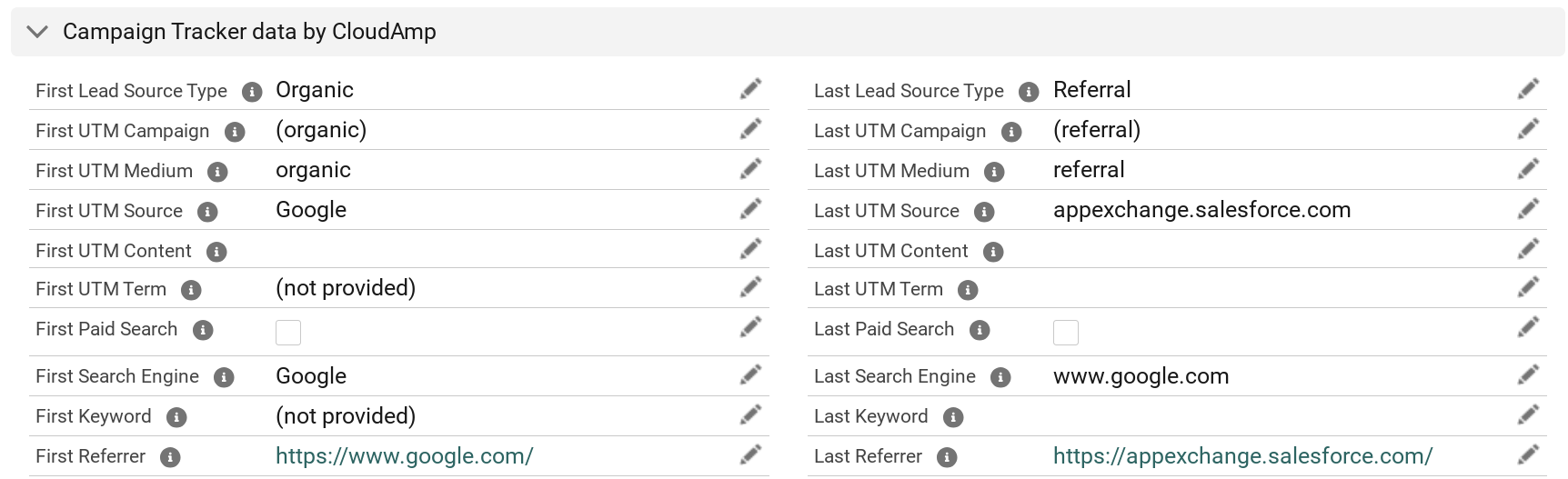
And if you want to have more data about your Leads in Salesforce, including full source and campaign attribution to prove ROI and improve your marketing, contact us for more information on our other app, the CloudAmp Campaign Tracker.


6 Ways to build your Lead Machine with Salesforce


Managing inbound leads is one of the areas where Salesforce shines brightest. But for small and medium businesses (SMBs), sometimes all the options and marketing software add-ons can seem overwhelming — too much money or too much work for your small team.

The good news is that you can build your very own “lead machine,” to improve conversion rates and grow your revenue, using tools that are already part of the Salesforce subscription you have (Sales Cloud). You don’t need to implement Marketing Cloud (see our Marketing on Salesforce without Marketing Cloud guide for more on that) or invest in outside marketing systems.


Getting these six lead management basics in place is not difficult, and can have an immediate impact on your bottom line. Here’s how to do it.


1. Establish a Lead Process

The first step to creating your lead machine is to establish a process for handling leads. We recommend writing this down in a short document, and making sure everyone in your organization agrees to the definitions and a common process. Even in a small team, it is common for different people to have varying opinions based on their personalities and prior experience, so it is best to get on the same page and have a written plan to refer to.


  • Who is your target customer?
  • What are the characteristics of a qualified lead?
  • When and how do you follow up with leads?
  • Who is responsible for following up with different types of leads?
  • When do you convert a Lead to an Account, Contact and Opportunity?


Salesforce Web-To-Lead Enable

2. Use Web-to-Lead Forms

We are always amazed at how many Salesforce customers have a number of email addresses instead of a form on their “contact us” page or landing pages. If you have made an investment in Salesforce, make the change to your processes to funnel more inquiries through forms — otherwise you have a major “slip through the cracks” moment right at the start of your lead management process.

Email addresses are acceptable in some cases, such as for existing customers to contact customer service (especially if you have implemented Salesforce email-to-case). But otherwise you are likely losing data, and missing out on possible automation we’ll talk about next.


Salesforce’s Web-to-Lead form technology is easy to implement, and leads go directly into your Salesforce organization, with no data entry required or danger of being lost in someone’s email box. Just go to the Web-to-Lead area of Salesforce setup, and do the following: 


  1. Choose the fields you want to include in your form (keep it short!)
  2. Click a button to generate the HTML code
  3. Have your web designer style it to make it presentable
  4. Submit a test lead or three to make sure it works


For more information, see our The Ultimate Guide to Salesforce Web-to-Lead Forms.


3. Use Salesforce Lead Automation

Salesforce has some advanced tools for processing and organizing incoming leads — start using them if you are not already. Even if you just have 1 or 2 sales people, you can easily set up a Queue to own incoming leads. Then create some assignment rules that give ownership of some or all of the new leads to the Queue. You can either manually assign/claim leads from the queue, or even automate assignment of some leads to users instead of the queue, depending on the variety of leads you receive.

Since you will now be using the Web-to-Lead forms, you can also have hidden fields with pre-populated values in them which define a lead source or campaign, or indicate which form on your web site(s) a lead submitted. Those values can be very useful in driving automated actions once the leads arrive in Salesforce. Create some email templates for auto-responder emails, and have tailored auto-responses sent to the leads depending on the values they have or how they are assigned when they come in.


  • Set up a lead Queue, assignment rules, and auto-response emails
  • Add more information about leads and forms with hidden form  fields


For more on automatic campaign assignment and lead sources, see our article Which Form or Web Page did a Salesforce lead come from? 


4. Track the Sources of Your Leads

Branching out from the core Salesforce functionality, set up a tracking application that can provide additional information about where a lead came from. This is especially critical if you are spending money on Google Ads or other online marketing, since you will want to know which advertising produced the best quality leads.


  • Where are your best leads coming from?
  • Which advertising is a waste of money?
  • What keywords are your leads searching for to find you?
  • What unexpected sources are delivering leads — social, blogs, partners?


Tracking the source of your leads requires a separate app, as well as a small tracking code that needs to be placed on your web site. There are a variety of tracking apps available on the AppExchange, from the CloudAmp Campaign Tracker that we make to tracking capabilities in larger marketing software like Salesforce’s Pardot (now known as Marketing Cloud Account Engagement).


5. Set up Dashboards

Once you have your leads coming in via web-to-lead, being tracked, assigned and having auto-responses sent out, it is time to get visibility into your lead totals and trends with one of our favorite Salesforce features, Dashboards. Having one or more lead dashboards in Salesforce can make it easier to visualize data, spot problems or successes, and quickly understand how your demand generation efforts are working at a high level.

Best of all, you don’t have to start from scratch – there are a variety of free dashboards available for download on the Salesforce AppExchange that you can use as a starting point. Just install, “Save as” the dashboards and underlying reports when you are customizing them, so you retain the originals for reference.


For Enterprise Edition of Salesforce and above, you can Subscribe to dashboards, which means scheduling them to be refreshed and emailed to you on a daily, weekly or monthly basis, for added visibility into your newly created Salesforce lead machine.

Dashboards can also be valuable for raising visibility with executives or other team members who may not log into Salesforce daily, as well as a good way to personally check your lead machine status on a regular basis from in your inbox with a cup of coffee.


6. Develop an Email Program

After your initial auto-response Email from Salesforce when a lead comes in, consider putting an Email marketing program in place to cultivate your newly received leads. What type of email marketing program should be part of your Salesforce lead machine will vary widely depending on your target market and sales cycle.

If you are selling to technical buyers who are marketing averse, or your average sale takes just a week or two from lead to closed deal, you may not need much of an email marketing program at all. On the other hand, if your average sales cycle is 6 months, or your target audience is expecting to be educated about the need for your product, then a structured email marketing campaign over time is likely to be essential.


There are a variety of tools available for email newsletters, drip email campaigns, and more. From affordable and simple to more expensive and full featured, some popular options are:


  • Mass Email Leads / Contacts feature in Salesforce
  • Email marketing applications like Campaign Monitor
  • Marketing automation applications like Salesforce’s Pardot or Marketo


So there you have it, a complete demand generation and lead management machine in 6 easy steps, using out of the box Salesforce. There are plenty of other options to explore, such as lead scoring, web analytics integration, and more, but these 6 basic areas should get you on the road to a better process, more converted leads, and ultimately more closed sales.